• We are STAs
    • Asha Rountree
    • Haley Ma
    • Isabella Melendez Gonzalez
    • Kate Shih
    • Kyra Lee
    • Nicholas Peasley
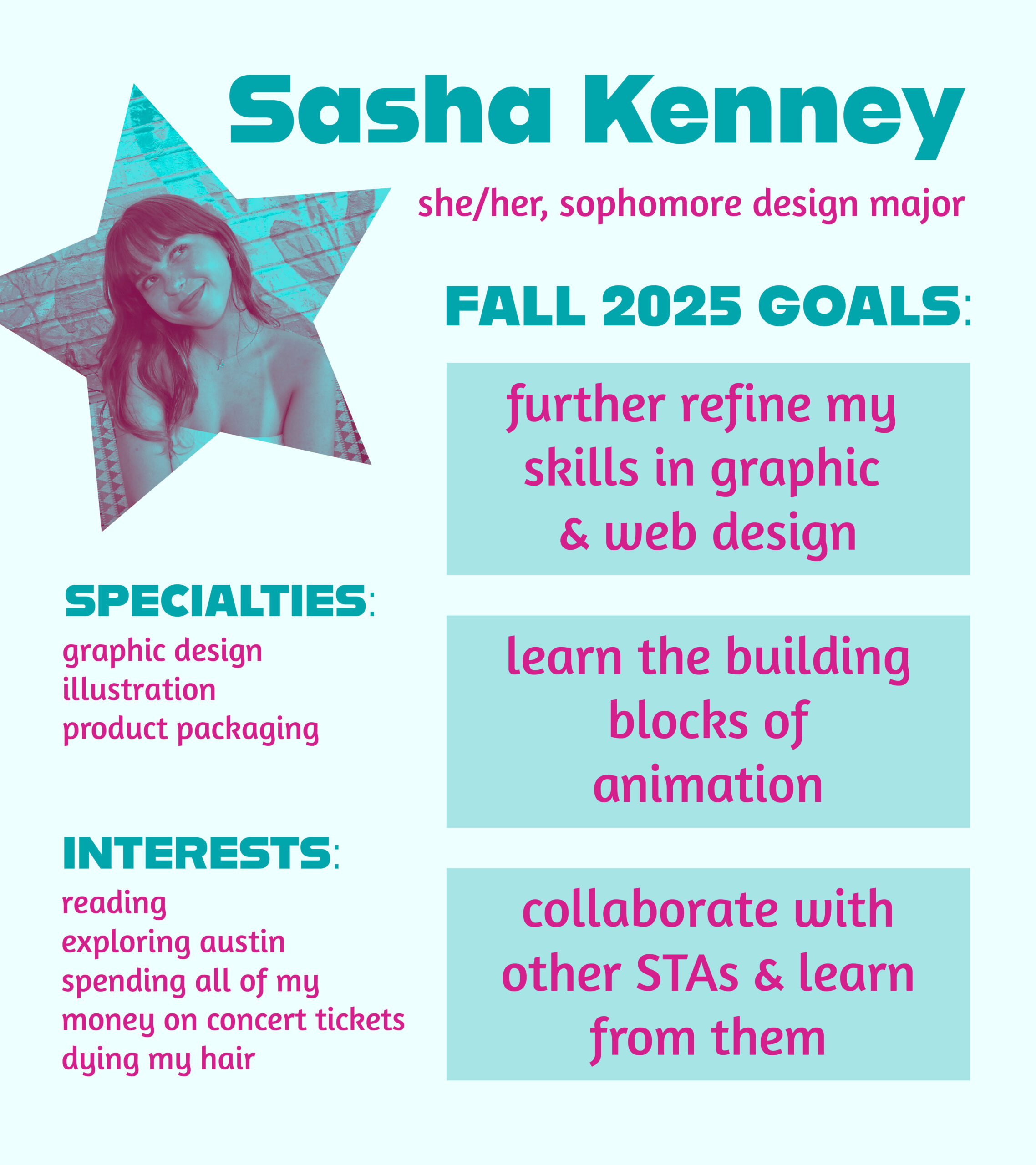
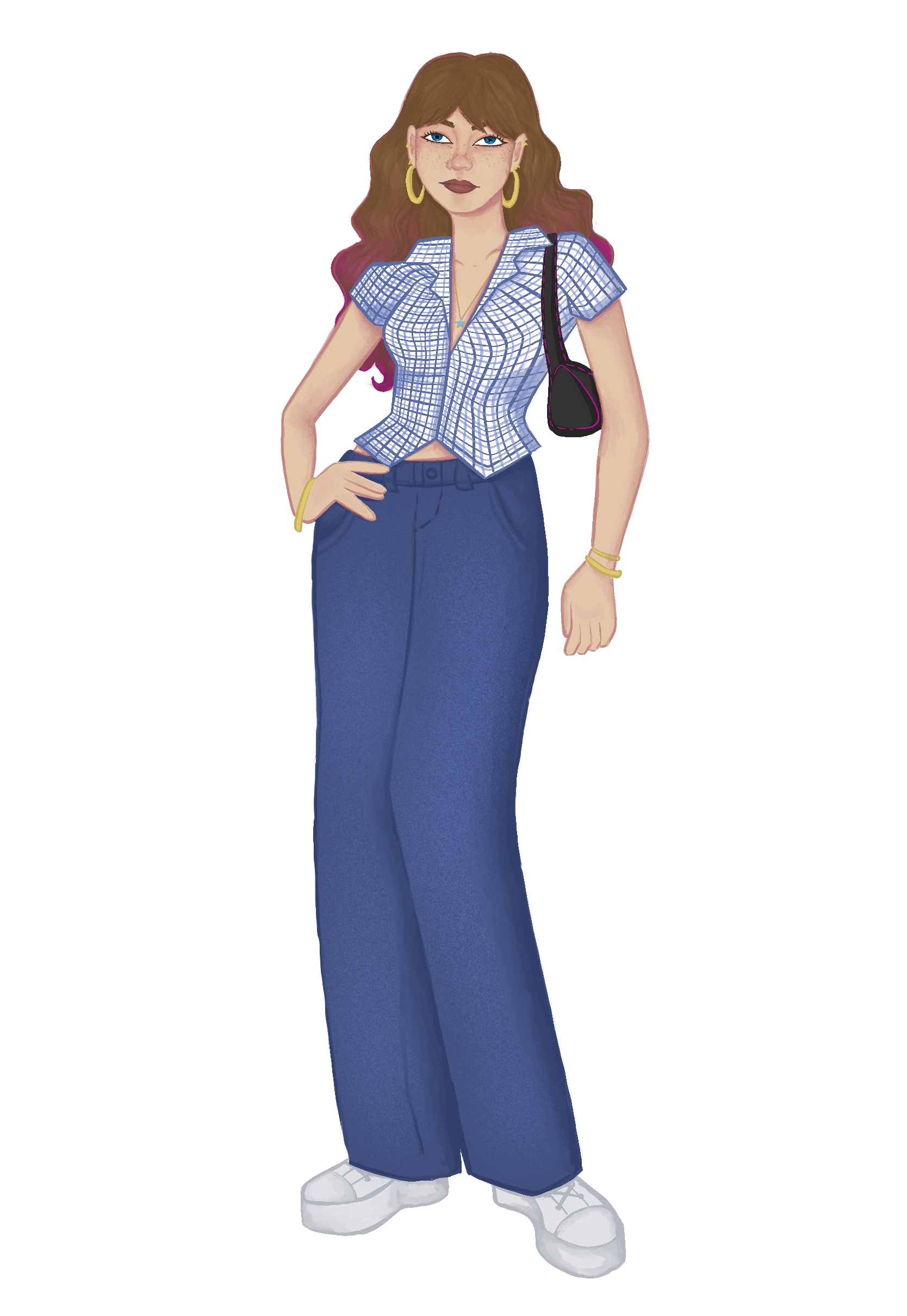
    • Sasha Kenney
    • Shanda Horm
    • Shriya Atreya
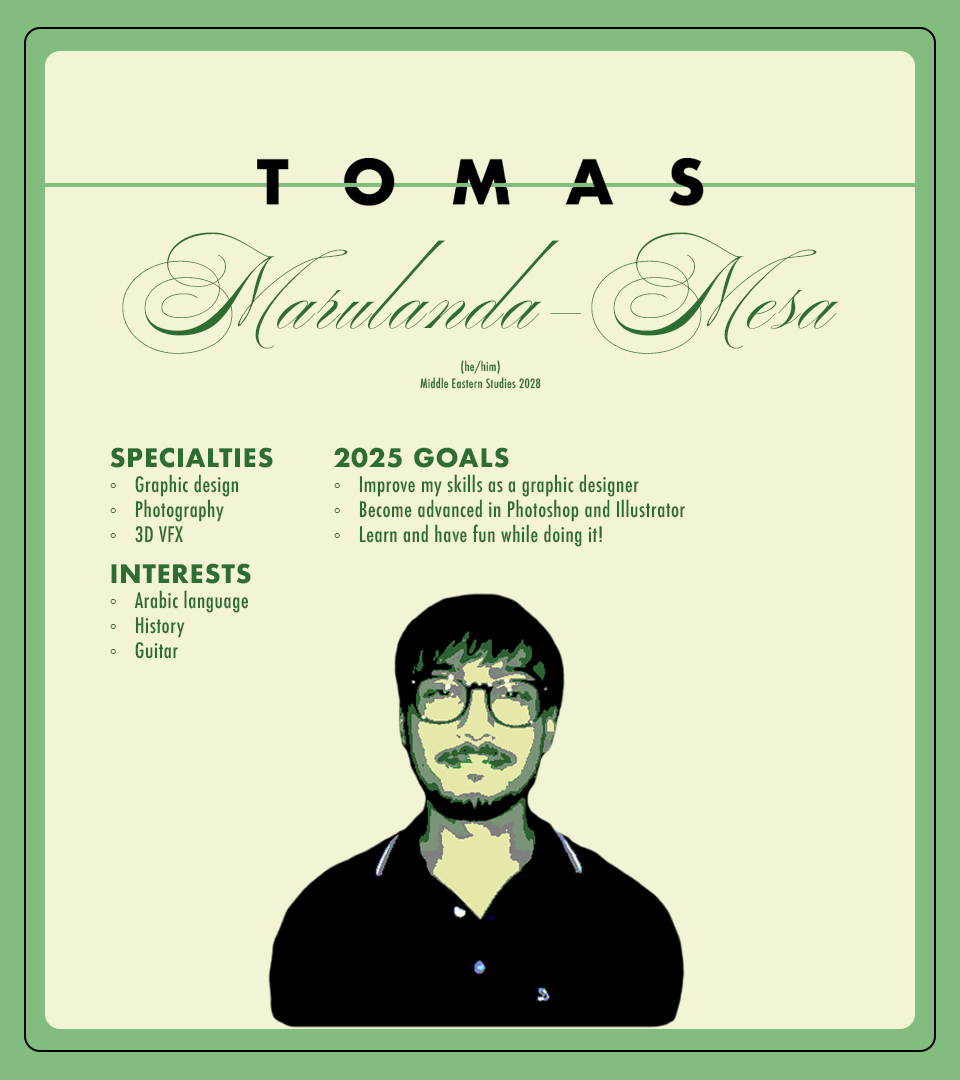
    • Tomas Marulanda-Mesa
    • Trisha Darure
  • We were STAs
  • STA Presentation
    • STA Presentation 2017
    • STA Presentation 2016
  • Testimonials
  • Resources
  • Home

STA Blog

Welcome to the STA Blog!

September 5, 2025 By Asha Rountree

Hi Asha! Welcome to the STA Blog! This the page where your blog posts will published.

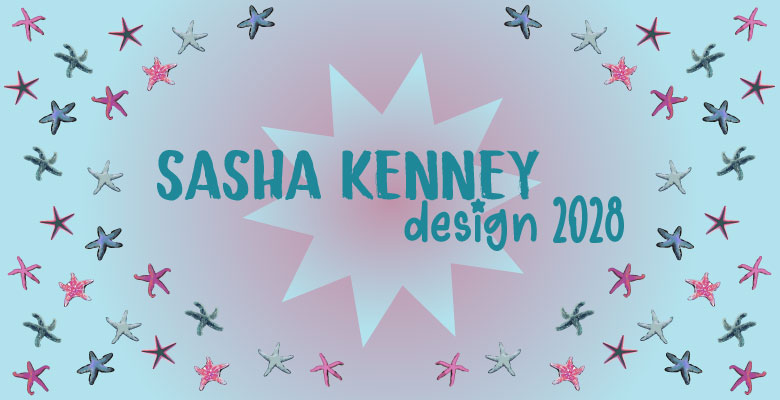
Toward the end of your STA Orientation, you’ll design and upload a banner to go at the top of this page.

Upload a Blog Banner


Step One: Design Your Banner in Photoshop

Use these Photoshop specs when you’re making your banner:

    • Your banner should be 780 pixels wide (the height doesn’t matter)
    • Must include your name, your major, and your expected graduation year
    • Your banner should reflect who you are (your personality, interests or major)
    • Make sure to save your banner for the web (i.e. File > Export > Save for Web (Legacy))
    • If you save your banner as a JPG, make sure sure the quality is high (i.e. at least 60)

Step Two: Save Your Banner

  • There are two places you can save your completed projects: UT Box and the LAITS server. You’ll be given a personal folder in both locations. For now, you only have to save your banner to UT Box, but you may have to access the server at some point in the future.

Accessing UT Box

    • If you haven’t already registered with Duo, follow the instructions here to set up an account.
    • Then log in to UT Box with your EID and password: http://utexas.box.com/
    • Go to the folder called Design-Coding-STAs, then the subfolder STA-folders
    • Find the folder with your name on it
    • Save your banner both as an image and an unmerged PSD

Accessing the LAITS server

    • Accessing the LAITS server from off-campus is slightly more complicated.
    • You’ll need to be registered with Duo if you aren’t already (you can register here).
    • Then you’ll need to connect to the UT VPN and the LAITS server. The videos below will walk you through how to do that:
      • Connect to the Server – PC
      • Connect to the Server – Mac
    • Then navigate to your STA volume folder and save
      • smb://file.laits.utexas.edu/sta/Asha Rountree
    • Save your banner both as an image and an unmerged PSD

Step Three: Upload Your Banner to the STA Blog

  • Log in the the STA Blog here. You should’ve received an email confirming your new WordPress account with your username and assigned password. If didn’t get it or you can’t log in, ask De’sha or another STA.
  • You’ll be able to change your password anytime by going to Users > Your Profile > Account Management > New Password.

Uploading media and banners in WP

  • Read these links before you upload your banner.
  • They will walk you through how to upload media to your blog.

How to Upload a Homepage Banner

Adding New Posts and Media

Make Your First Blog post


  • Reflect on the day. You blog posts will be a documented experience of your time as an STA with LAITS. They can include anything you want to share about the projects you’re working on, and the more media (screenshots, images, links, videos, gifs) you can use, the better.
  • For today, write a bit about about yourself and what you did during orientation.
  • If you haven’t already, upload your banner.

Things to Remember


Image Specs

  • You should never copy and paste images intoto your blog. Always upload images into the media section of blog first (Click on the add media button), then insert the image from the media folder to display on your blog.
  • Don’t use the thumbnail version of your images.
  • Use images that are 72 dpi
  • Screenshots are fine
  • Images that are 780 pix wide format nicely above or below text blocks

Always Categorize Your Posts

  • Always check the category “Fall 2025 – Spring 2026” on the blog posts you make this summer. This is the only category you need to check.
  • Make sure your posts are categorized correctly so that all of your work is documented in the correct semesters.

Commenting on Basecamp

Notification comments: etiquette, files, questions, feedback

Let us know when you’ve completed this task by adding a link to your blog to a comment in Basecamp.

Notes for all comments in Basecamp:

  • *Always address the person/people you are writing to by their names.
  • *Always use complete sentences.
  • *Always add links or paths to your design file in your STA folder.
  • *Make it easier for your collaborators and mentors to give you feedback on a design by adding screenshots to your comment.

Notify people in Basecamp by adding the @ symbol before their names (no spaces), otherwise they may not see your comment.

@ your STA mentor in your comments when you want to:

  • ask us questions about the mechanics of using the STA blog,
  • about the mechanics of photoshop,
  • to let us know that you have completed this task,
  • or that you would like a little feedback on on your banner design

Thank you & have fun!

Filed Under: Fall 2025 – Spring 2026

july projects

September 3, 2025 By Haley Ma

Studio Backdrops Redesign (July Update)

────────────────────⊹ ࣪ ˖♡˖ ࣪ ⊹ ────────────────────

.

.

Last time I talked about the studio backdrops redesign, I had created and edited these four designs as well as selecting stock photos that fit the news anchor style! Now it was time to studio test!

After studio testing with De’sha, the main revisions we thought of were:

.

– narrowing down stock images selection

– repositioning the designs to fit the screen better

– either blurring or making more designs visible depending on the backdrops

– incorporating more of the jewel tone colors

.

For the next revision, I was intrigued about how the current designs would look in different colors! I gravitated a lot towards topaz blue at first, but maybe some other colors might suit other designs better!

.

.

On July 1st, De’sha and I tested the revised backdrops! The variety of colors was a great addition to the testing as well! Again, we did feel like we can make some more changes for next time which were:

.

– some colors needed to be more saturated

– replace or remove textures

– bring up the opacity and blurriness on some designs

– photo edit some stock images

– gather more stock images

.

.

On July 9th, De’sha and I went back to studio testing with the updated designs! I found some more stock images that captured the news anchor style but we decided to narrow the selection more for the next studio testing date! However some designs still needed some updates like:

.

– bringing up the opacity of texts

– revising tints of stock images

– reformatting the display of designs

.

.

Before my summer shift ended, I updated the background based on our revisions! Until we go studio testing again, this is where we left off! Overall, this project really let me practice my graphic skills and was such a fun project to end summer with!

Filed Under: Fall 2025 – Spring 2026, We are STAs

june projects

July 8, 2025 By Haley Ma

What Jane Saw Website Badge

────────────────────⊹ ࣪ ˖♡˖ ࣪ ⊹ ────────────────────

.

.

For this project, I was tasked in creating a small badge that informed that a 3-D module would be coming soon to the What Jane Saw website! When drafting, I had to keep in mind the typography and color palette already on the website! Thus, these five initial drafts were formed!

.

.

After getting feedback from De’sha, I added a paper texture to the badges and created two more badges that were less rounded! Next, the badges were off to the Stacy who De’sha and I have been collaborating with for this project!

.

Once Stacy received the badges, we were informed that they were ready to send to the client for her thoughts! I sent my email with the above drafts and waited for her response for the next steps! The client had emailed me back and the draft that she picked was…(drumroll please)!

.

.

.

BADGE NUMBER 6!!!

.

.

She also informed me that the 3-D module will only be in the 1813 side which is the side that has the pink and brown color palette! What I really like about this badge design is that it can also display the What Jane Saw logo! Next step was of course to finalize the design with the logo!

.

.

.

Now the final badge was completed! I also made some photo edits to what the badge would look like in various places of the website! All that’s next was to inform Stacy of the client’s approval and soon see the badge on the website!

Filed Under: Fall 2025 – Spring 2026, We are STAs

  • « Previous Page
  • 1
  • …
  • 8
  • 9
  • 10

link to LAITS home page

Video STA Home

© 2026 Liberal Arts Instructional Technology Services | Production Credits