• We are STAs
    • Asha Rountree
    • Haley Ma
    • Isabella Melendez Gonzalez
    • Kate Shih
    • Kyra Lee
    • Nicholas Peasley
    • Sasha Kenney
    • Shanda Horm
    • Shriya Atreya
    • Tomas Marulanda-Mesa
    • Trisha Darure
  • We were STAs
  • STA Presentation
    • STA Presentation 2017
    • STA Presentation 2016
  • Testimonials
  • Resources
  • Home

STA Blog

Current Sta

2026 STA Presentation: PPT Template & Up Next Slides

March 6, 2026 By Sasha Kenney

2026 STA Presentation: PPT Template & Up Next Slides


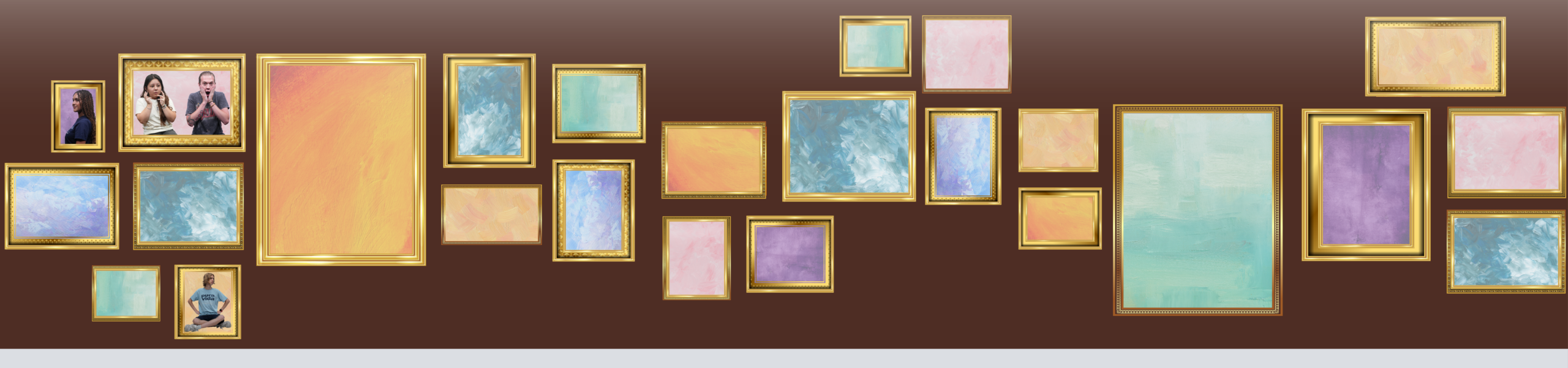
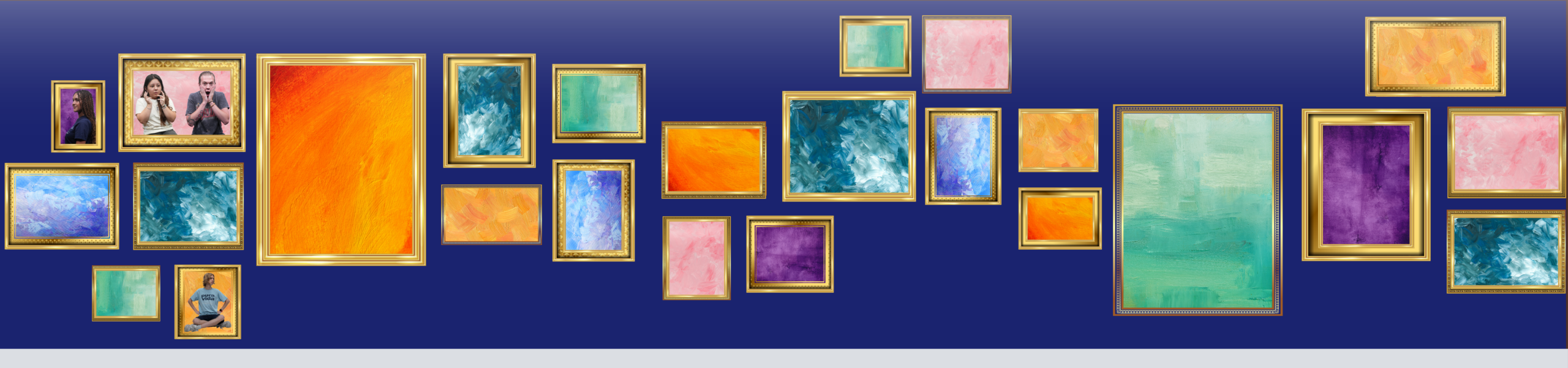
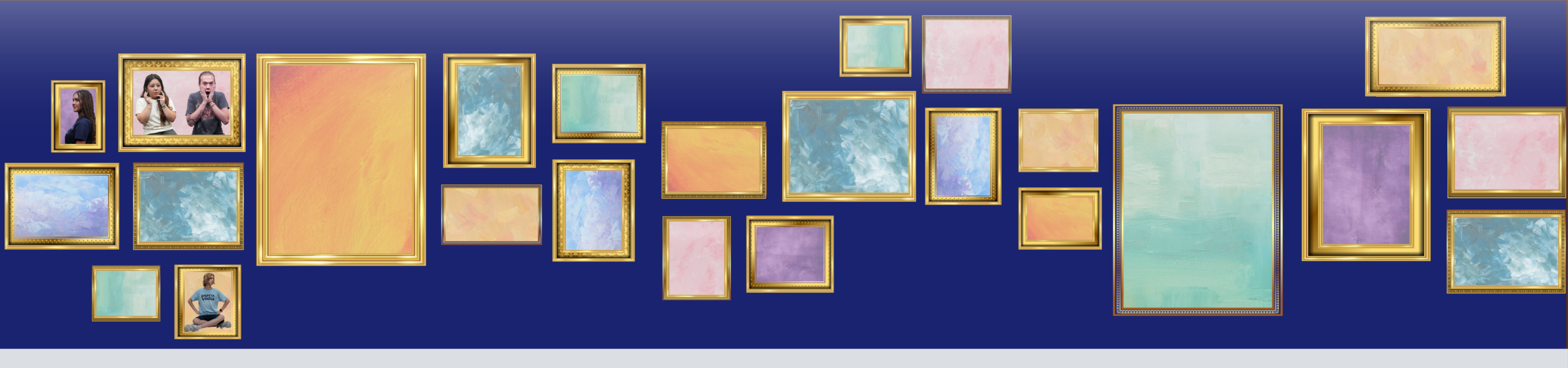
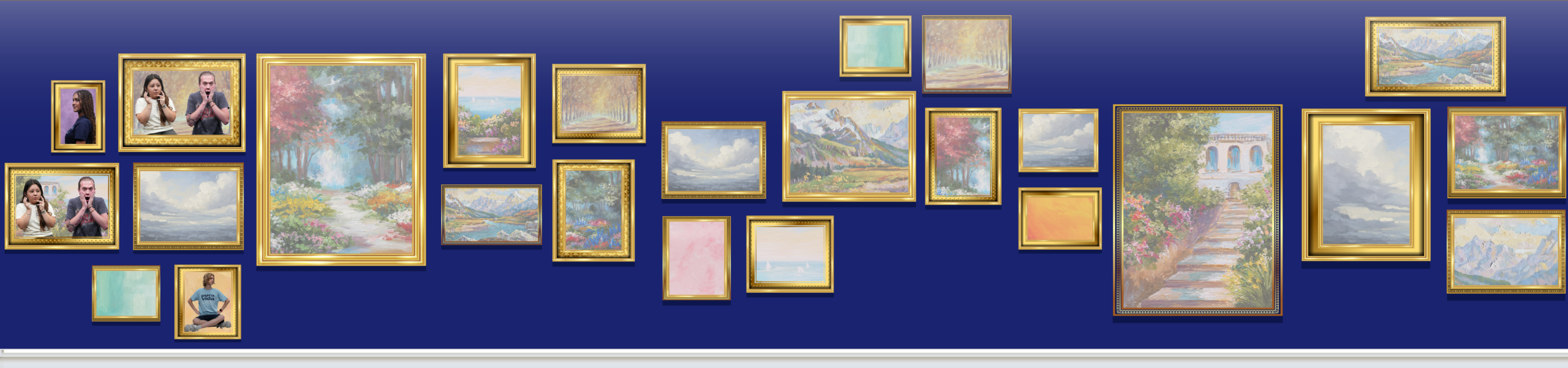
Currently working on these projects for this semester’s STA Presentation!!

PPT TEMPLATE

Drafting

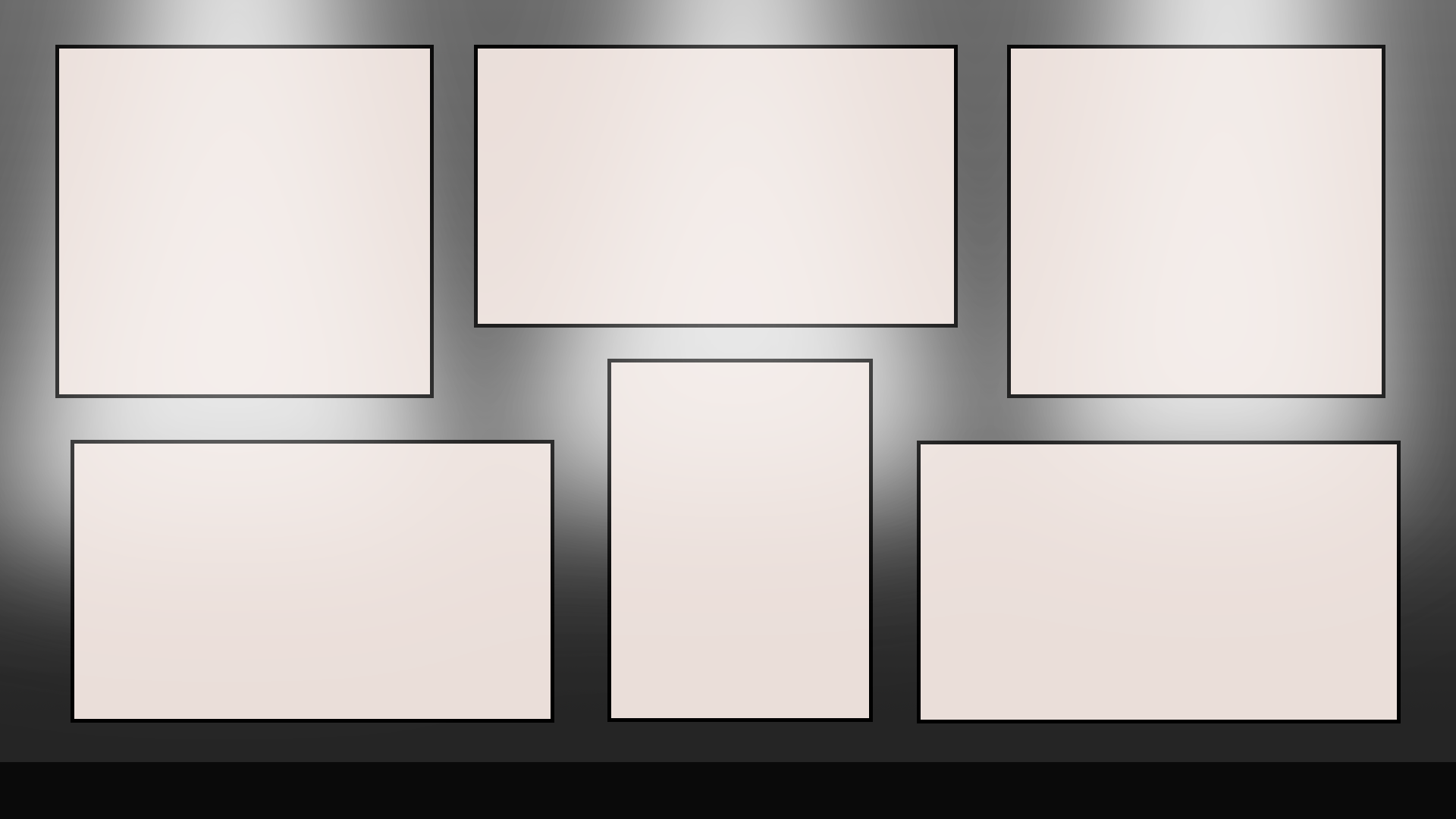
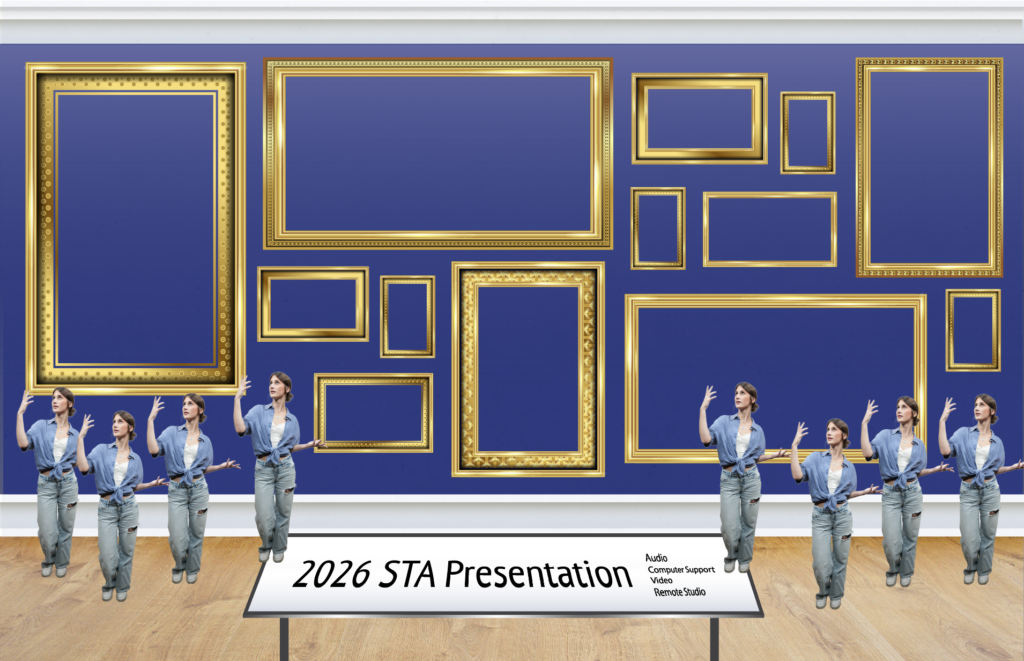
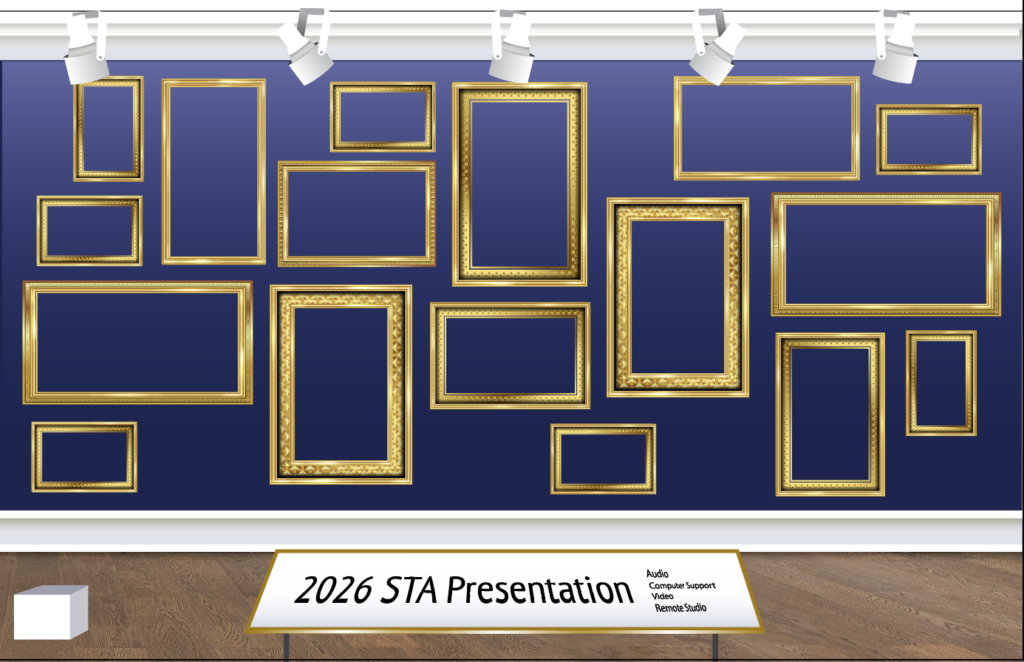
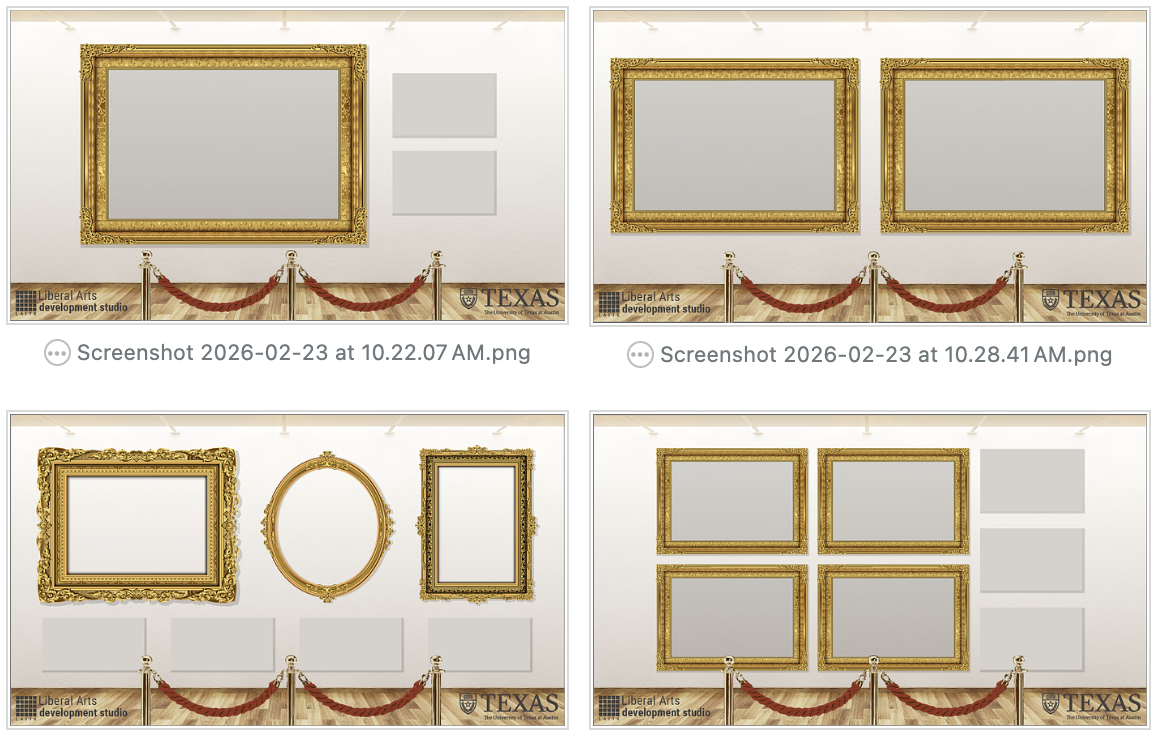
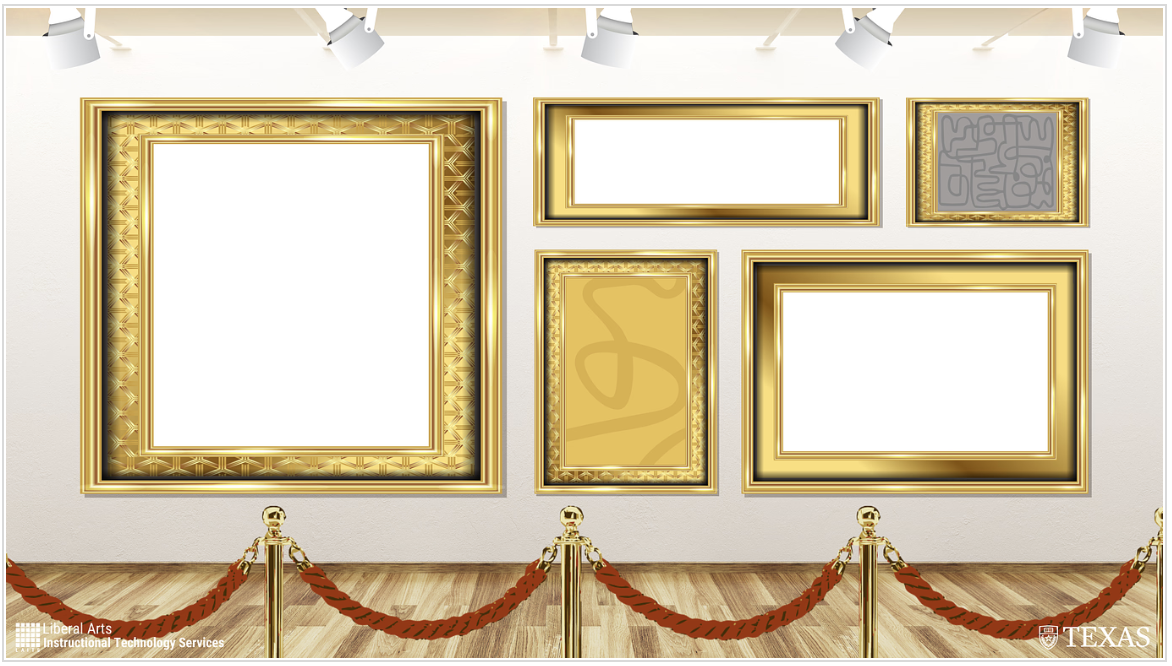
  • I began drafting the PPT template, channeling the art gallery theme.
Edits

  • We went back and forth a few times in order to make the template cohesive with the presentation poster.
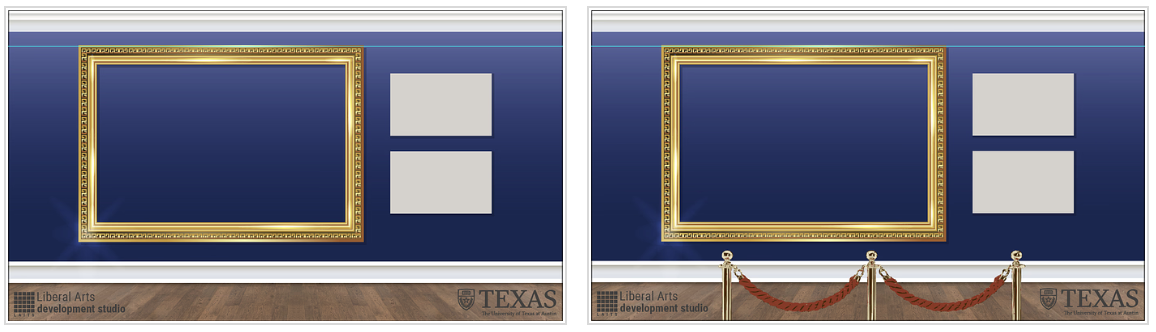
  • I added white backgrounds in order to allow the images that will be placed in the frames later to pop.
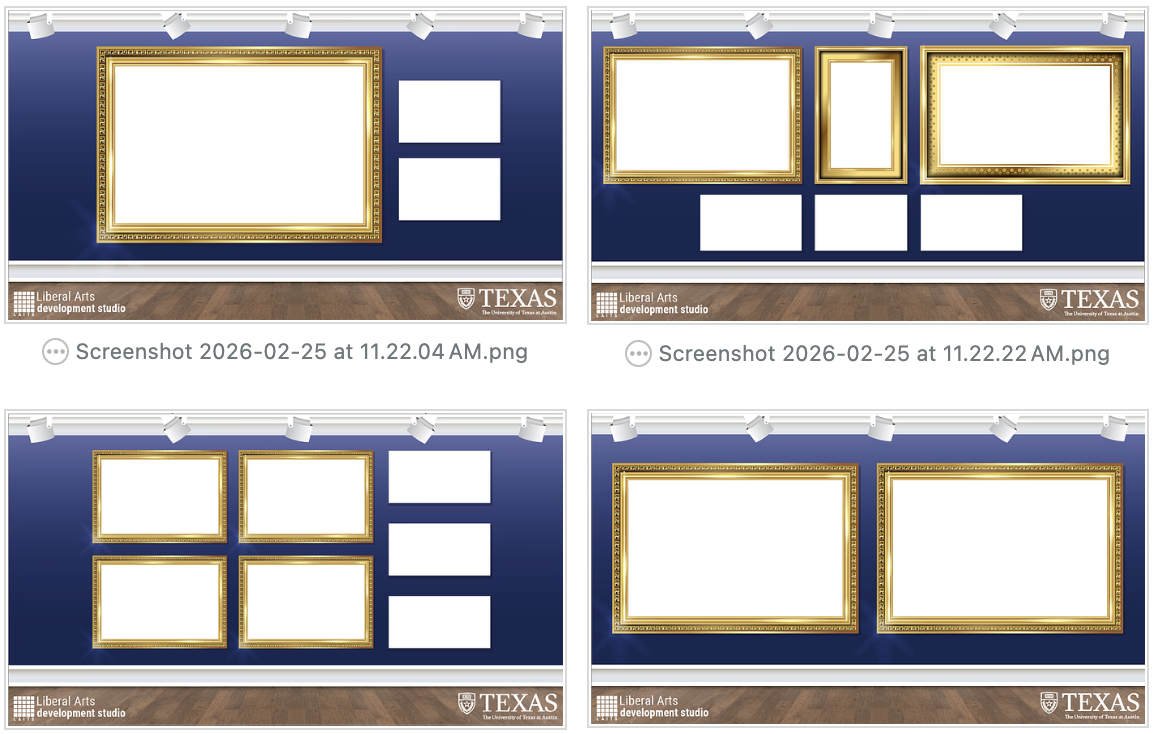
  • We decided to return to the background used in the original draft, as well as make the branding smaller.
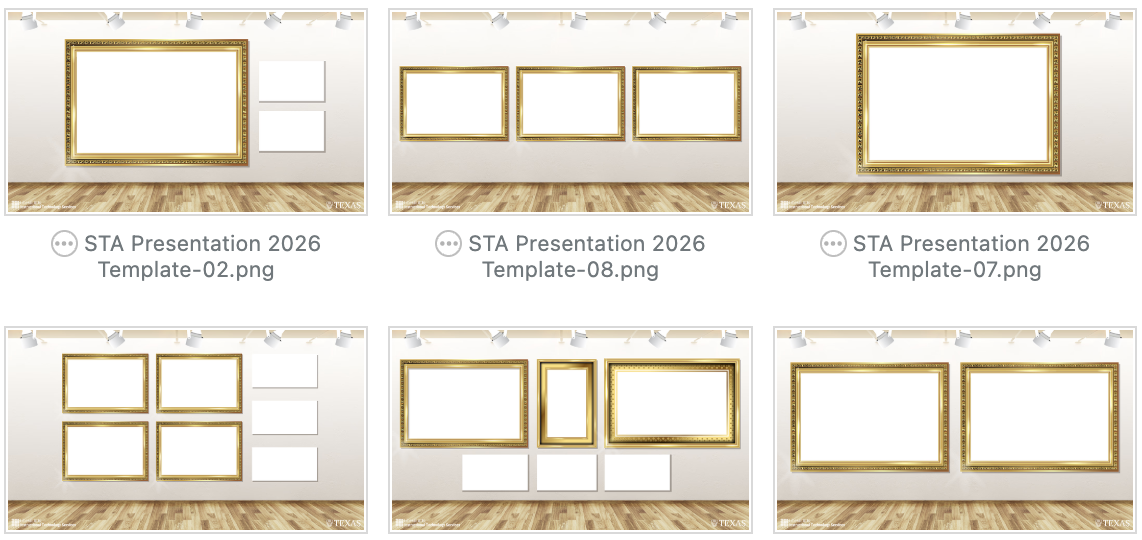
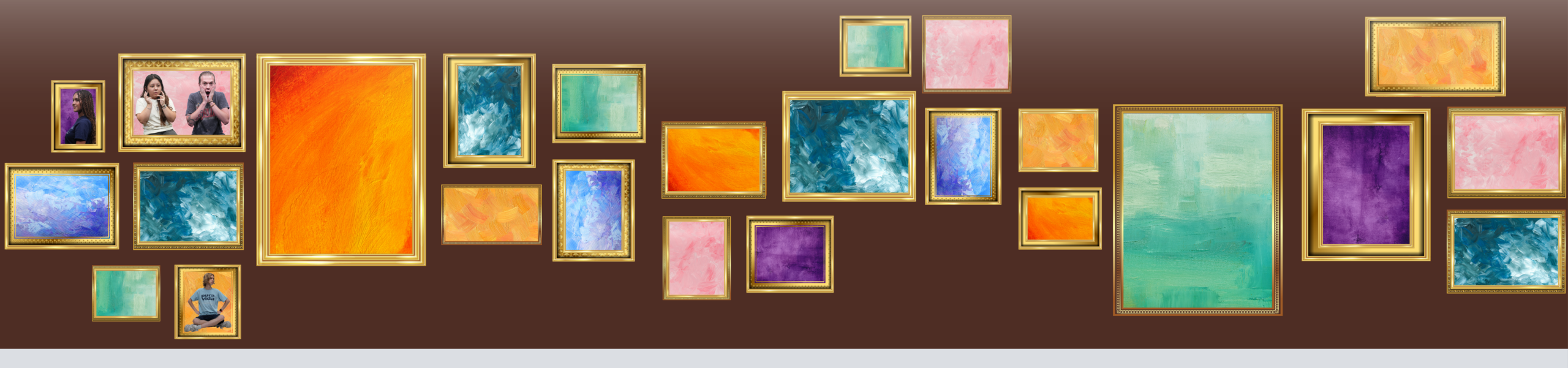
  • Changed the branding to dark brown so it doesn’t get lost, moved the frames down in order to leave space for titles, and added a few more variations.
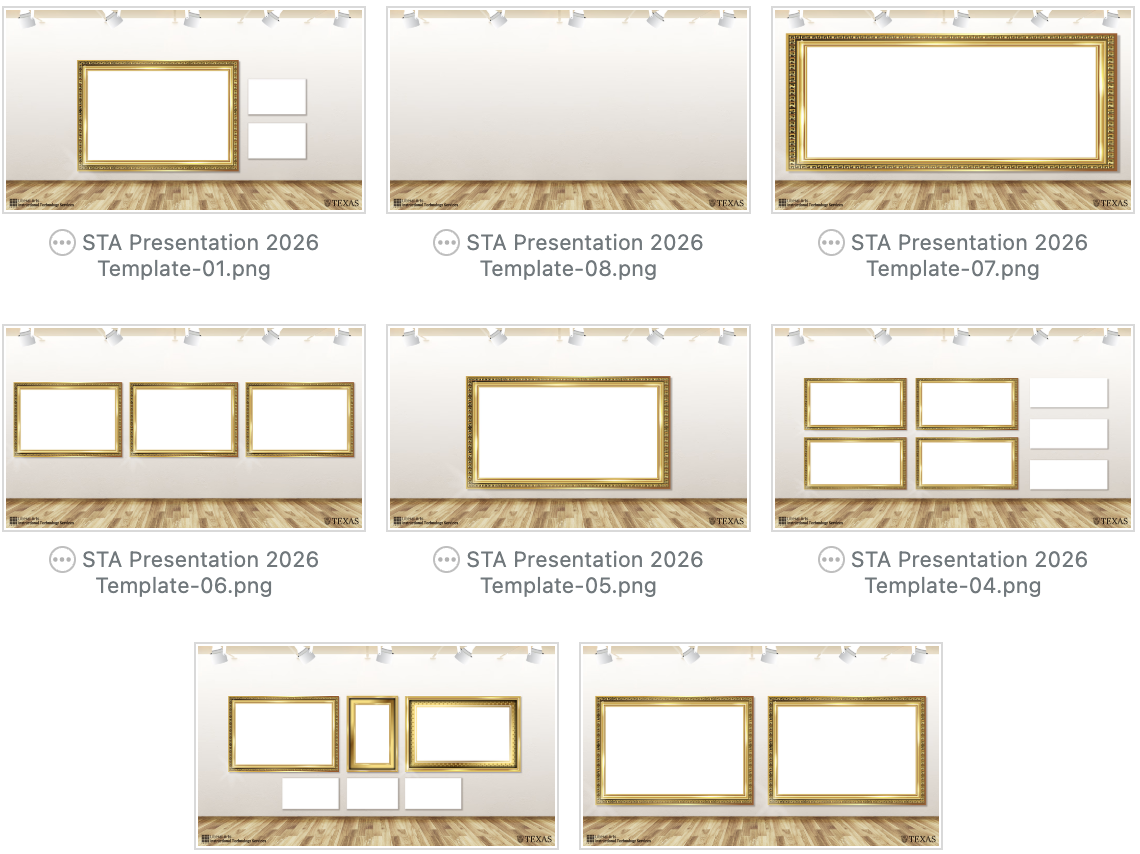
STATUS: IN PROGRESS

UP NEXT SLIDES

Drafting

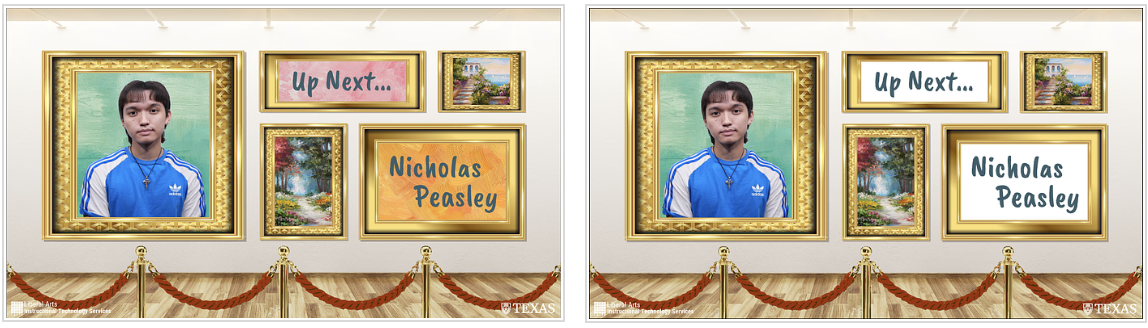
  • Keeping cohesive with the rest of the PPT Template.
Edits

  • Adding test headshot and text, as well as painting assets used in the poster to remain cohesive.
STATUS: IN PROGRESS

Filed Under: Fall 2025 – Spring 2026, We are STAs

Welcome to the STA Blog

March 5, 2026 By Trisha Darure

Hi Trisha! Welcome to the STA Blog! This the page where your blog posts will published.

Toward the end of your STA Orientation, you’ll design and upload a banner to go at the top of this page.
Upload a Blog Banner


Step One: Design Your Banner in Photoshop

Use these Photoshop specs when you’re making your banner:

    • Your banner should be 780 pixels wide (the height doesn’t matter)
    • Must include your name, your major, and your expected graduation year
    • Your banner should reflect who you are (your personality, interests or major)
    • Make sure to save your banner for the web (i.e. File > Export > Save for Web (Legacy))
    • If you save your banner as a JPG, make sure sure the quality is high (i.e. at least 60)

Step Two: Save Your Banner

  • There are two places you can save your completed projects: UT Box and the LAITS server. You’ll be given a personal folder in both locations. For now, you only have to save your banner to UT Box, but you may have to access the server at some point in the future.

Accessing UT Box

    • If you haven’t already registered with Duo, follow the instructions here to set up an account.
    • Then log in to UT Box with your EID and password: http://utexas.box.com/
    • Go to the folder called Design-Coding-STAs, then the subfolder STA-folders
    • Find the folder with your name on it
    • Save your banner both as an image and an unmerged PSD

Accessing the LAITS server

    • Accessing the LAITS server from off-campus is slightly more complicated.
    • You’ll need to be registered with Duo if you aren’t already (you can register here).
    • Then you’ll need to connect to the UT VPN and the LAITS server. The videos below will walk you through how to do that:
      • Connect to the Server – PC
      • Connect to the Server – Mac
    • Then navigate to your STA volume folder and save
      • smb://file.laits.utexas.edu/sta/Trisha Darure
    • Save your banner both as an image and an unmerged PSD

Step Three: Upload Your Banner to the STA Blog

  • Log in the the STA Blog here. You should’ve received an email confirming your new WordPress account with your username and assigned password. If didn’t get it or you can’t log in, ask De’sha or another STA.
  • You’ll be able to change your password anytime by going to Users > Your Profile > Account Management > New Password.

Uploading media and banners in WP

  • Read these links before you upload your banner.
  • They will walk you through how to upload media to your blog.

How to Upload a Homepage Banner

Adding New Posts and Media

Make Your First Blog post


  • Reflect on the day. You blog posts will be a documented experience of your time as an STA with LAITS. They can include anything you want to share about the projects you’re working on, and the more media (screenshots, images, links, videos, gifs) you can use, the better.
  • For today, write a bit about about yourself and what you did during orientation.
  • If you haven’t already, upload your banner.

Things to Remember


Image Specs

  • You should never copy and paste images into to your blog. Always upload images into the media section of blog first (Click on the add media button), then insert the image from the media folder to display on your blog.
  • Don’t use the thumbnail version of your images.
  • Use images that are 72 dpi
  • Screenshots are fine
  • Images that are 780 pix wide format nicely above or below text blocks

Always Categorize Your Posts

  • Always check the category “Fall 2025 – Spring 2026” on the blog posts you make this summer. This is the only category you need to check.
  • Make sure your posts are categorized correctly so that all of your work is documented in the correct semesters.

Commenting on Basecamp

Notification comments: etiquette, files, questions, feedback

Let us know when you’ve completed this task by adding a link to your blog to a comment in Basecamp.

Notes for all comments in Basecamp:

  • *Always address the person/people you are writing to by their names.
  • *Always use complete sentences.
  • *Always add links or paths to your design file in your STA folder.
  • *Make it easier for your collaborators and mentors to give you feedback on a design by adding screenshots to your comment.

Notify people in Basecamp by adding the @ symbol before their names (no spaces), otherwise they may not see your comment.

@ your STA mentor in your comments when you want to:

  • ask us questions about the mechanics of using the STA blog,
  • about the mechanics of photoshop,
  • to let us know that you have completed this task,
  • or that you would like a little feedback on on your banner design

Thank you & have fun!

Filed Under: Fall 2025 – Spring 2026

Welcome to the STA Blog!

March 5, 2026 By Isabella Melendez Gonzalez

Hi Isabella! Welcome to the STA Blog! This the page where your blog posts will published.

Toward the end of your STA Orientation, you’ll design and upload a banner to go at the top of this page.

Upload a Blog Banner


Step One: Design Your Banner in Photoshop

Use these Photoshop specs when you’re making your banner:

    • Your banner should be 780 pixels wide (the height doesn’t matter)
    • Must include your name, your major, and your expected graduation year
    • Your banner should reflect who you are (your personality, interests or major)
    • Make sure to save your banner for the web (i.e. File > Export > Save for Web (Legacy))
    • If you save your banner as a JPG, make sure sure the quality is high (i.e. at least 60)

Step Two: Save Your Banner

  • There are two places you can save your completed projects: UT Box and the LAITS server. You’ll be given a personal folder in both locations. For now, you only have to save your banner to UT Box, but you may have to access the server at some point in the future.

Accessing UT Box

    • If you haven’t already registered with Duo, follow the instructions here to set up an account.
    • Then log in to UT Box with your EID and password: http://utexas.box.com/
    • Go to the folder called Design-Coding-STAs, then the subfolder STA-folders
    • Find the folder with your name on it
    • Save your banner both as an image and an unmerged PSD

Accessing the LAITS server

    • Accessing the LAITS server from off-campus is slightly more complicated.
    • You’ll need to be registered with Duo if you aren’t already (you can register here).
    • Then you’ll need to connect to the UT VPN and the LAITS server. The videos below will walk you through how to do that:
      • Connect to the Server – PC
      • Connect to the Server – Mac
    • Then navigate to your STA volume folder and save
      • smb://file.laits.utexas.edu/sta/Isabella Melendez Gonzalez
    • Save your banner both as an image and an unmerged PSD

Step Three: Upload Your Banner to the STA Blog

  • Log in the the STA Blog here. You should’ve received an email confirming your new WordPress account with your username and assigned password. If didn’t get it or you can’t log in, ask De’sha or another STA.
  • You’ll be able to change your password anytime by going to Users > Your Profile > Account Management > New Password.

Uploading media and banners in WP

  • Read these links before you upload your banner.
  • They will walk you through how to upload media to your blog.

How to Upload a Homepage Banner

Adding New Posts and Media

Make Your First Blog post


  • Reflect on the day. You blog posts will be a documented experience of your time as an STA with LAITS. They can include anything you want to share about the projects you’re working on, and the more media (screenshots, images, links, videos, gifs) you can use, the better.
  • For today, write a bit about about yourself and what you did during orientation.
  • If you haven’t already, upload your banner.

Things to Remember


Image Specs

  • You should never copy and paste images into to your blog. Always upload images into the media section of blog first (Click on the add media button), then insert the image from the media folder to display on your blog.
  • Don’t use the thumbnail version of your images.
  • Use images that are 72 dpi
  • Screenshots are fine
  • Images that are 780 pix wide format nicely above or below text blocks

Always Categorize Your Posts

  • Always check the category “Fall 2025 – Spring 2026” on the blog posts you make this summer. This is the only category you need to check.
  • Make sure your posts are categorized correctly so that all of your work is documented in the correct semesters.

Commenting on Basecamp

Notification comments: etiquette, files, questions, feedback

Let us know when you’ve completed this task by adding a link to your blog to a comment in Basecamp.

Notes for all comments in Basecamp:

  • *Always address the person/people you are writing to by their names.
  • *Always use complete sentences.
  • *Always add links or paths to your design file in your STA folder.
  • *Make it easier for your collaborators and mentors to give you feedback on a design by adding screenshots to your comment.

Notify people in Basecamp by adding the @ symbol before their names (no spaces), otherwise they may not see your comment.

@ your STA mentor in your comments when you want to:

  • ask us questions about the mechanics of using the STA blog,
  • about the mechanics of photoshop,
  • to let us know that you have completed this task,
  • or that you would like a little feedback on on your banner design

Thank you & have fun!

Filed Under: Fall 2025 – Spring 2026

Presentation Graphics

March 3, 2026 By Shanda Horm

STA 2026 PRESENTATION GRAPHICS

──────────────────────────────────────────────

My focus for most of February has been the graphics for the STA 2026 Presentation which I’m overseeing! This is the biggest project I’ve acted as art director for. While I keep track of the assignments I provided to other designers, I have my own task to work on: the walk-in animation.

— Walk-In Animation–

Progress as of 2/18/26

Initial Mood board

Initial Mock Up

Storyboard

Frames: First Iteration

Feedback: First Round

It was decided that the aesthetic for presentation graphics should pivot to a more modern gallery style. Some notes for me to keep in mind were unique frame layouts, warm wood flooring, spotlights, accent walls, and essentially anything that supported the modern gallery aesthetic. I was also suggested a layout that I could follow for the frames.

Wall Iteration

Progress as of 2/24/26

Light Fixtures

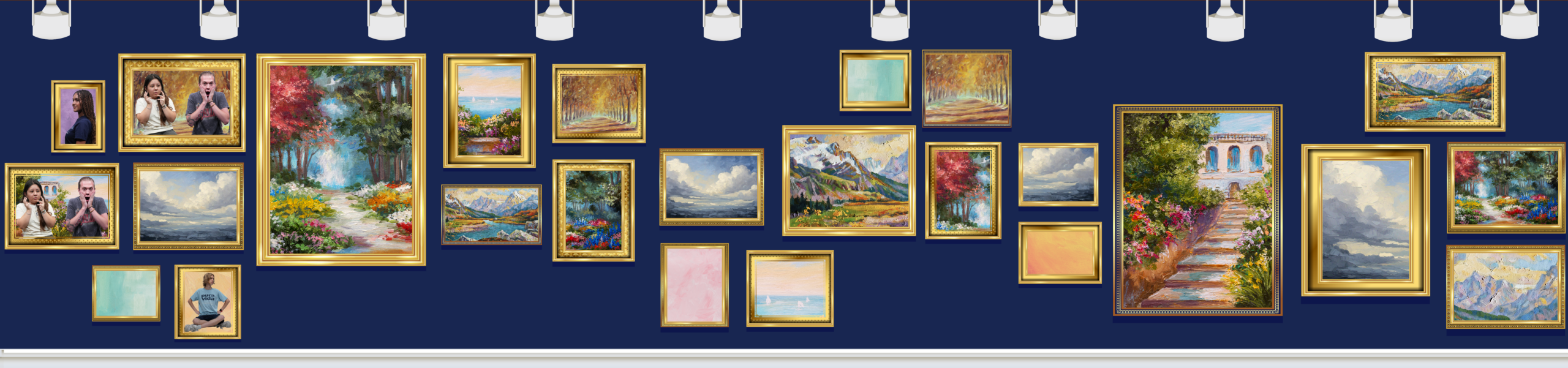
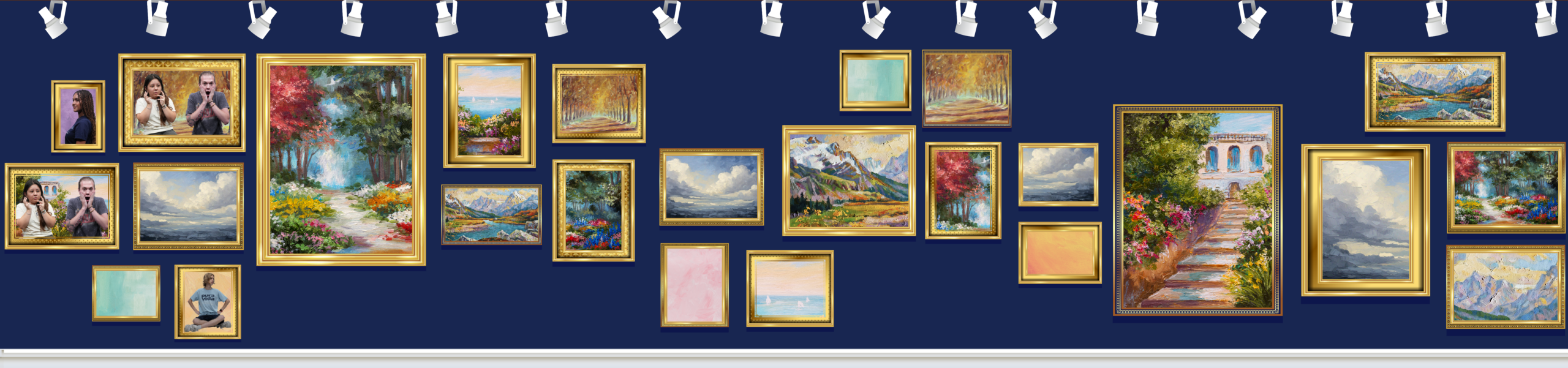
After a bit of back and forth and tweaking, the backgrounds for the paintings were settled! The next thing to add was light fixtures- suggested by De’sha. The first image is my first attempt at them. However, I was requested to see how it would look if the lights were at different angles- similar to one of our main references. So, I utilized the light assets Asha made for the presentation poster!

Pivot Pt. 2

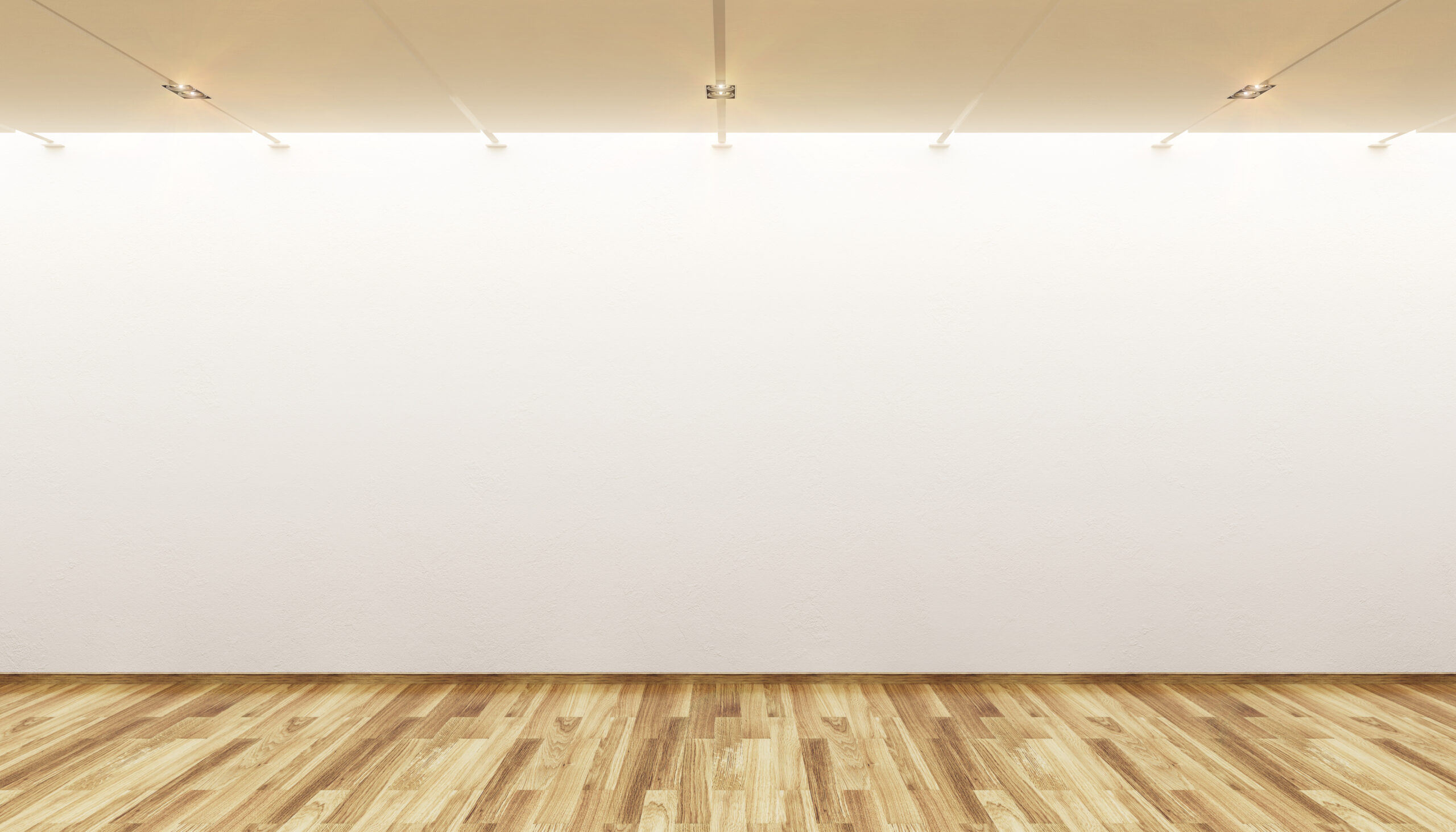
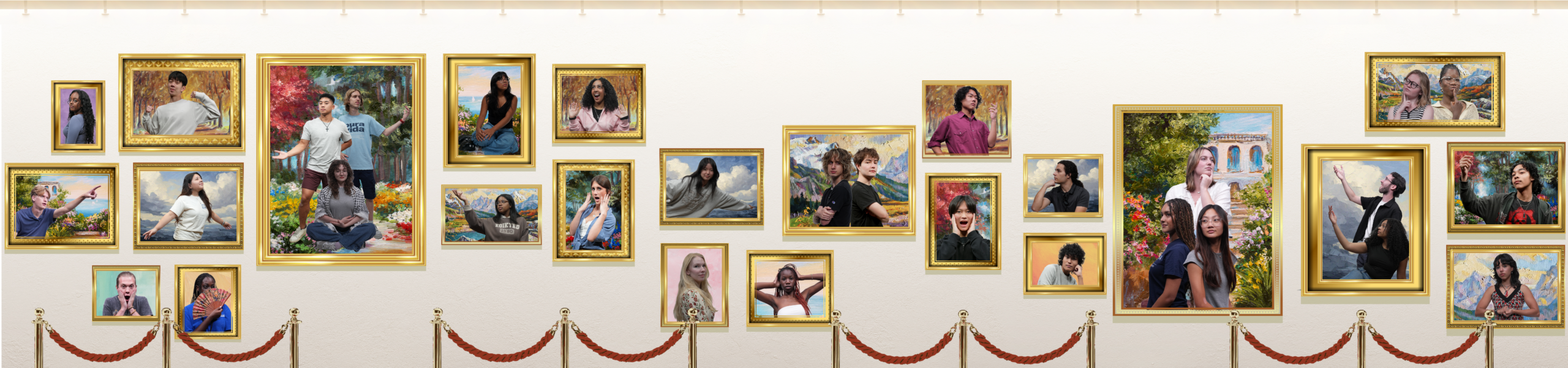
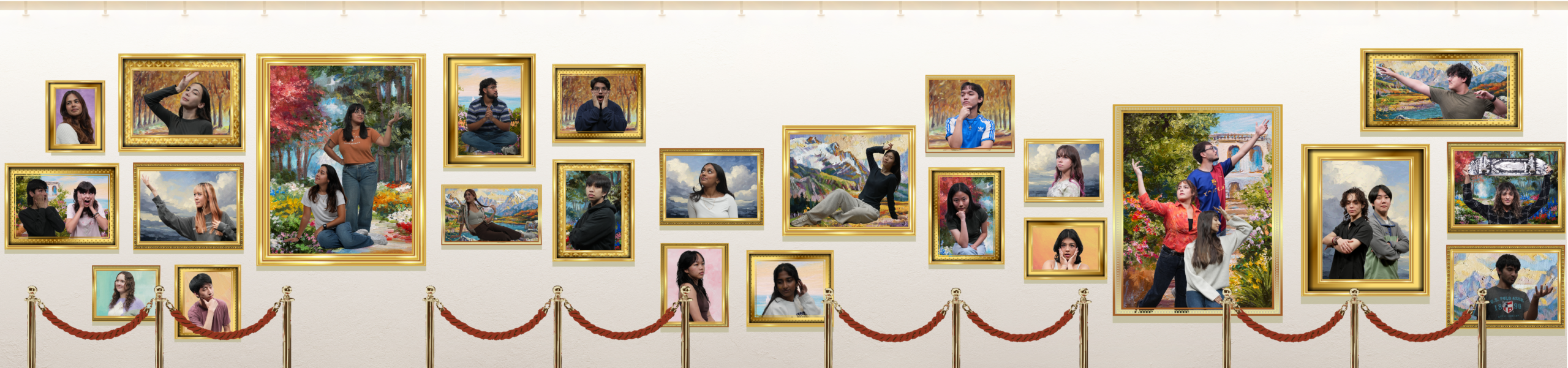
After some discussion with Lila and De’sha, another pivot was decided! To draw more attention to the frames and STAs, there will be a shift to a white background to all assets. Additionally, instead of statues we will do red velvet rope. It was decided that the statues may distract from the STAs in the frames too much. Below is the main reference for the background for future iterations of presentation graphics.

These are the most recent drafts as of 03-03-26. After adjusting the lighting of some of the STAs, it will finally be time to animate!

Filed Under: Fall 2025 – Spring 2026, We are STAs

2026 STA Presentation Poster

February 25, 2026 By Asha Rountree

2026 STA Presentation Poster


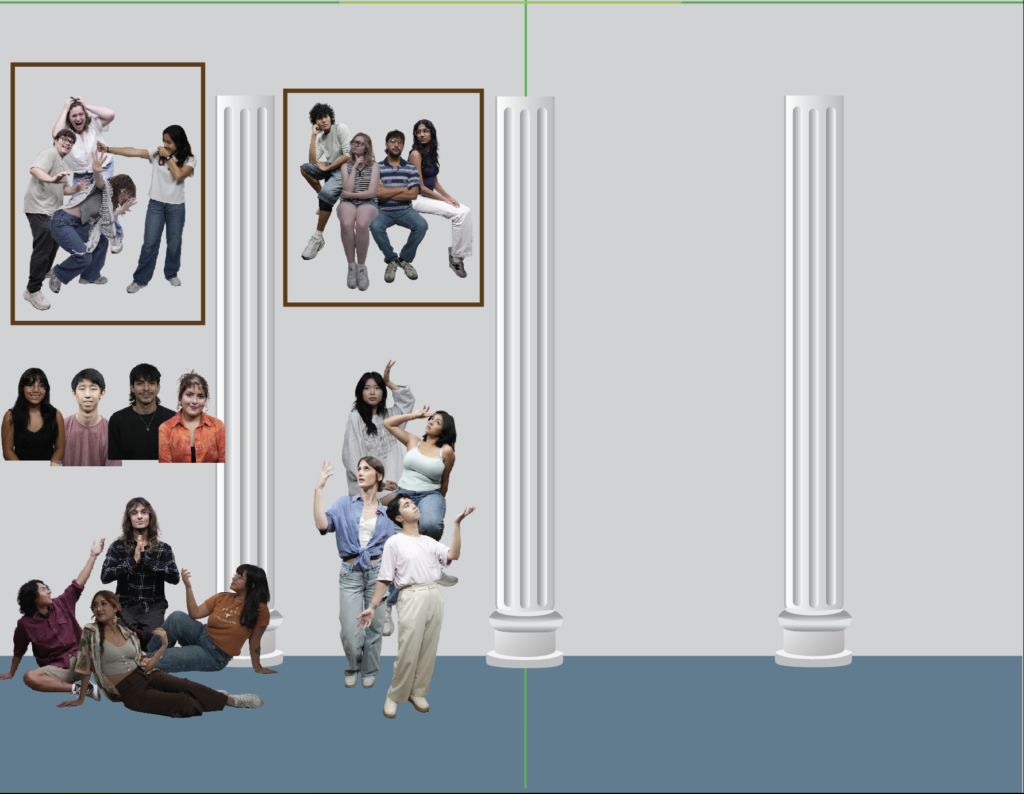
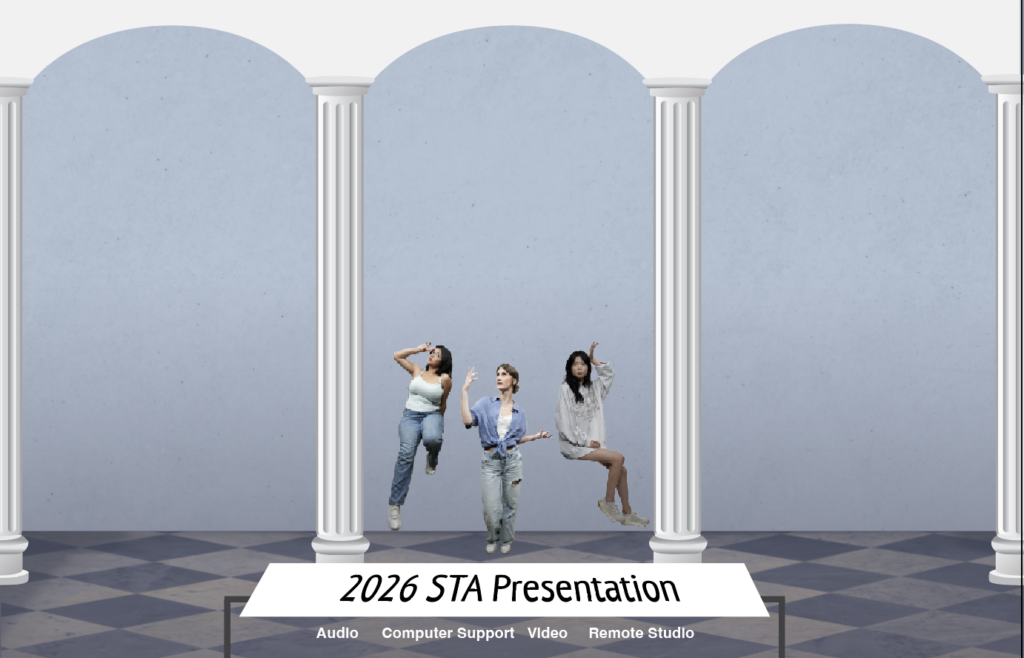
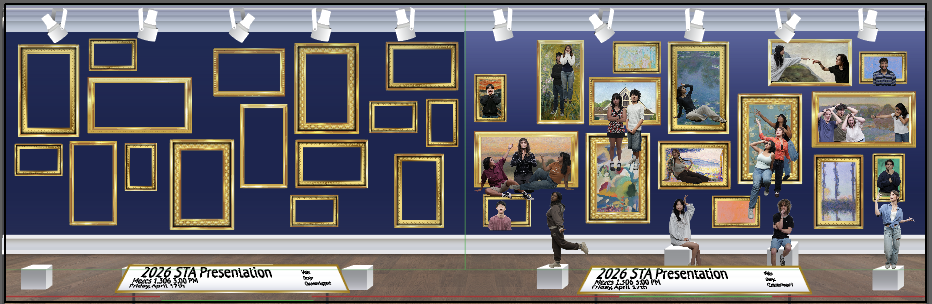
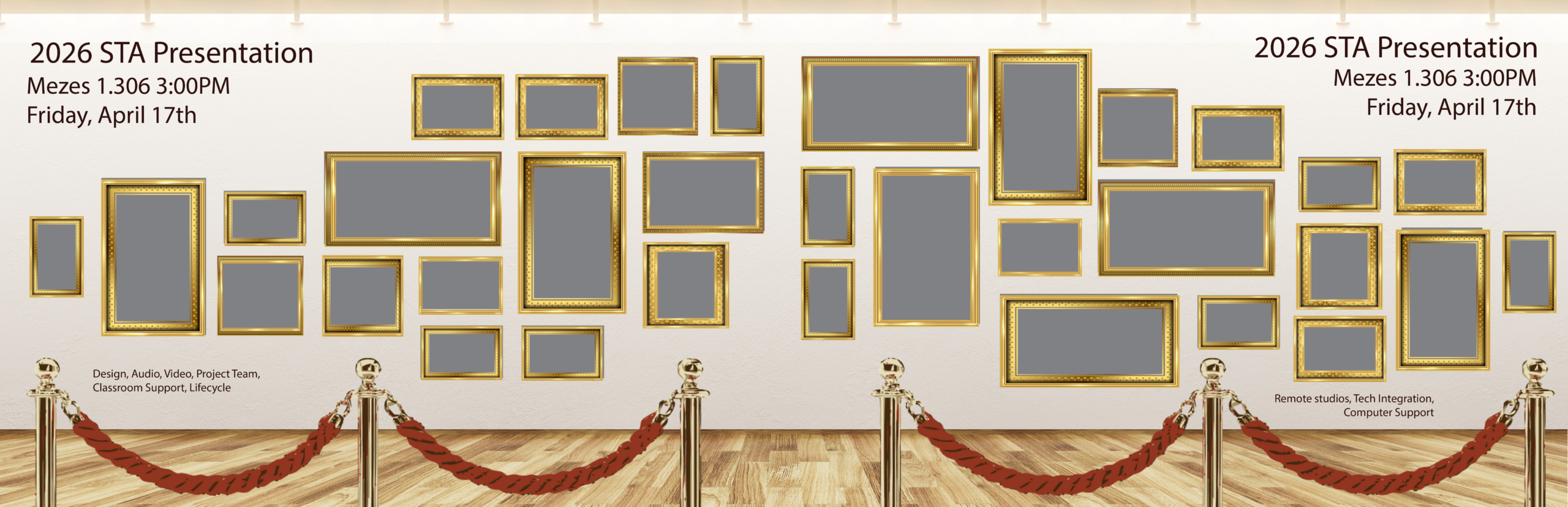
This goal of this project is to create a poster for the 2026 STA Presentation following an “art gallery” theme. In the project specifications, I was instructed to split the STAs into two posters while still thinking about how these posters would fit side-by-side cohesively.

This was a fun assignment, because I got to explore different ways to present the STAs within an art gallery format, emphasizing their unique poses and expressions.

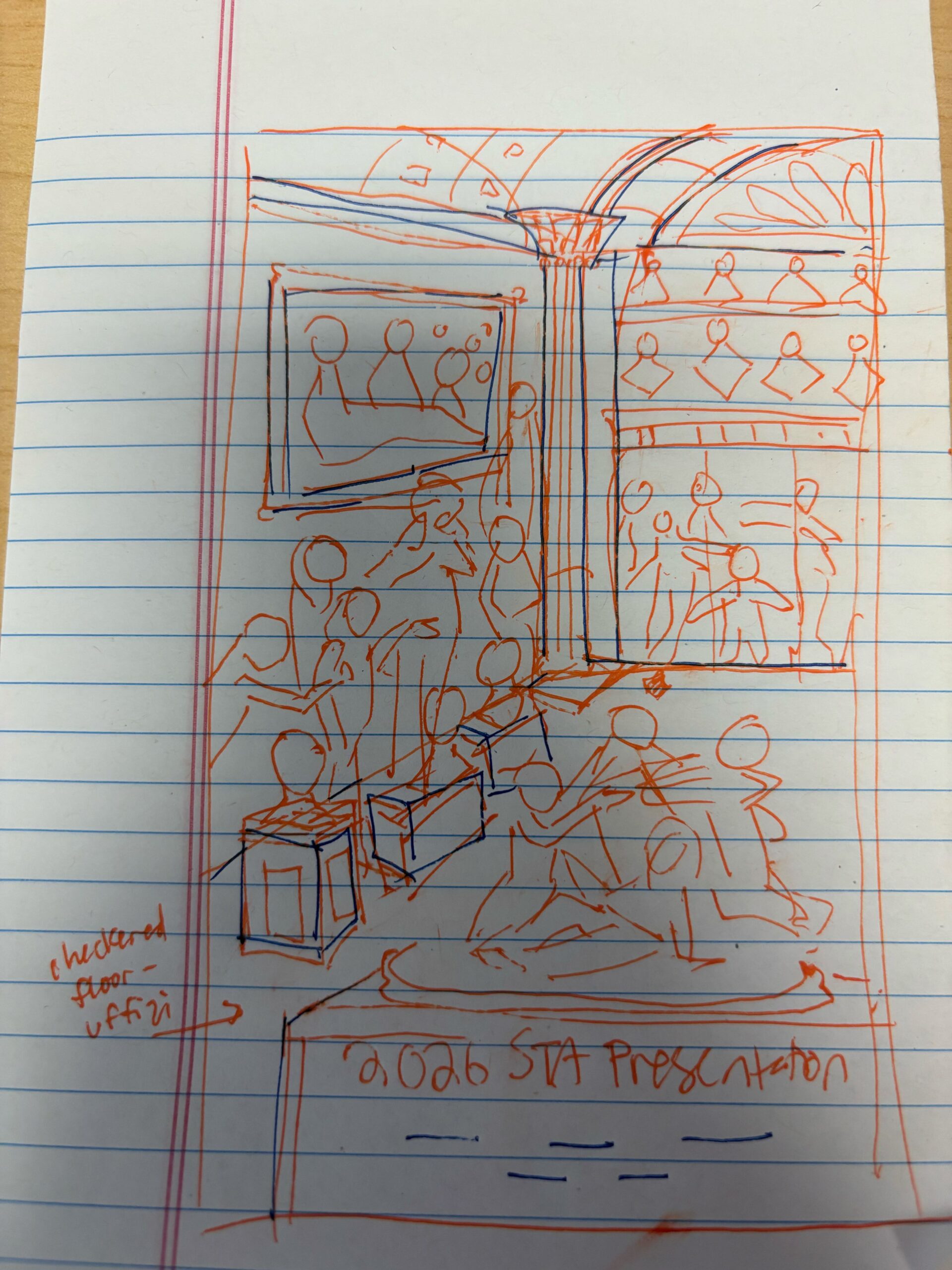
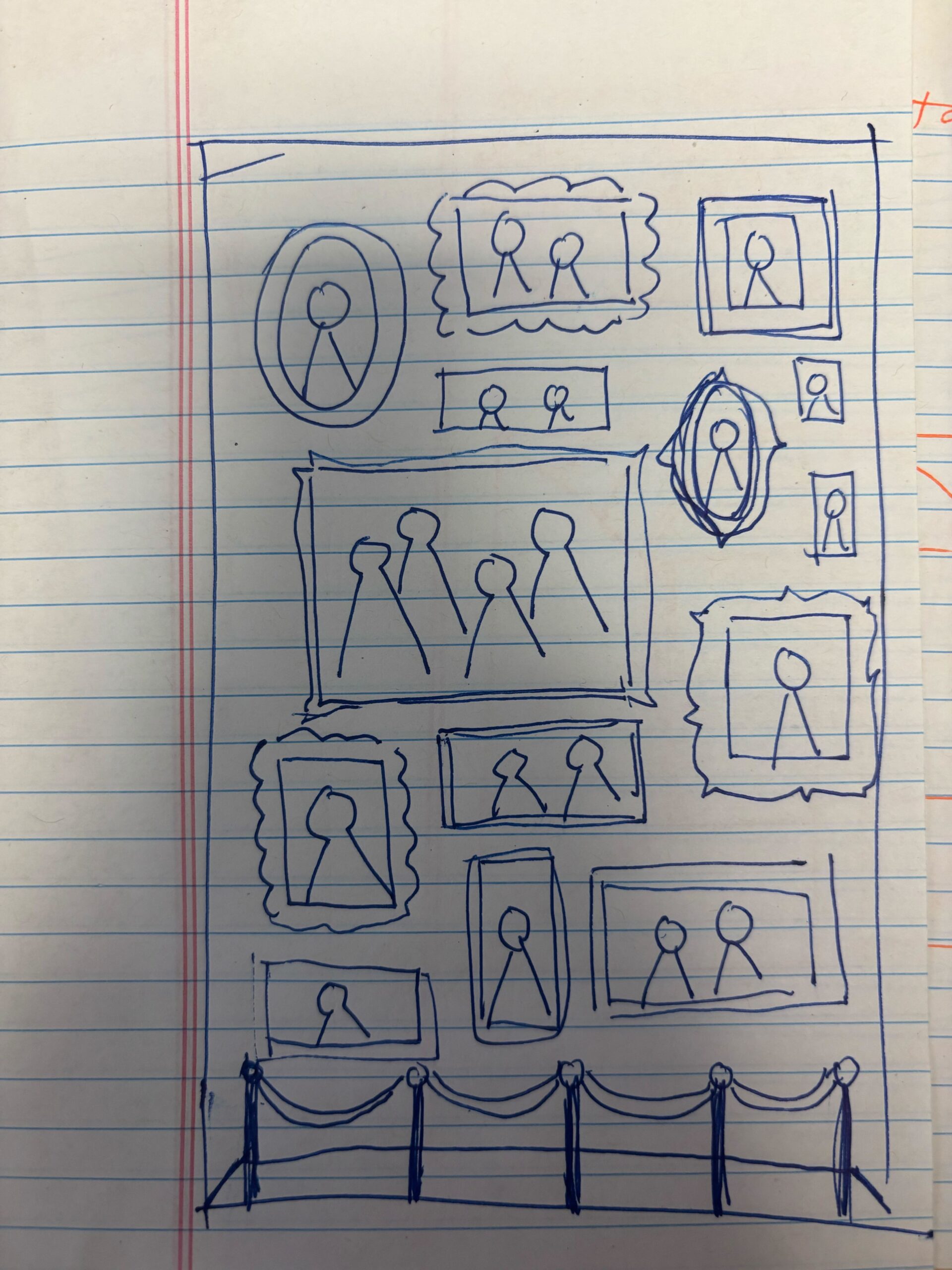
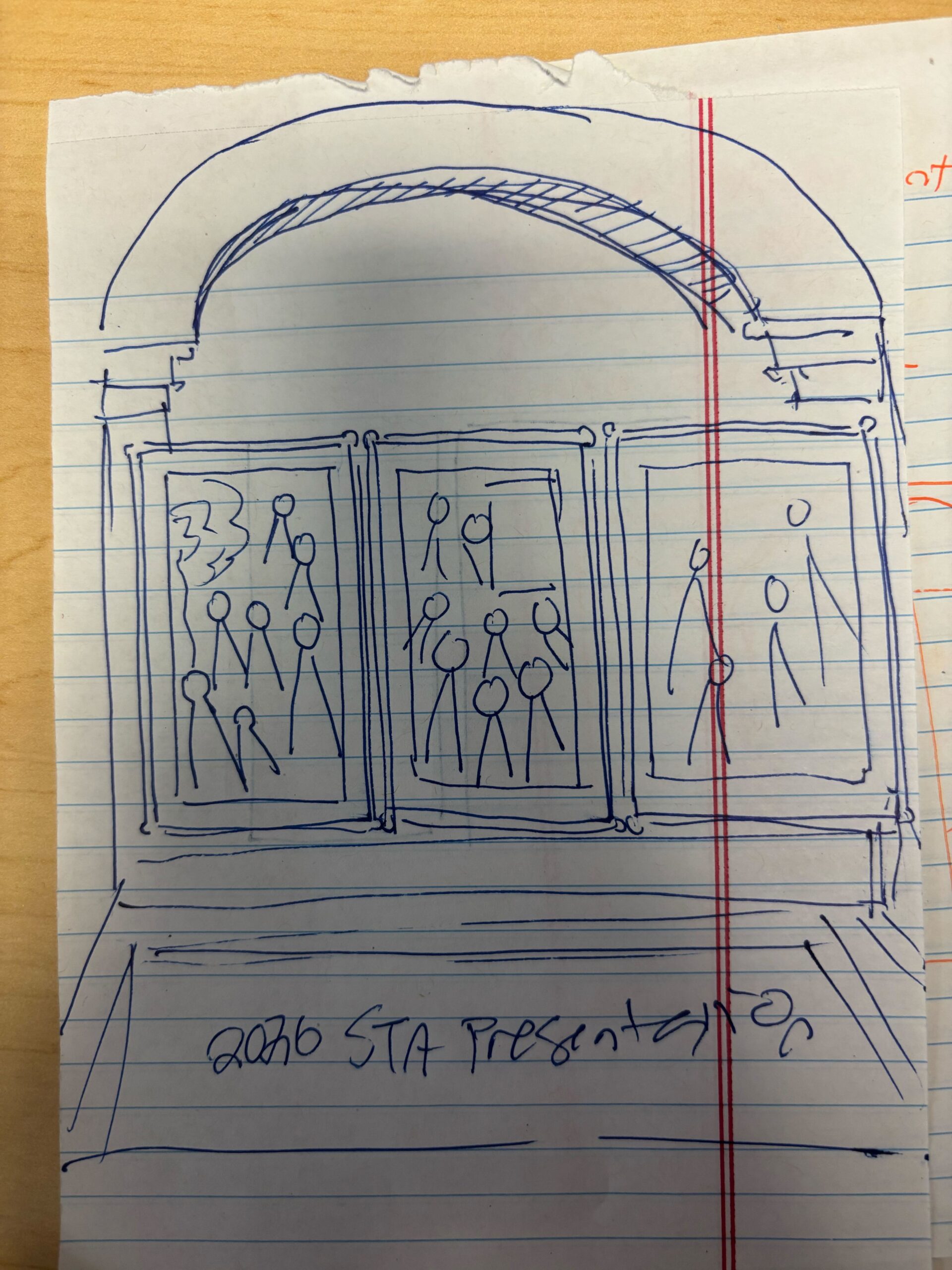
★ Design Drafts: To get an idea of how I could lay out the posters, I created a few rough sketches on paper. The left sketch was more classical inspired (primarily focusing on sculptures), while the right ones have a more modern gallery look.

I received feedback to incorporate both sculptures and paintings, and to simplify the layout of sculptures into a 2-D view (my original left sketch used one-point perspective to add depth). Using this feedback, I created the following sketches on Illustrator:

I created drafts of columns to place in the background, and played around with the layout of the photo cutouts. I tried to group interesting poses together in scenes that could be interpreted through sculpture or painting.

On this iteration, I formalized the background a bit more (adding texture, patterns, ect), and made the choice to include the poster title on a plaque to align with the museum theme. I also decided to orient the posters horizontally instead of vertically to leave more room for standing statues.

★ Pivot to Modern Gallery: Next, I received feedback that the current artistic direction leaned a bit too much towards Greek-style architecture, and that LAITS wanted to emphasize a more modern gallery aesthetic. This involved removing the pillars (which left more room for frames), and including more wooden/warm accents.

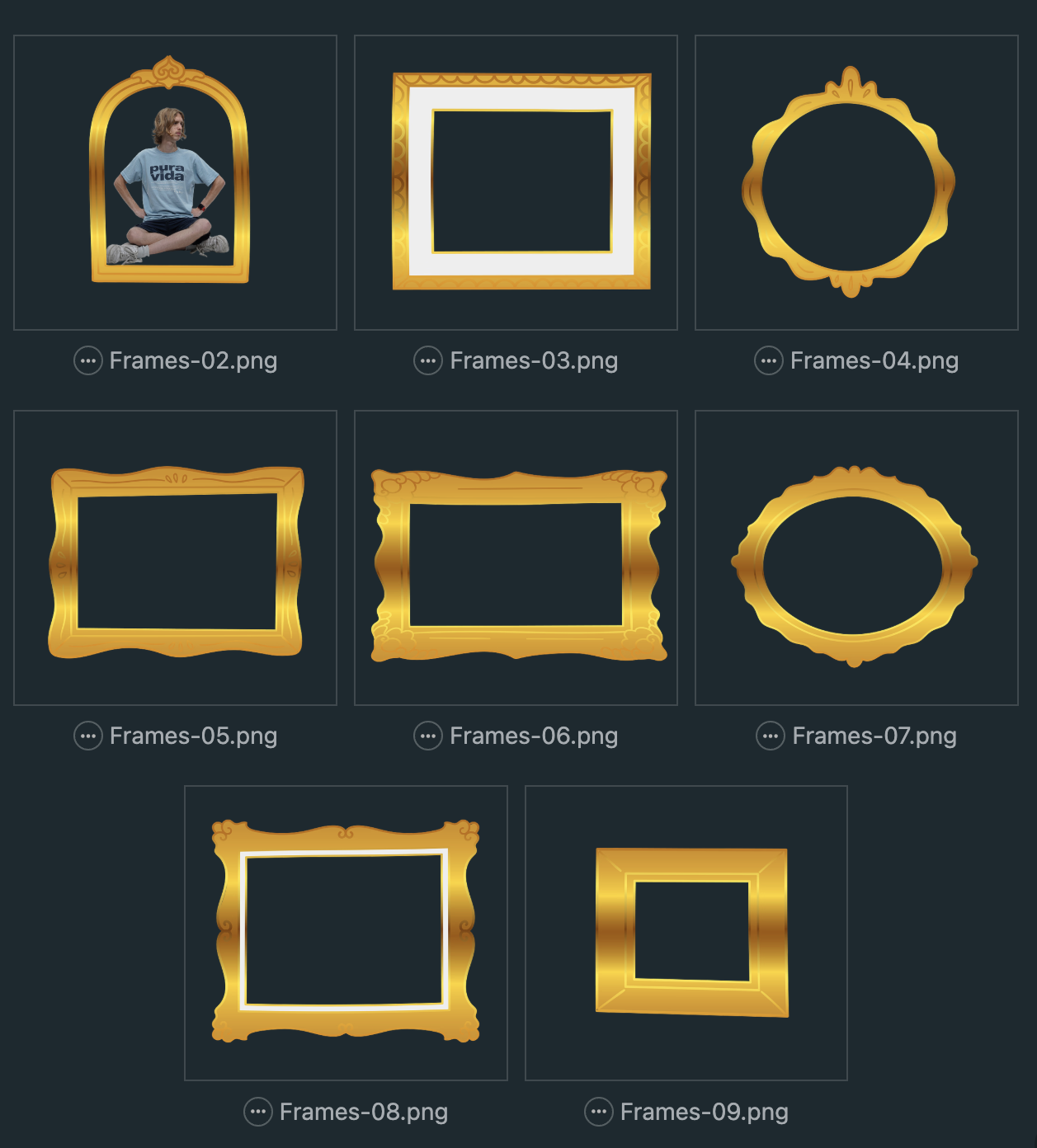
For my first draft of the modern gallery, I experimented with the layout of a few frame assets Shanda provided me, and thought about how statues could be organized.

I received some feedback to add light fixtures, and to make the frames more organically structured with breathing room around the sides. I also adjusted the frames so that there are even pockets for statues to be placed. I also made the backgound a little darker to make the paintings/statues stand out more.

I’ve begun thinking about how the two posters will fit together and what paintings/photo cutouts will be used. I scoured free photo archives online to find fun and recognizable paintings to include, many of them from the impressionist era. Overall, I want the colors of the paintings, the poses, and expressions to feed harmonious. I also adjusted the height of the pedestals to make sure they are visible over the title plaque.

★ Pivot to a new background: I have received feedback that in order to fully bring attention to the paintings, we will remove the statues, change the wall and floor to lighter, textured assets, add velvet ropes, and move the text to the wall. This edit in background will be accompanied by a re-ordering of the picture frames to better convey movement. I was given this reference to work off of:

★ Reflection: Working on a poster with so many assets is definitely a challenge. Although I have creative liberty in my designs, there are specific criteria that I must adhere to, so it was important to strike a balance. The following are a few lessons I learned:

  • Project Scope Flexibility: When I first started drafting the poster, I wanted to include grand archways and columns, reminiscent of an ancient art display. However, when the project scope changed to focus more on a modern gallery look, I realized I would have to pivot my creative direction. I learned that even if I’ve started fleshing out one idea, the outcome of the project ultimately depends on the client’s needs and scope, and it’s important to be able to adjust accordingly.

Filed Under: Fall 2025 – Spring 2026, Uncategorized

Frontera Scholars Collective Logo

February 18, 2026 By Kate Shih

Frontera Scholars Collective Logo

Client: Jonathan Cortez

Task: The Frontera Scholars Collective (FSC) would like a logo that will be the branding mark for their organization. They want something clean and polished, while also providing an exciting feel to the design.

Status: Design proposal sent


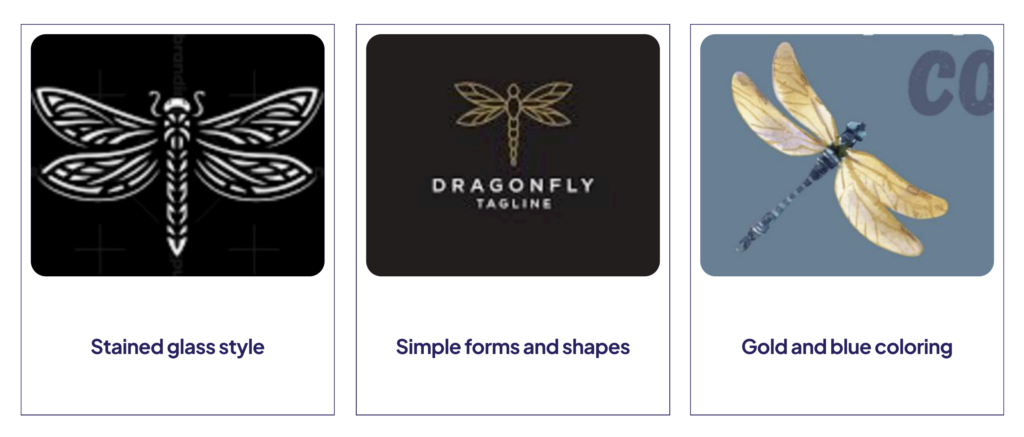
Inspiration

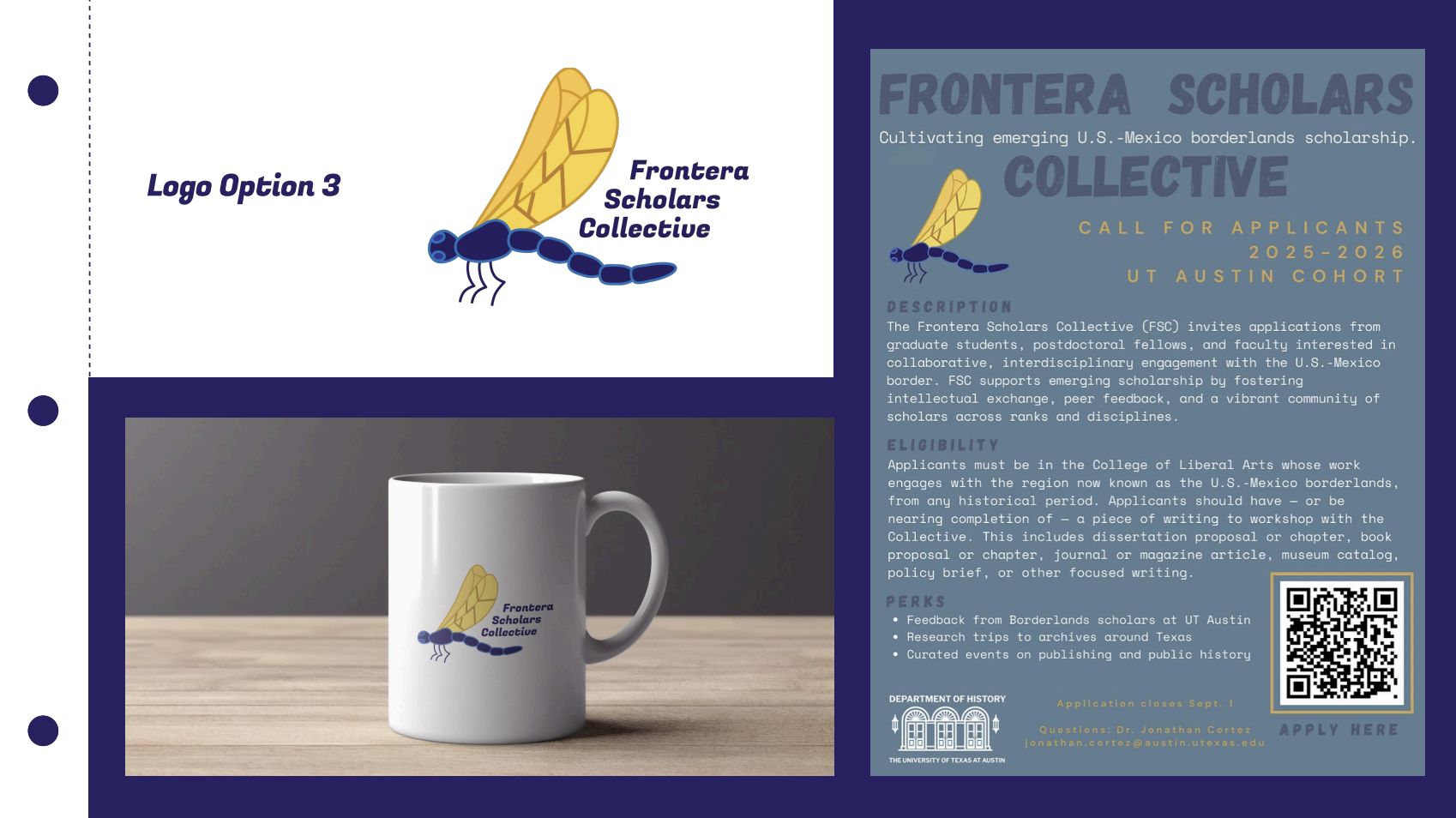
I started by looking at inspiration based off of want the client wanted the logo to look like. He wanted the logo to be a dragonfly with stained glass style wings. Additionally, the colors had to be blue and gold.


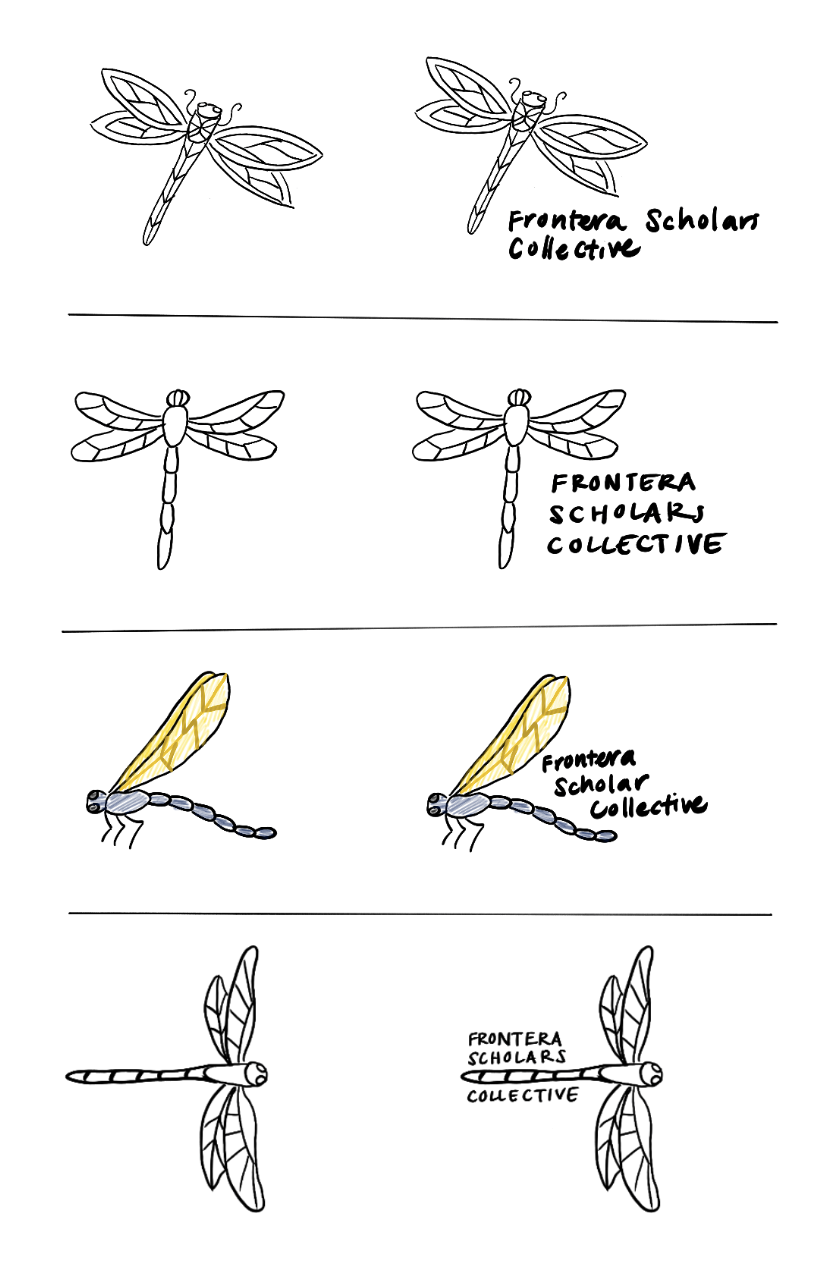
Sketches

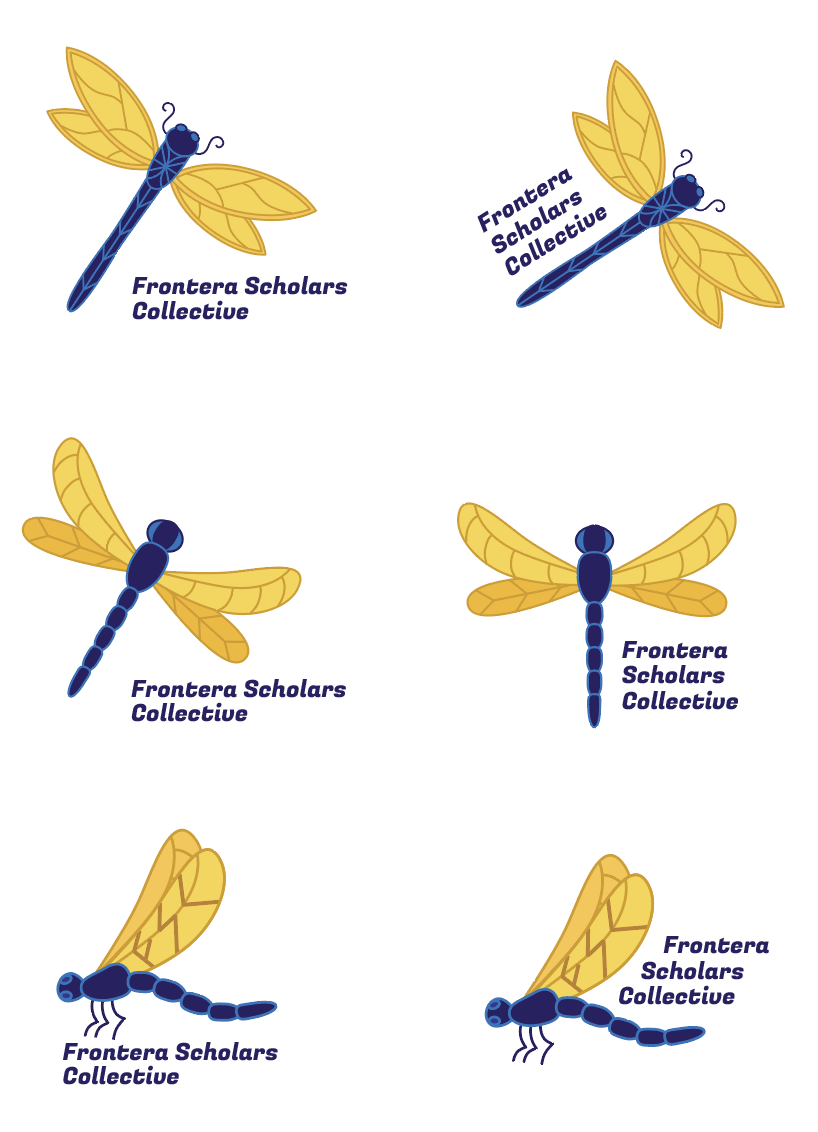
I then made a couple options, creating different dragonflies and trying out different text placements.


More Iterations

After receiving some feedback, I fleshed out and colorized some of the options from my sketches.


Design Mock-ups

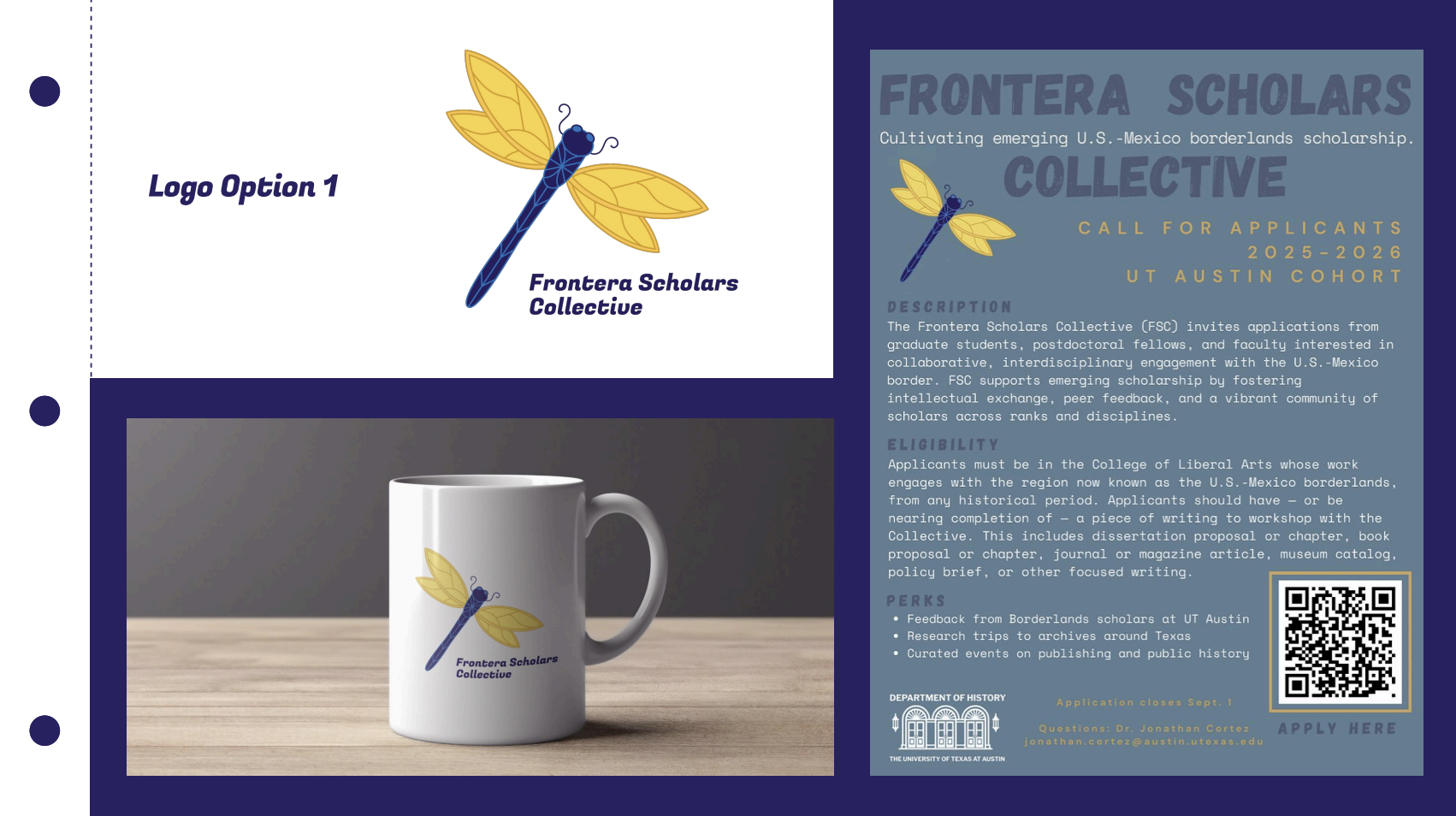
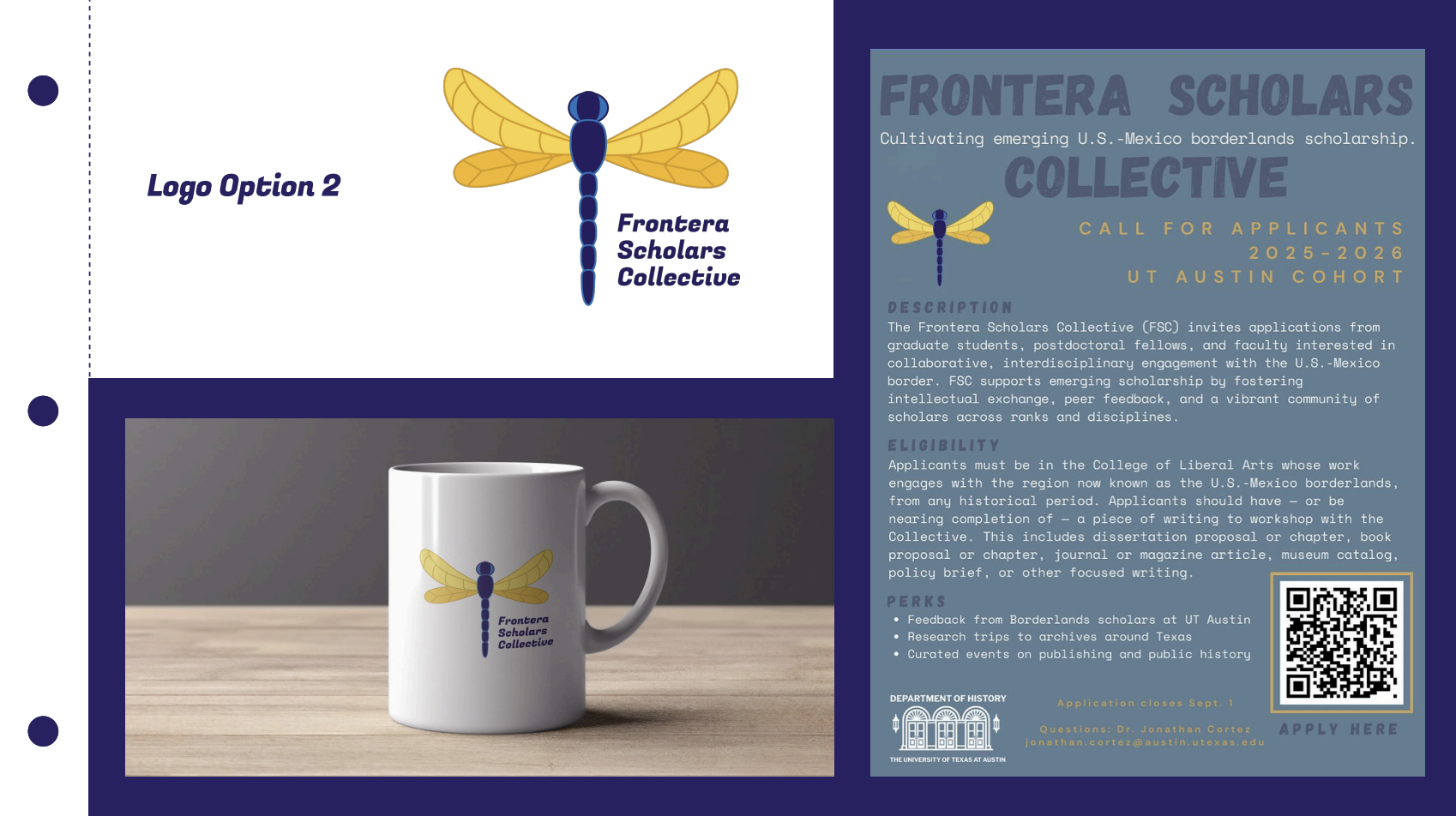
We then chose 3 logos from my 6 and made some mock-ups for the client.


Feedback

I got a lot of feedback from the client on these three logos. Overall, he wanted the design to be more detailed and realistic.

Filed Under: Fall 2025 – Spring 2026, Uncategorized

  • 1
  • 2
  • 3
  • …
  • 130
  • Next Page »

link to LAITS home page

Video STA Home

© 2026 Liberal Arts Instructional Technology Services | Production Credits