• We are STAs
    • Asha Rountree
    • Haley Ma
    • Kate Shih
    • Kyra Lee
    • Nicholas Peasley
    • Sasha Kenney
    • Shanda Horm
    • Shriya Atreya
    • Tomas Marulanda-Mesa
  • We were STAs
  • STA Presentation
    • STA Presentation 2017
    • STA Presentation 2016
  • Testimonials
  • Resources
  • Home

STA Blog

Week 2

September 14, 2022 By Marissa Devivar

(9/14 – 9/15)

VOTING PSA GRAPHIC

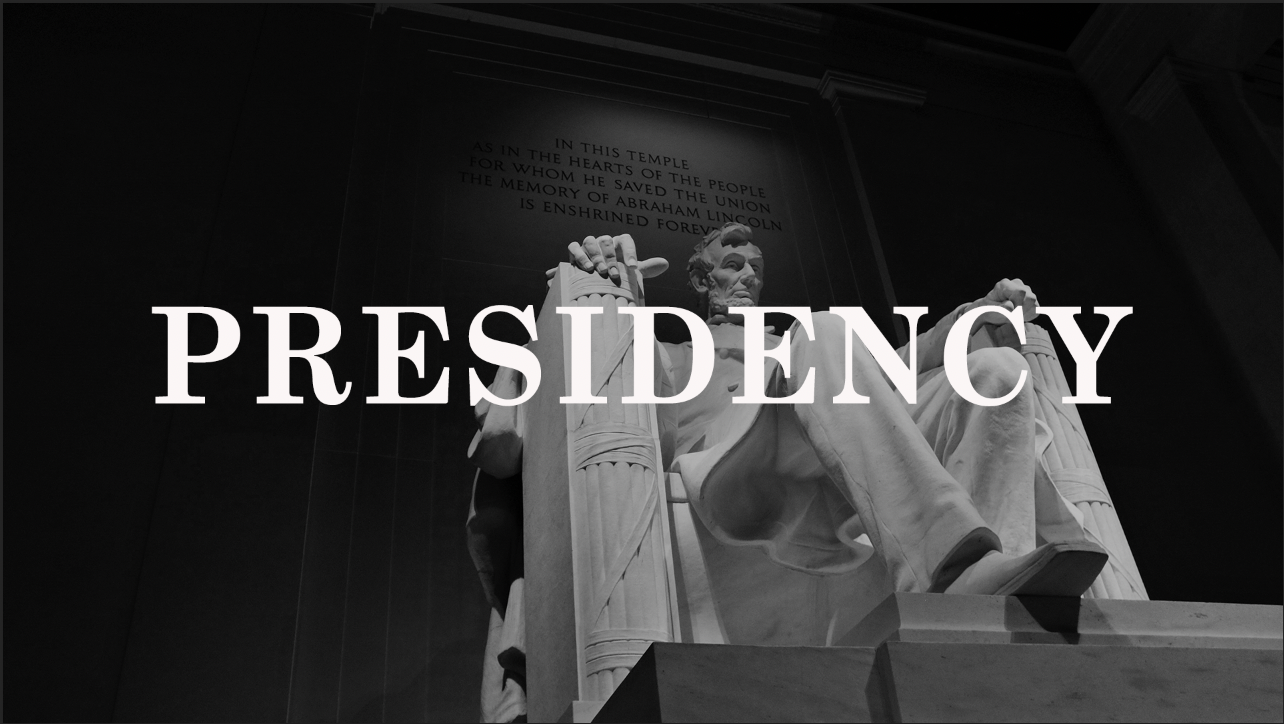
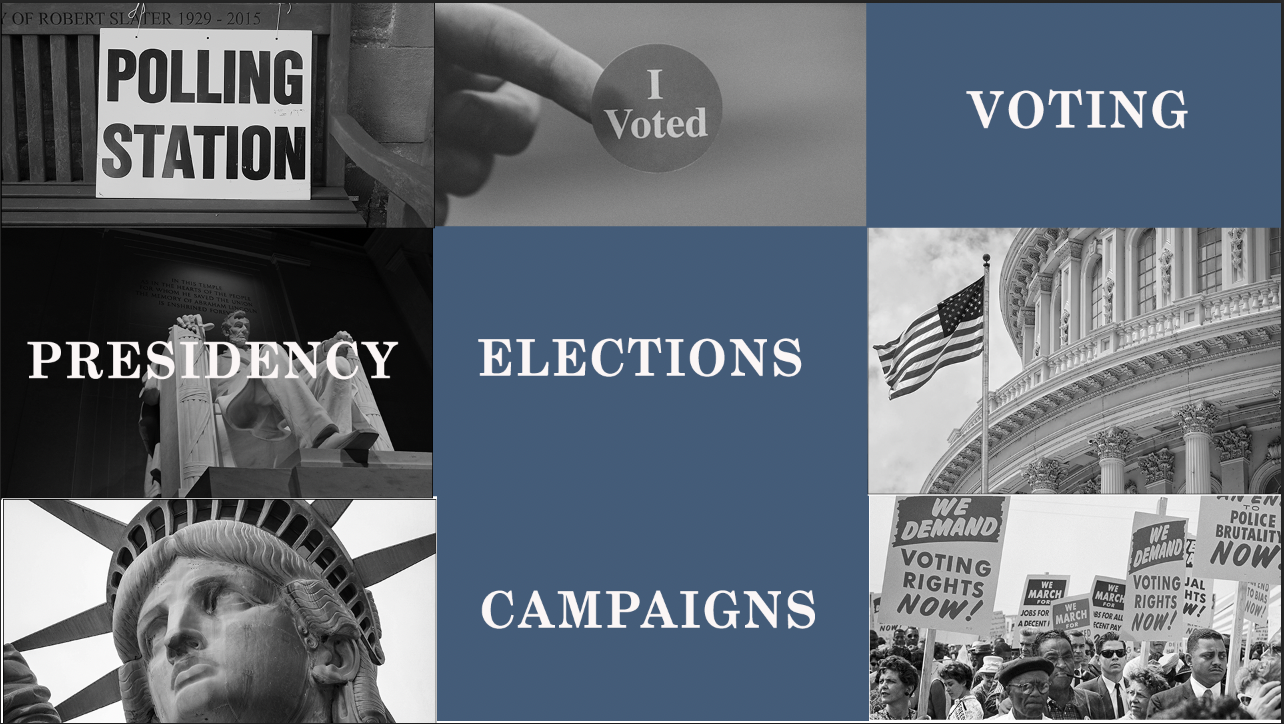
I was asked to illustrate/redraw the preexisting icons on a Voting PSA to make them look more hand-drawn. Maddy and I worked on reconfiguring the composition so that the flow of the word placement was better. We also decided to replace the icon with one that more directly referenced voting. The overall color palette and font families stayed relatively the same.


Layout 1 & 2

     

Hand-drawn Illustration:

1st Layout with All Elements:


Voting Graphic PSA 2022 (final)

     

(9/9 – 9/12)

STA AVATAR & BANNER

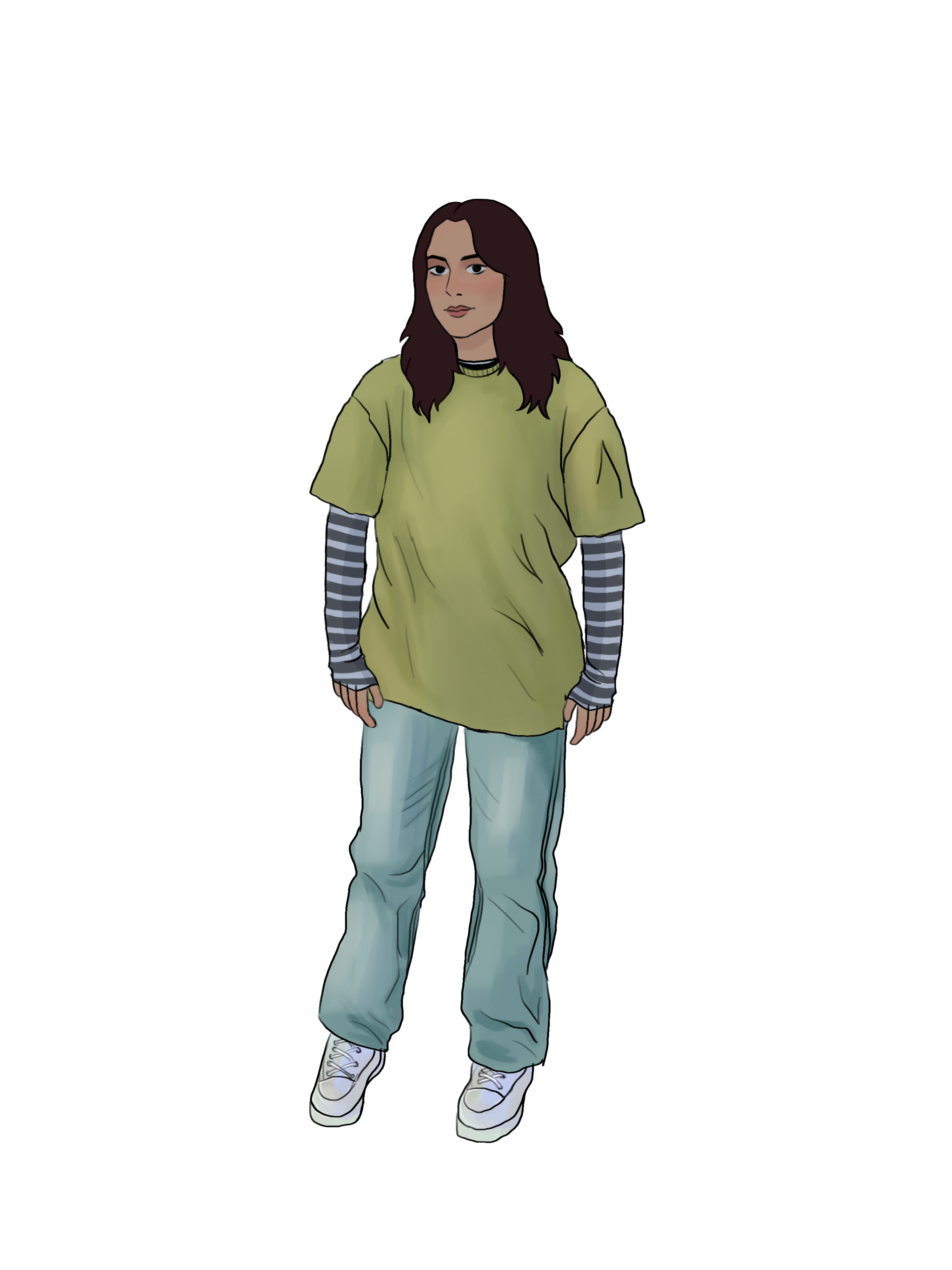
For STA Orientation I had to create a banner for my blog page, as well as a head-to-toe avatar of myself for the STA group photo. I used Procreate (which I am gradually getting more comfortable with) to sketch and render my avatar. I used Adobe Illustrator to create the gradient background on my banner. I also sourced the font from Fontpair.co and used it for my name, major, and graduation date. I was thinking about adding more elements, however, it ended up distracting from my name and the gradient background that I worked through much trial and error to achieve:,) I am very satisfied with the results!
Filed Under: Fall 2022 - Spring 2023, We are STAs

Week 2: Trainings and Trainings

September 13, 2022 By Thang Truong

Week 2

Training for Web Dev: Setting up WordPress, Grav and MAMP

Started on: September 12, 2022
Completed on: September 13, 2022
STA Guidance: Marianne Le

Description: After learning about the current and past projects for web developer, I learnt that the job is comprised mostly of learning about WordPress and using libraries and database supporting it. This training is about installing all of the necessary software relating to hosting and managing websites

WordPress: This is the content management system used originally for blogging and still remains the top CMS for quick and simplified blogging. Throughout the years, it grew in something much more powerful to control, design and manage your website. It can be used to host website, control users and provides a lot of plugins in giving a lot of functionalities for the users.

MAMP:  This is a free, local server environment that runs on PHP language which happens to be the language that makes up WordPress and Grav that I will need to maintain and create the website.

Grav: This has similar functions like WordPress, and the only different things about it is that it is optimized for maintaining websites that do not have any database.

1) Installing MAMP: I installed MAMP and get the directories set up with my own local files.

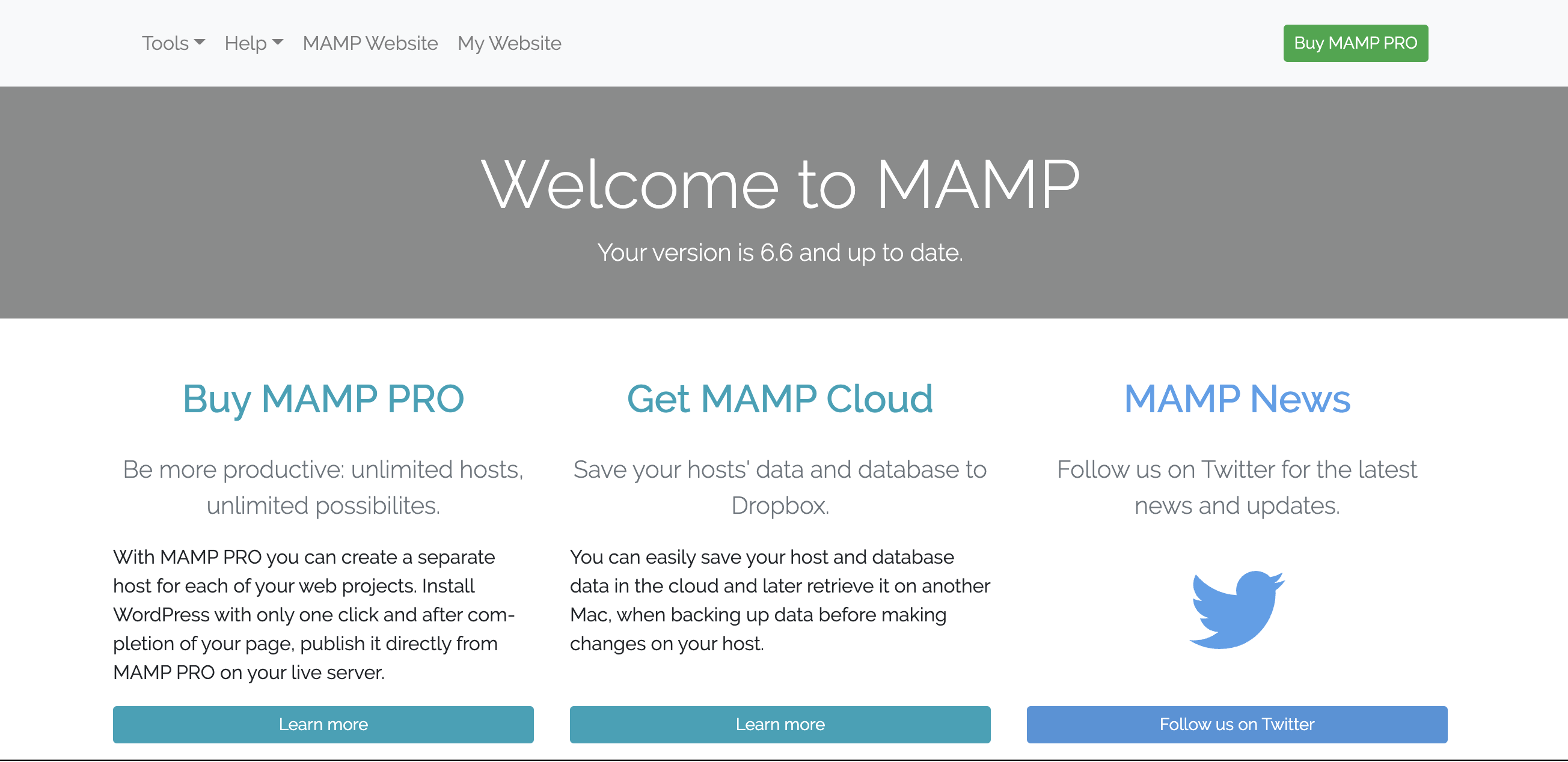
2) Setting up MAMP website: After changing the port to 5000 since I have my Jupyter set up on port 8888, I got my MAMP website set up on my local host.

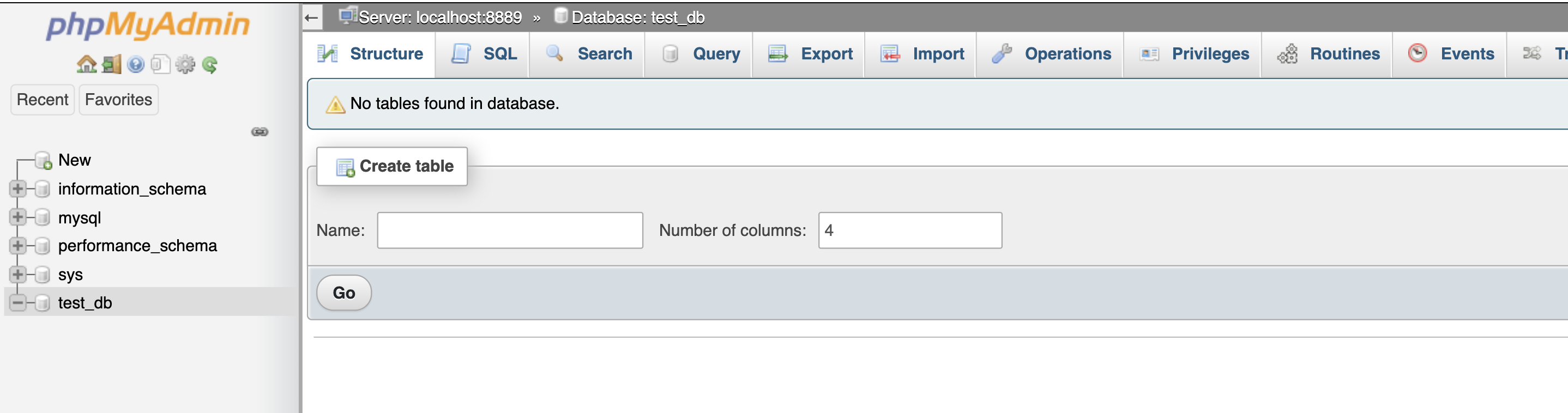
3) Create Database for WordPress

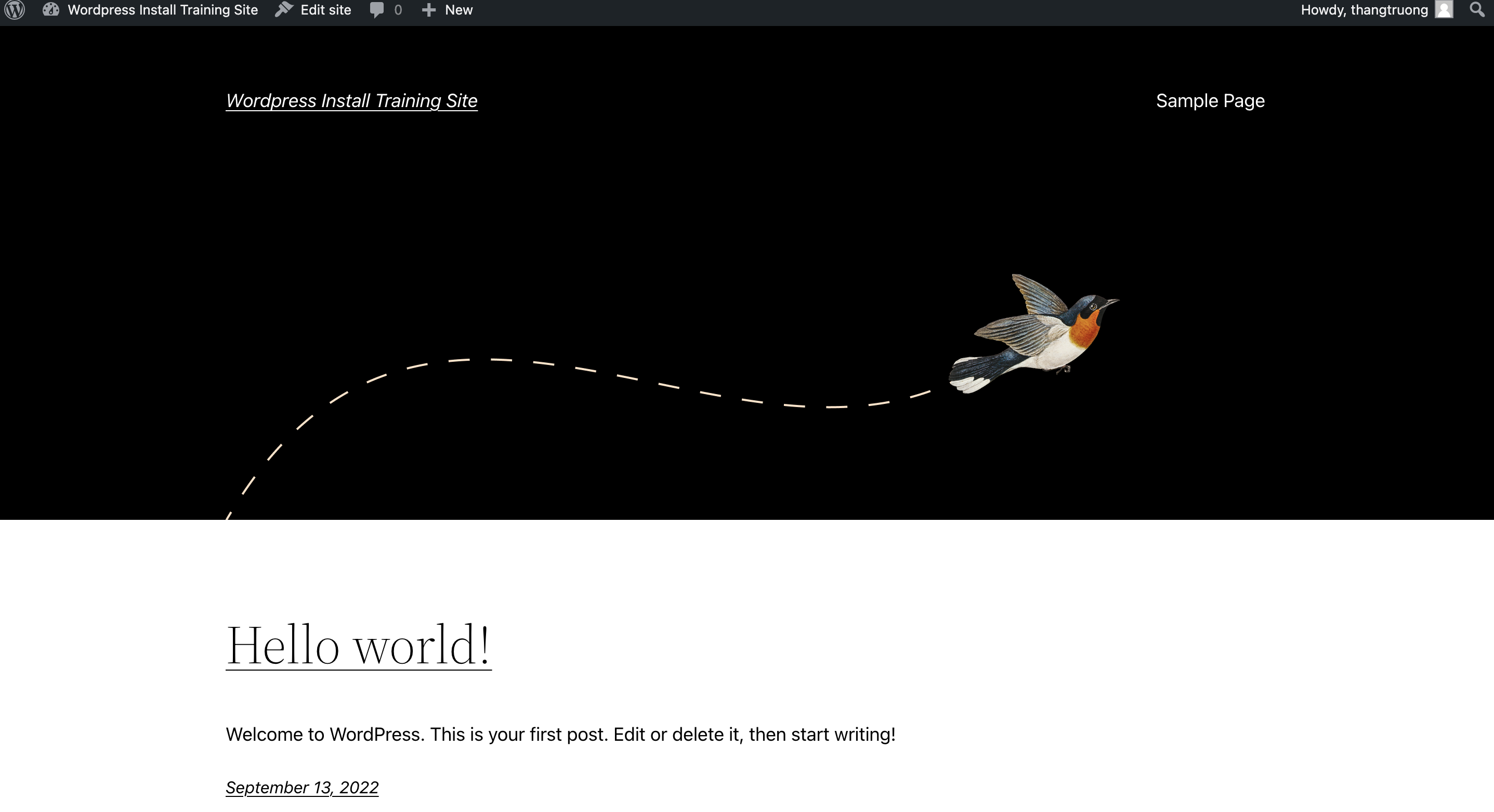
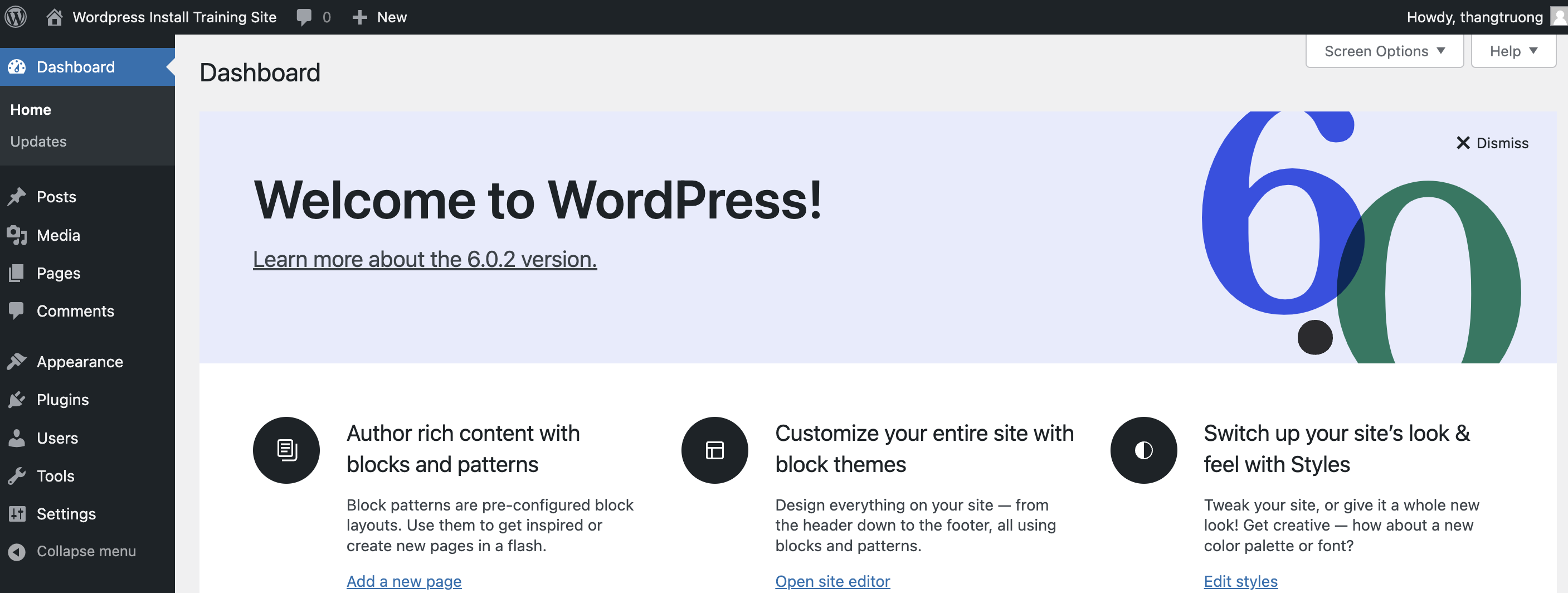
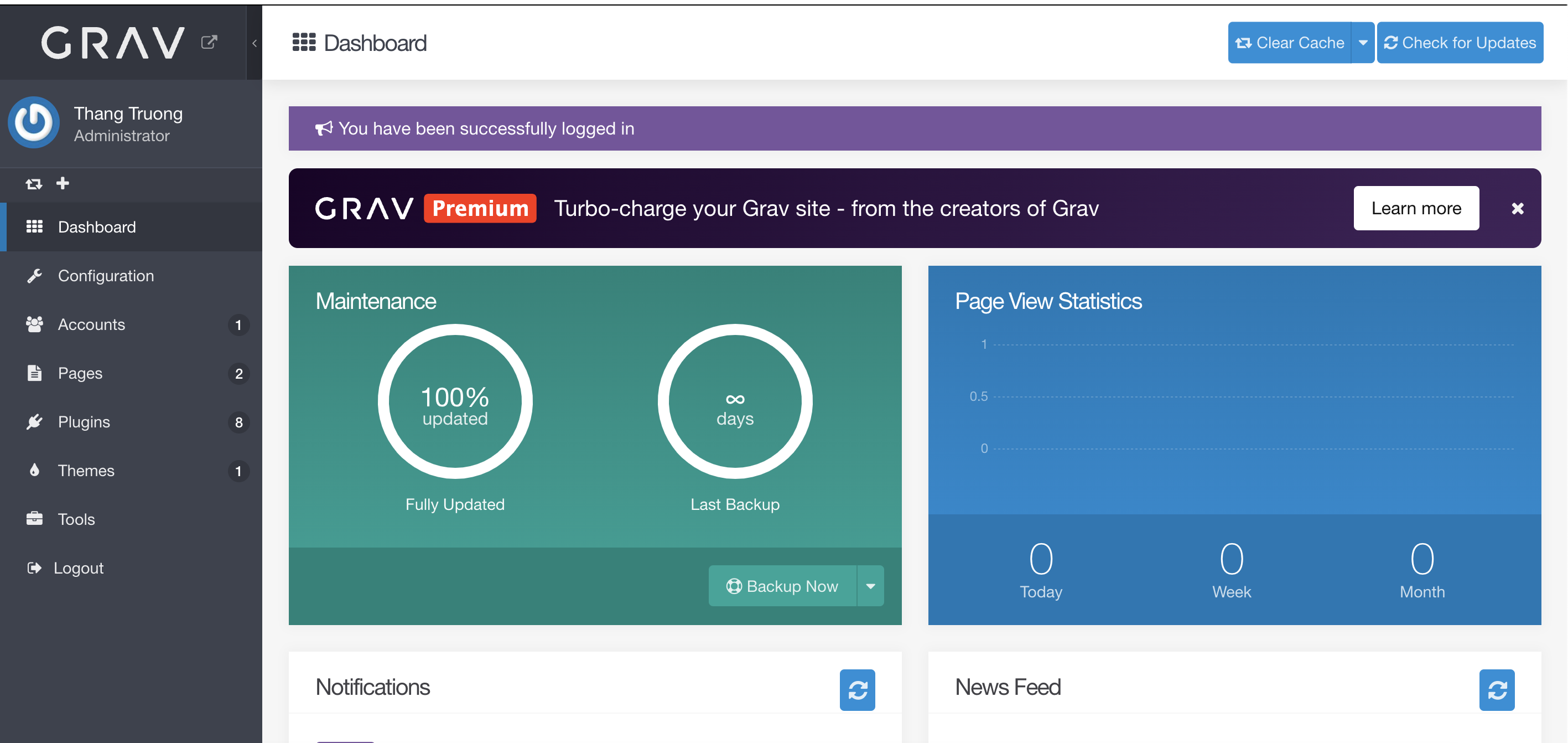
4) Launch my own website on WordPress Database. The second picture is the admin dashboard for WordPress similar to STA blog WordPress. The port link: http://localhost:5000/wp-admin/. The link for MAMP: http://localhost:5000/MAMP/?language=English The link for website of the first picture: http://localhost:5000/

5) Installing Grav ad setting up admin account: Link for admin port: http://localhost:5000/admin Link for port: http://localhost:5000

I will include this sentence to remind me in the future of pointing at the correct file.

Remember: Every time you want to work on a project, make sure that your Document Root in MAMP is pointing to the right site. For example, if I am working on my “Grav Training Site”, it should point to my Grav-Training-Site folder.


Training: Use Gantry 5 on Grav

Started on: September 14, 2022
Completed on: September 15, 2022
STA Guidance: Marianne Le

Description: Next, I will learn how to use Gantry 5 on Grav.

  1. Installation of Gantry 5: I downloaded the zip file for Gantry 5 software and uploaded to Grav Tools. Usually, I can directly installed from the plugins but because of some problems on Grav, I can not isntall that way.
  2. After having Gantry 5 set up, I went ahead and followed through with the tutorials to modify pages.
  3. There are a lot of things that I can modify on Grav. It allows me to use a lot of existing templates that they called Particles which include logo/image, social, scrolling back to the top, copyright and etc.
  4. I can modify if there is nothing on the existing templates that can satisfy me. There are two files that I need to create so that I can modify the particles: a) example.yaml:  serve as a template for particle which include all the text fields, buttons and title in which I can customize in Gentry and b) example.html.twig: basicially a HTML file which I can modify and add the corresponding particle I created in yaml file into the right place. The directory folder to add these changes is your_root_directory/user/themes/g5_helium/layouts
  5. To change the layout of the page with CSS file: I can create my own CSS  file and attach it to this directory your_root_directory/user/data/gantry5/themes/g5_helium/css

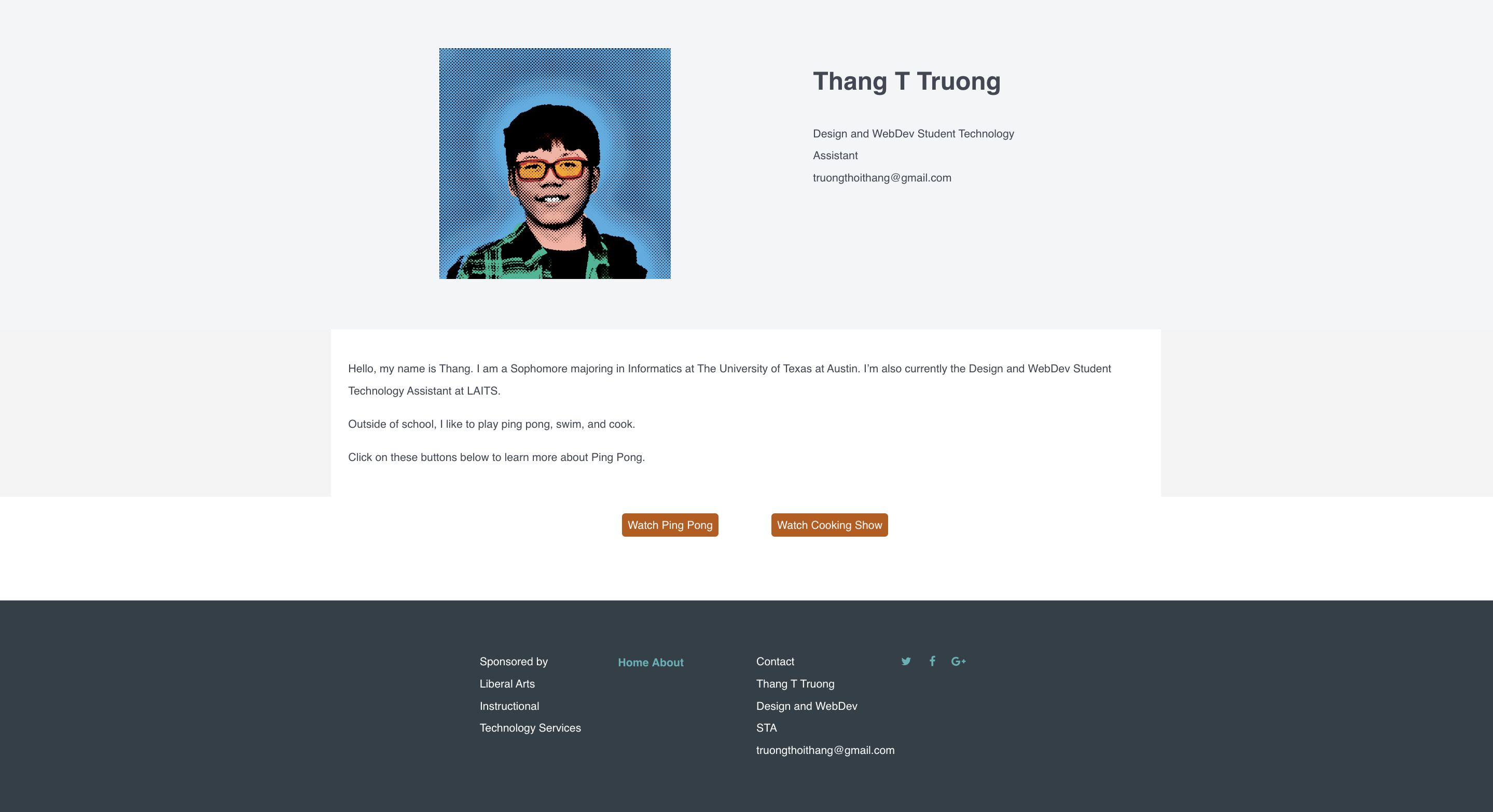
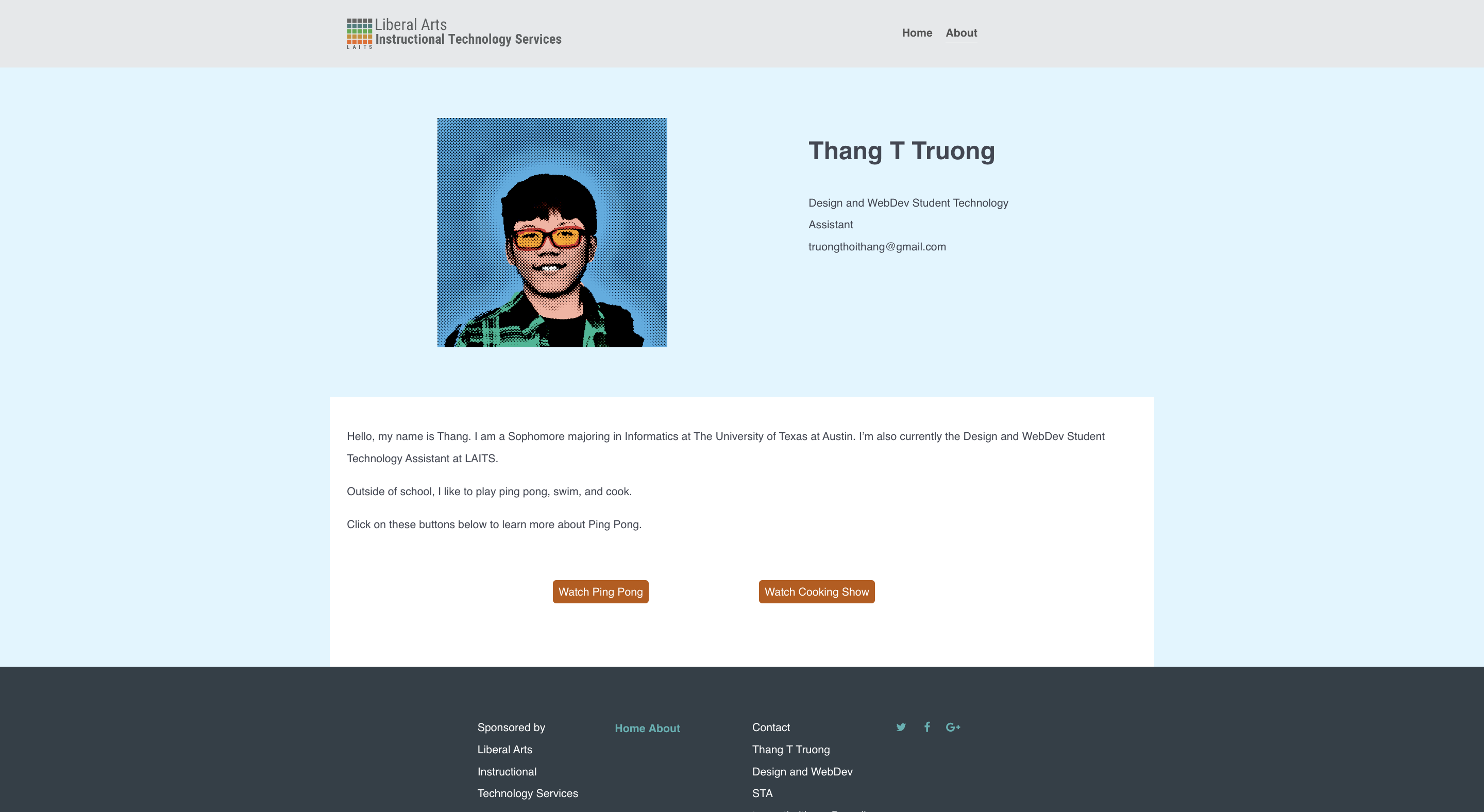
For the About Page, I created my own Button yaml and twig files for button. I also customize more the button with the CSS file as well.

Challenges: 

  1. Installation of Gantry 5: For some reasons, I cannot install Gantry 5 with downloading the plugins from Grav, so I went ahead and installed directly from uploading the zip file
  2. Loading the image: I forgot to check the SVG file and delete the code to display the image. Better be careful next time!

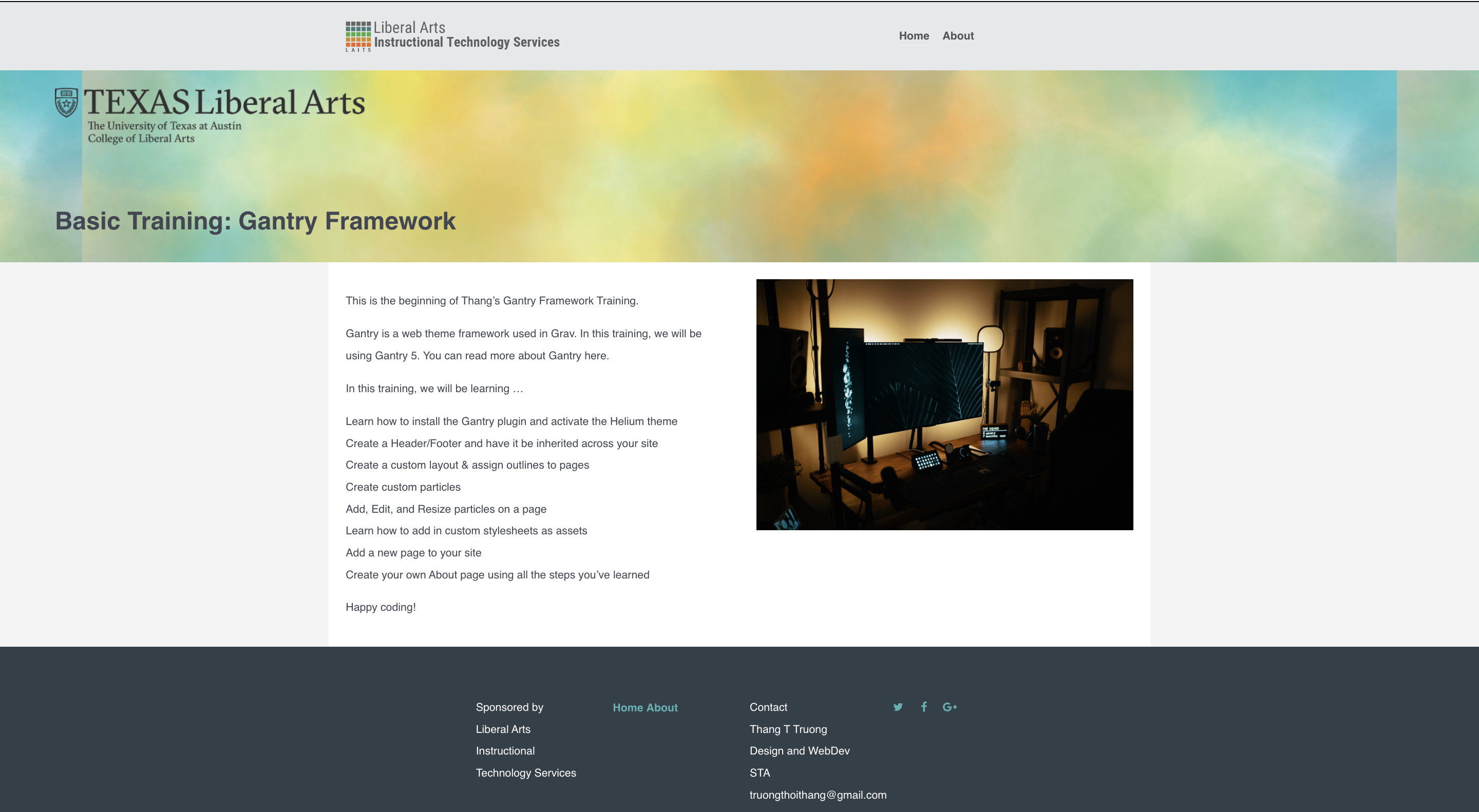
The end result for my Gantry Training with two pages: Home and About Page:

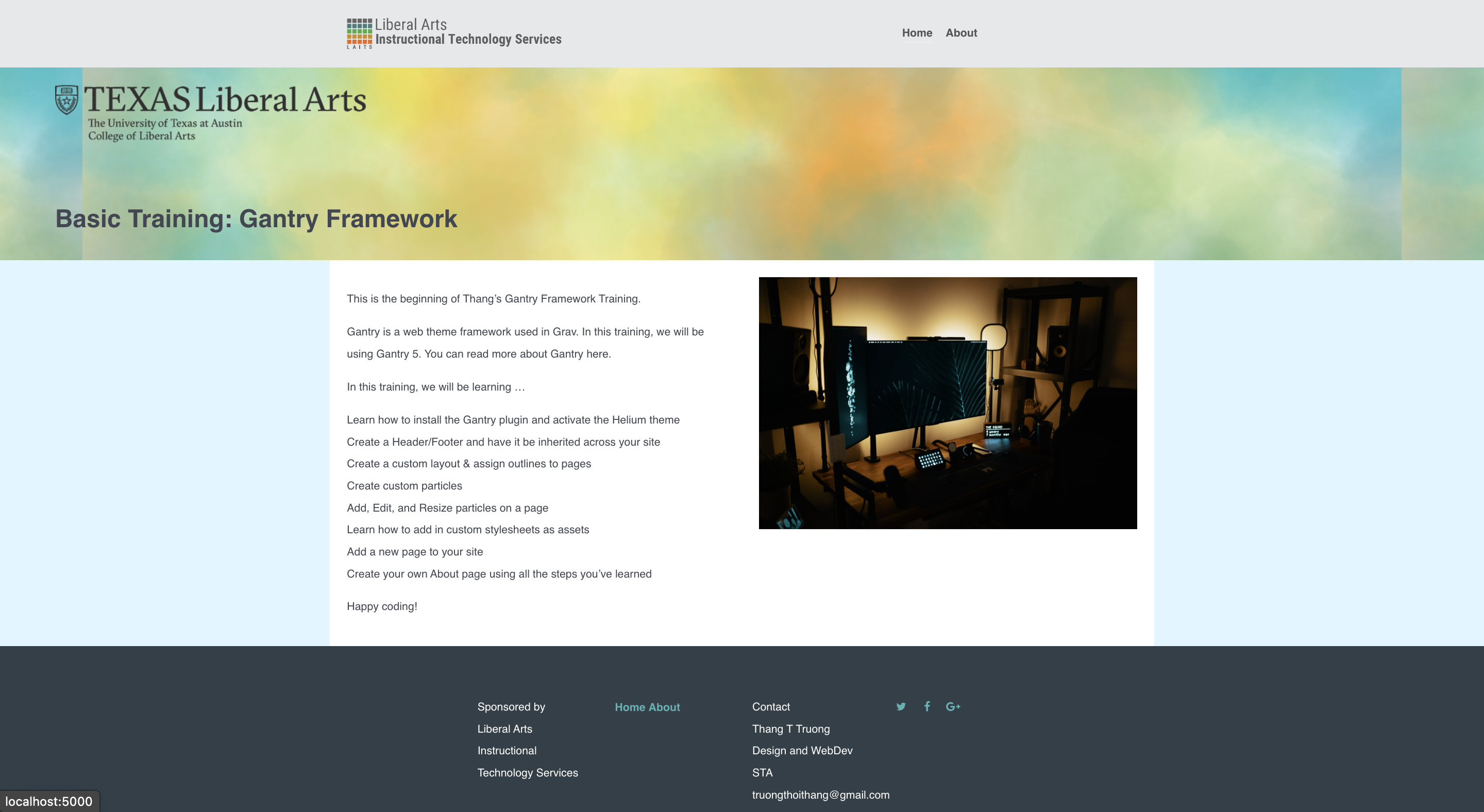
I changed the color with custom CSS file  and here is the update.

Training: Website 101

Started on: September 19, 2022
Completed on: September 19, 2022

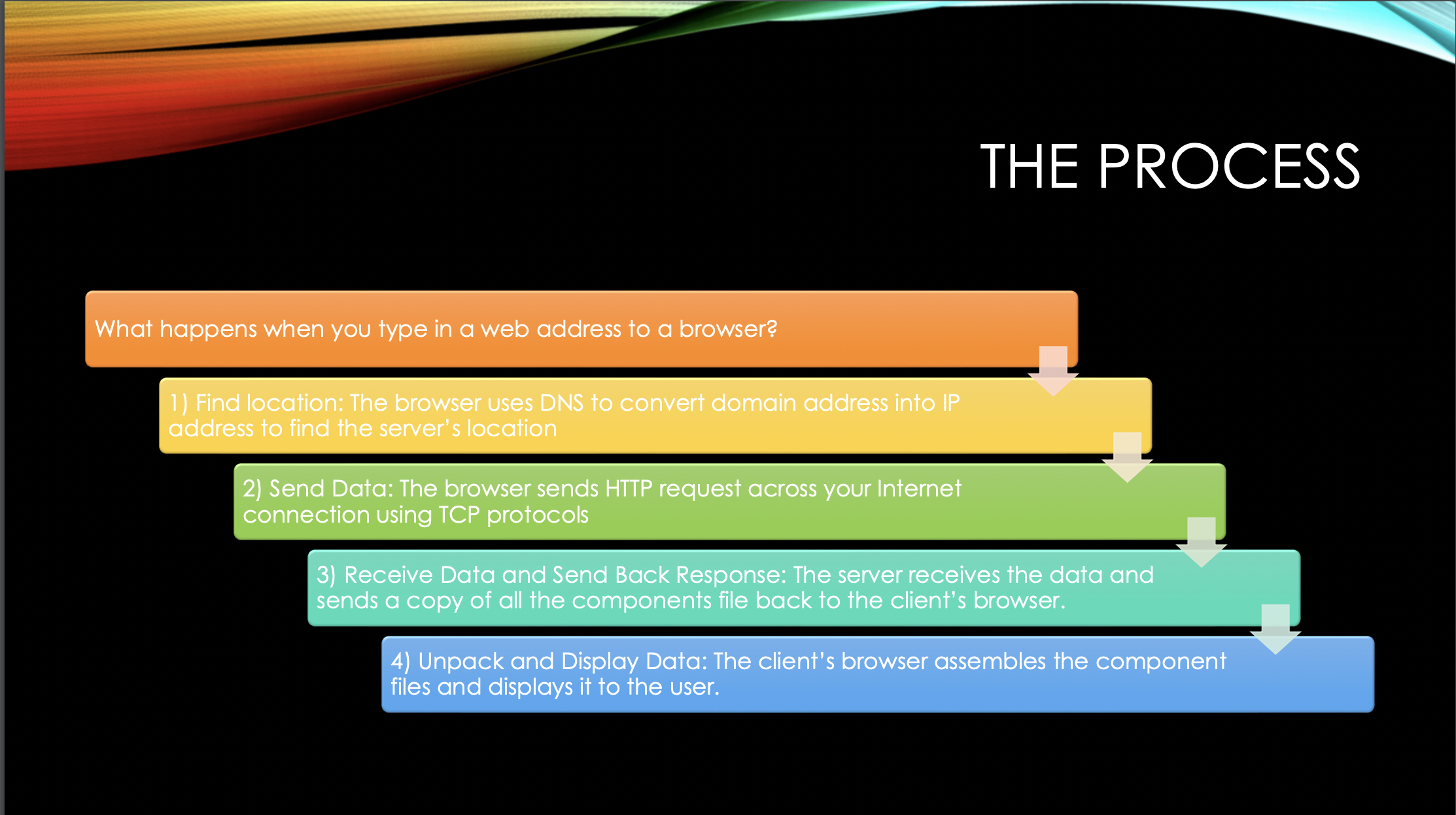
Description: I learn about the basics of website including Domain Name System (DNS), Transmission Control Protocol and Internet Protocol (TCP), Hypertext Transfer Protocol (HTTP)  and Content Management Systems (CMS).

Basically, there are 4 simple steps involved at the minute you type in a domain name into your browser.

  1. Find the server’s location: The Domain Name System will convert domain name into IP address and locate the server.
  2. Send the data: After establishing a server connection, the browser will try to communicate with the server by sending HTTP request on TCP protocol.
  3. Receive the data and Send back the response: The server receives and approves the  data. After that, the  server will send back the response to the browser.
  4. Unpack the data and Display: After receiving the server’s package, the browser will assemble the component file (HTML, CSS/ JavaScript) and assets (Images, Buttons, Videos) and display the file on to the user’s device.

 Website 101


Filed Under: Fall 2022 - Spring 2023

Week 7/9 – 7/13

September 13, 2022 By Leilani Cabello

This week I worked on an arrange of projects but mostly training assignments! Below here I practiced some UTFC greenscreen training on PowerPoint.

 

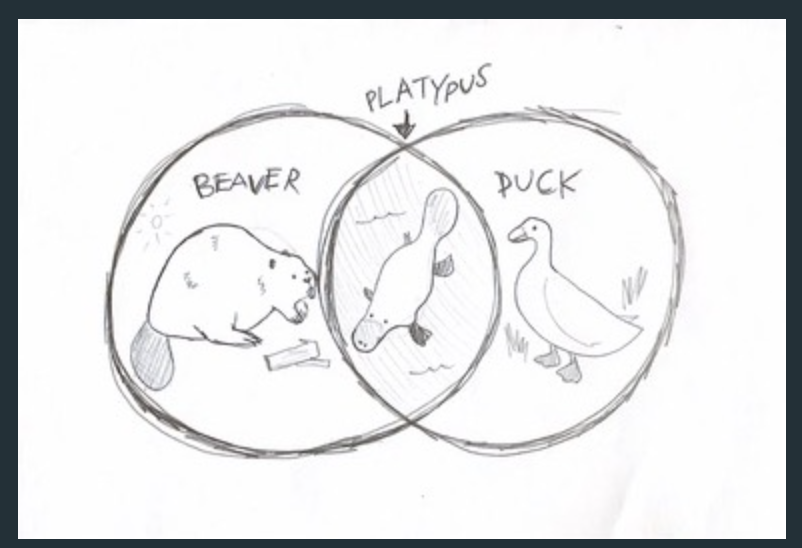
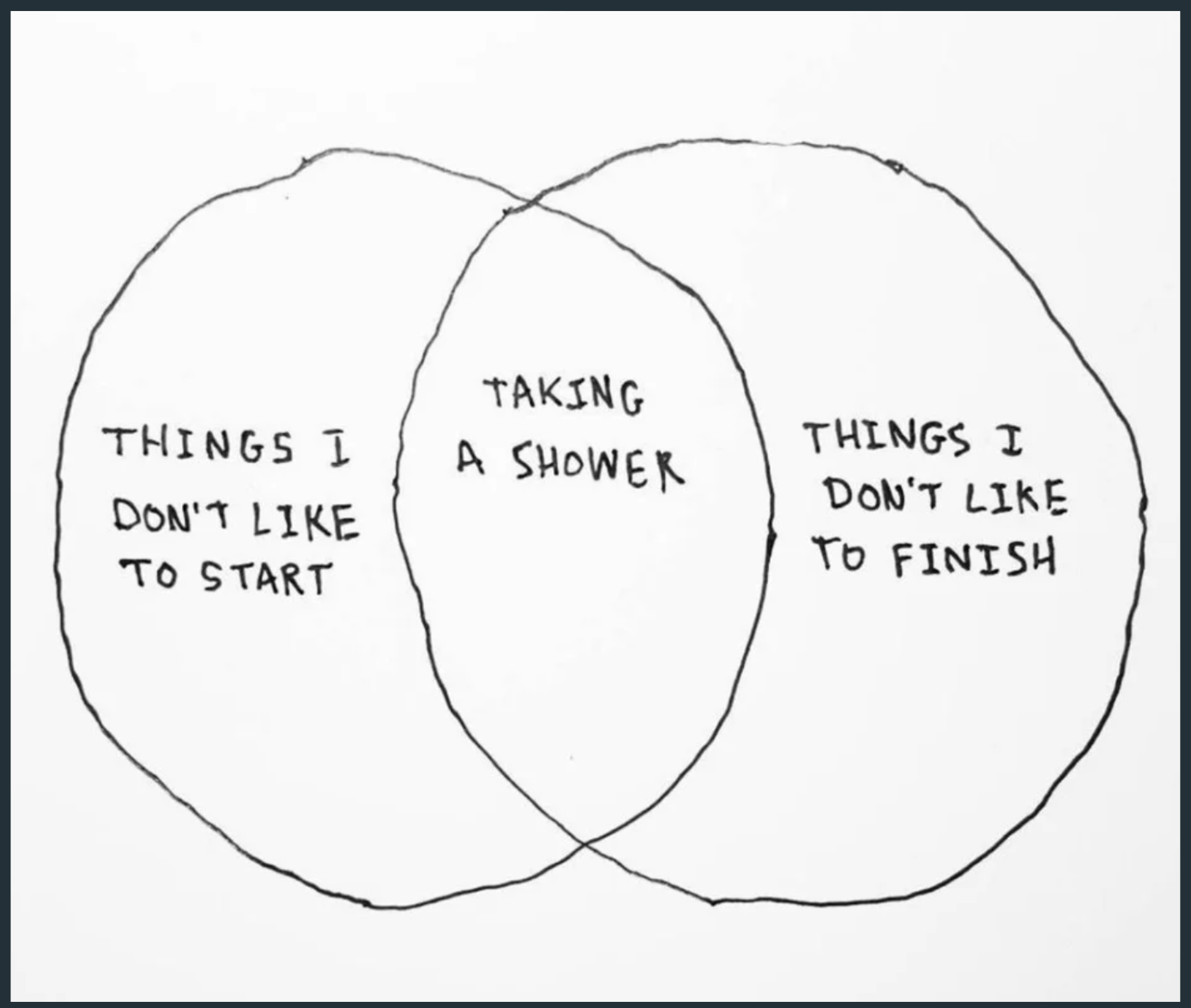
Here’s a cute little venn diagram I drew along with one from the internet for a random assignment topic.


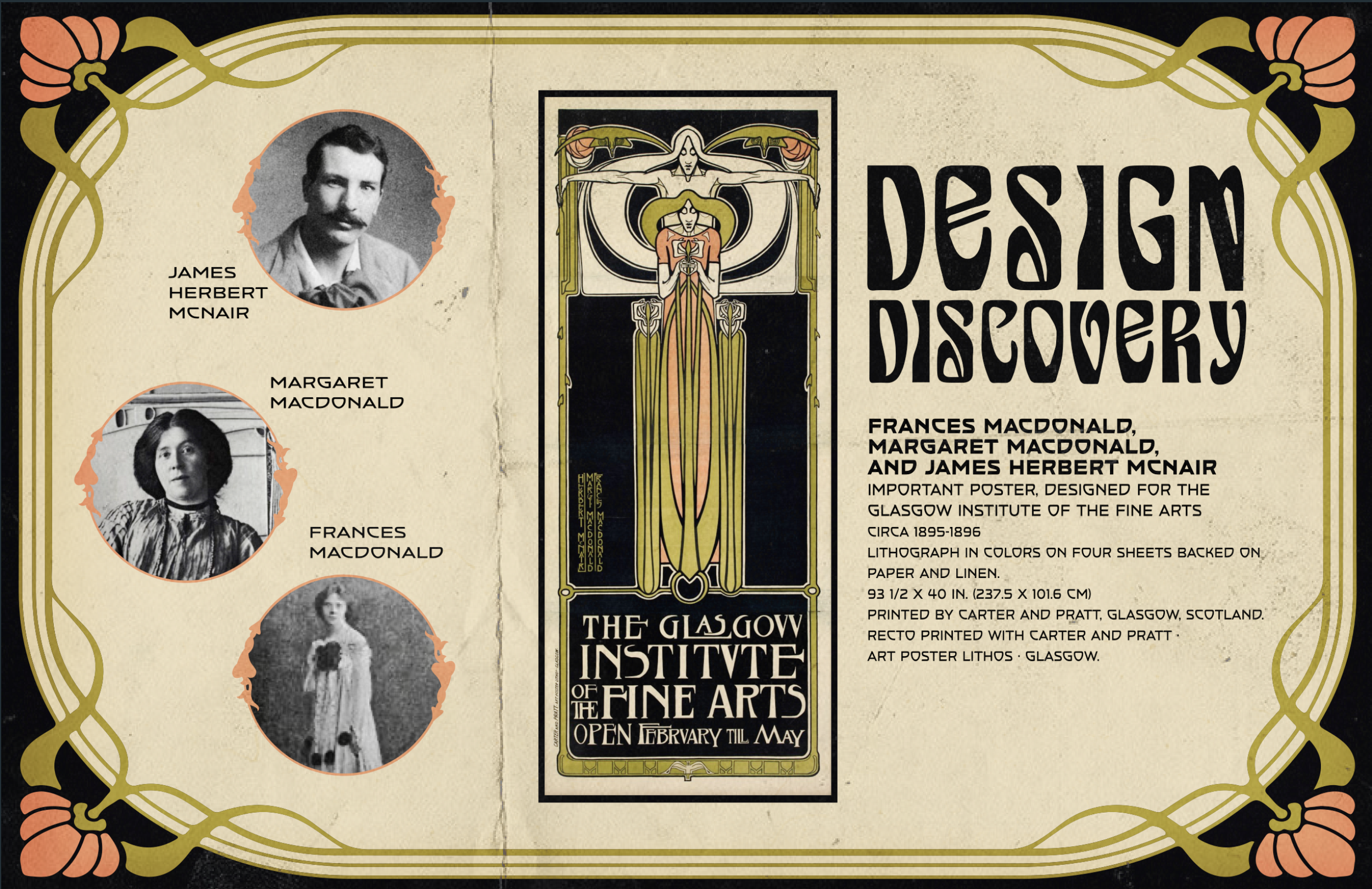
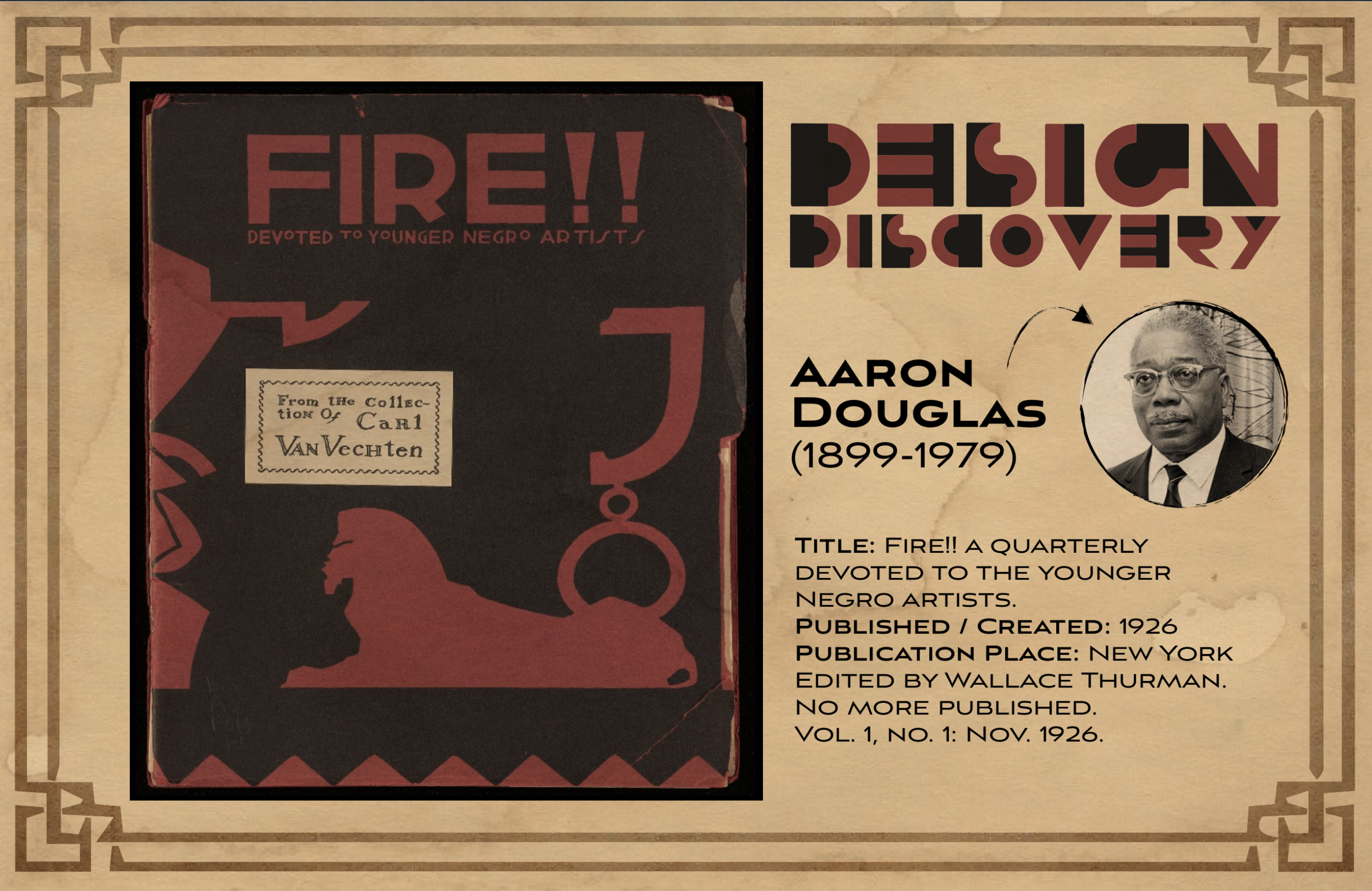
I reused an old assignment for a design history assignment. Glad to see these old posters used outside of class.


Lastly, here’s a pixelated photo of “Walter” from a pixel training tutorial. One of my favorite memes of a bull terrier.

Filed Under: Fall 2022 - Spring 2023

Week 11 and 12

September 13, 2022 By Luisa Matzner

STA Training

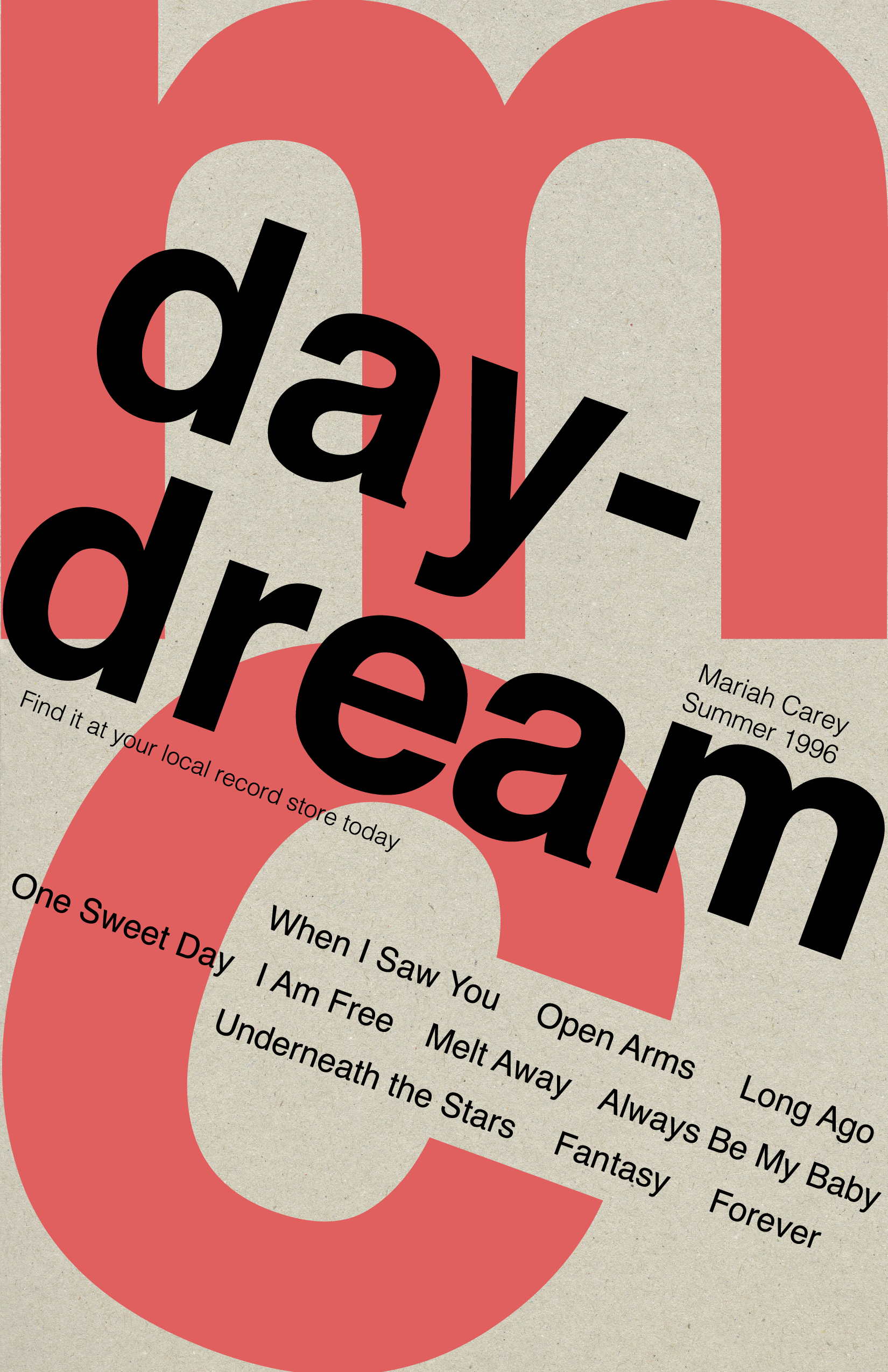
This week, since I haven’t had any major assignments, I’ve been working through my trainings. I finished the Design History basic training, making a poster inspired by New Typography and Bauhaus design. It was really fun to dive into a specific style and find which components make a design a certain style.

I’ve also been working on color theory training.

UTFC Greenscreen Slides

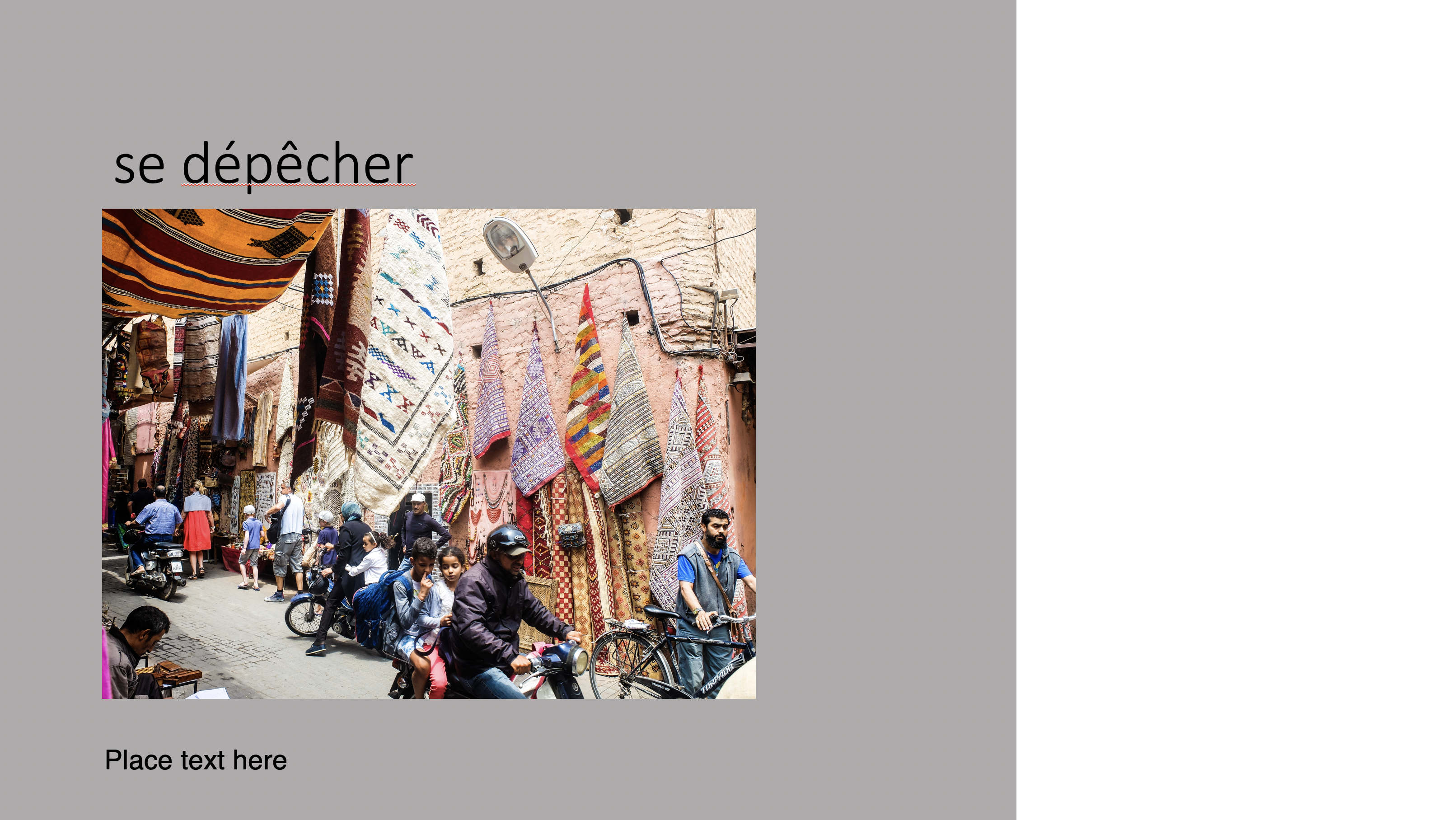
Module 5.1B Pronominal Verbs

I also worked on UTFC Greenscreen slides, finding royalty-free images for the word lists provided. Here are some of the slides I’ve been working on.

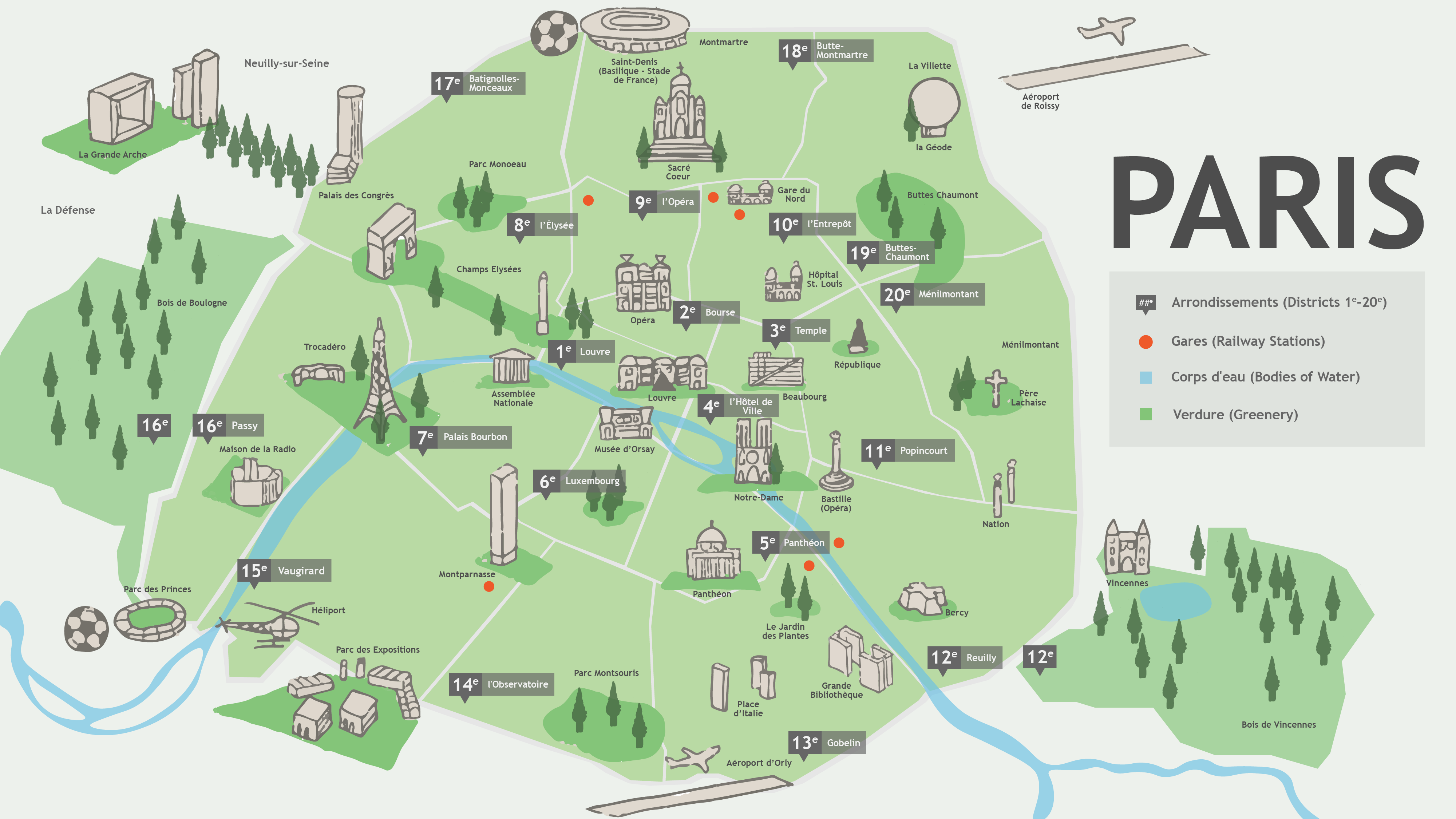
UTFC Map of Paris

Minor changes made to a pre-existing map for UT French.

Filed Under: Fall 2022 - Spring 2023, Uncategorized

MRI Animation

September 13, 2022 By De'sha Bass-McClellan

MRI Animation

project: “MRI” Animation
Client /Prof: N/A
completion status: Started August 7th
staff guidance: Valerie and Kayla
STA team members: N/A
description/plans:

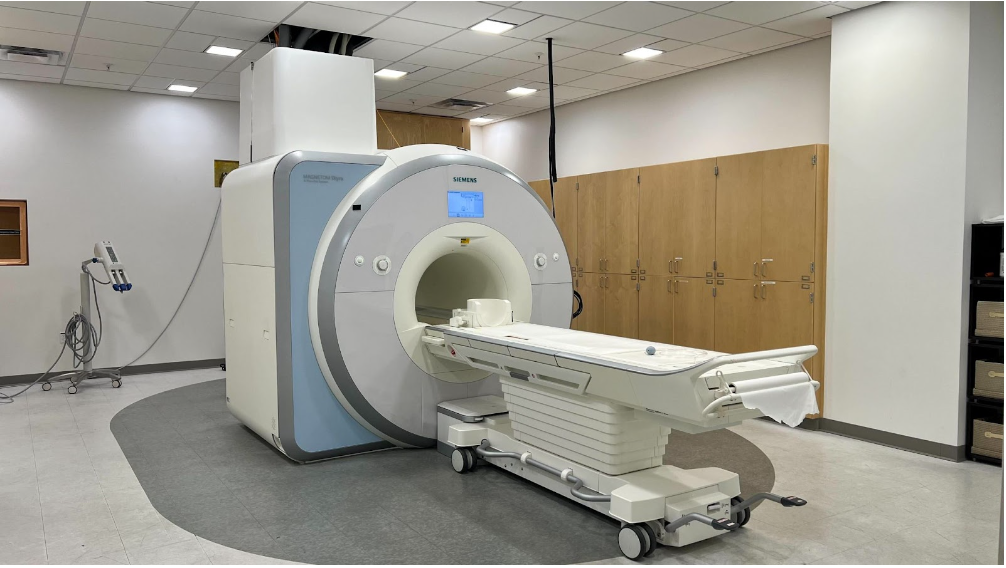
For this project, a professor wants an animation showing the magnetic field of an MRI machine. The final animation should be relatively simple, overlaid on top of a live action shot/photo, but some clean and simple stylistic embellishments would be nice.

To be completed: September 12th

This project had a really quick turnaround so I had to complete it in a timely fashion. I was given the image of an MRI machine and told to do a simple trim path animation.

After the first draft, I was instructed to make the lines more simultaneous and add in a glowing effect to the lines. Here is the final animation:

http://sta.laits.utexas.edu/wp-content/uploads/2022/09/MRI_Animation.mp4

Filed Under: Fall 2022 - Spring 2023, We are STAs

GOV310L

September 13, 2022 By De'sha Bass-McClellan

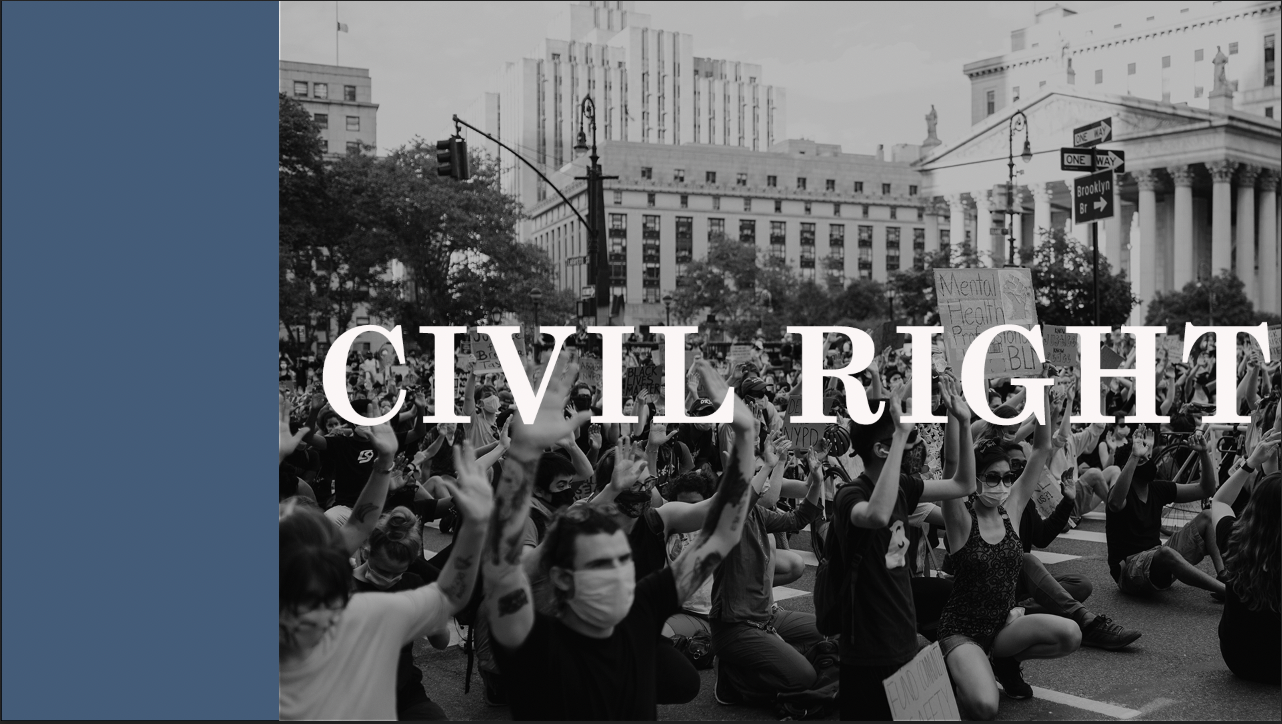
GOV310L PSD Assets

When creating an animation for After Effects, it is best to create all the scenes first in Photoshop or illustrator to create an easy transition to After Effects.


Scene 1:

Scene 2:

Scene 3:

Scene 4:

Scene 5:

Scene 6:

Scene 7:


Scene 8:


Scene 9:


Scene 10:

Scene 11:


GOV310L Final Intro

http://sta.laits.utexas.edu/wp-content/uploads/2022/09/GOV310L_Intro.mp4


Intro Process:

For this project, I found that is was extremely important to start with a plan. That reduces the amount of overall edits if you come up with an overall design layout. In addition, creating all the assets in photoshop first cut down the time spent organizing everything in After Effects.

Animation steps:

  1. Create an animation proposal for the assignment and share it with the client to highlight the scenes you will create. What the animation will be based off of. How long will it be and which graphics or elements will you include.
  2. Create the assets in Illustrator or Photoshop. If you are using vector graphics, Illustrator is the way to go. If you are using images, use photoshop.
    • Each scene will need it’s own psd or ai file
    • Share screenshots of the scenes to the client before you start the animation process.
  3. Create the After Effects file and import the different scenes. Create a main composition that you can add the scenes to and adjust the timing. Animate each scene individually in their own composition.

Filed Under: Fall 2022 - Spring 2023, Uncategorized, We are STAs

  • « Previous Page
  • 1
  • …
  • 40
  • 41
  • 42
  • 43
  • 44
  • …
  • 50
  • Next Page »

link to LAITS home page

Video STA Home

© 2025 Liberal Arts Instructional Technology Services | Production Credits