• We are STAs
    • Asha Rountree
    • Haley Ma
    • Kate Shih
    • Kyra Lee
    • Nicholas Peasley
    • Sasha Kenney
    • Shanda Horm
    • Shriya Atreya
    • Tomas Marulanda-Mesa
  • We were STAs
  • STA Presentation
    • STA Presentation 2017
    • STA Presentation 2016
  • Testimonials
  • Resources
  • Home

STA Blog

Lesson 6: Photography

April 15, 2021 By Sheryl Long

Lesson 6: Photography

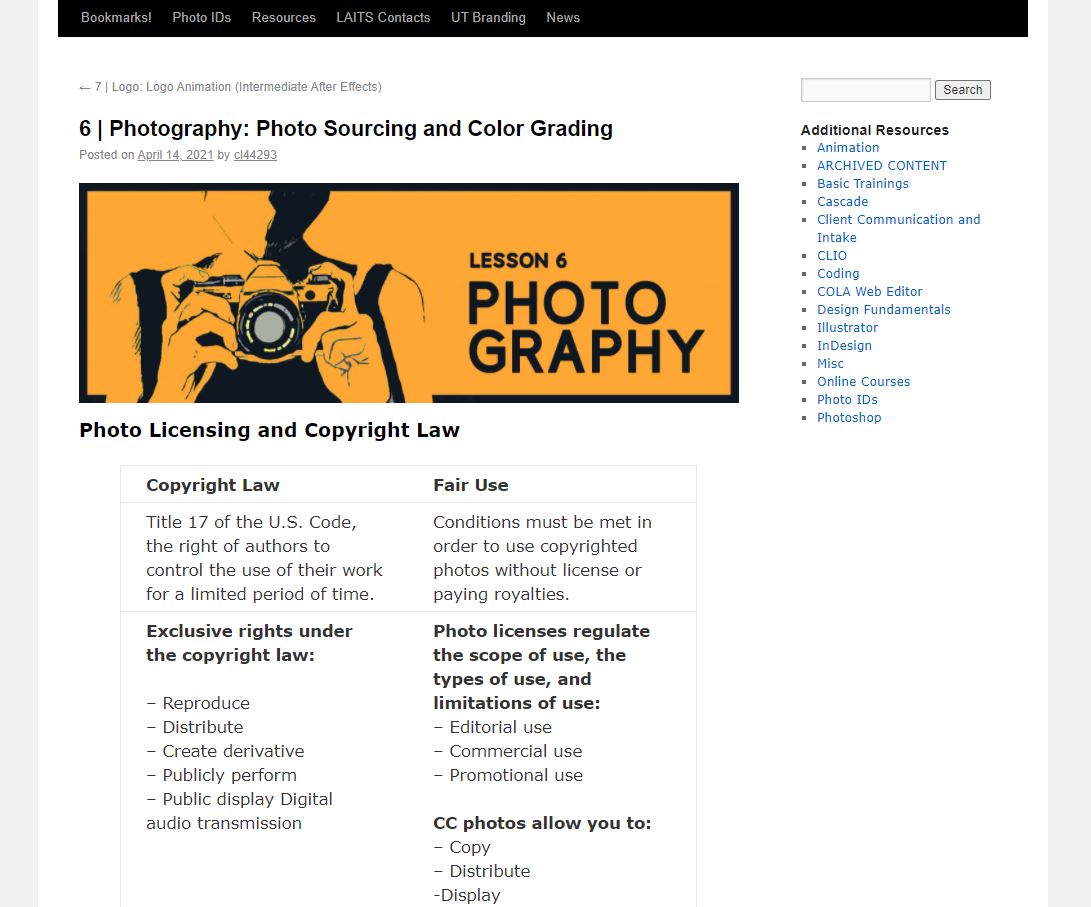
Megan and I did some research on photography earlier in the semester for our STA course program, and I finally had time to put those information together into a KB post.

Some of the topics we researched:

  • Photo licensing and copy right law
  • How to source CC photos
  • How to pick dynamic photos
  • Resolution and resizing photos

I also created a short color grading activity and a banner for this module. http://sites.la.utexas.edu/kb/2021/04/14/lesson-6-photo-sourcing-and-color-grading/
Filed Under: 2021 Spring - 2021 Summer

STA 2021 Poster

April 15, 2021 By Sheryl Long

STA 2021 Poster

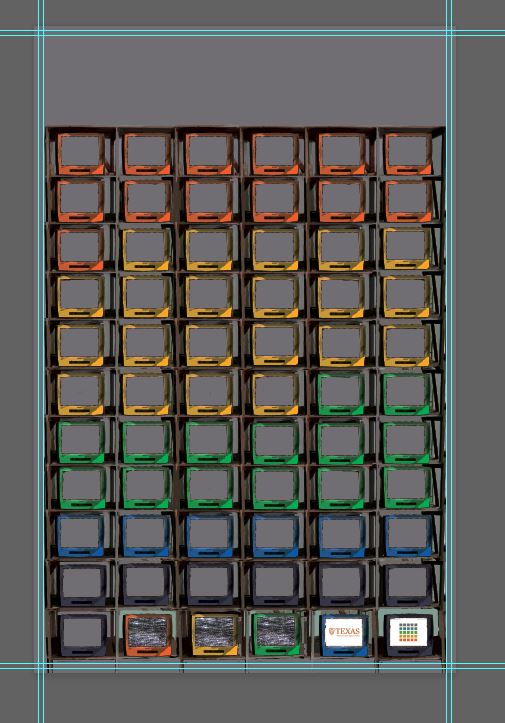
I was assigned to create the STA poster for this year, Mike wanted the theme to be stacks of old TVs with neon lights.

Some inspirations:

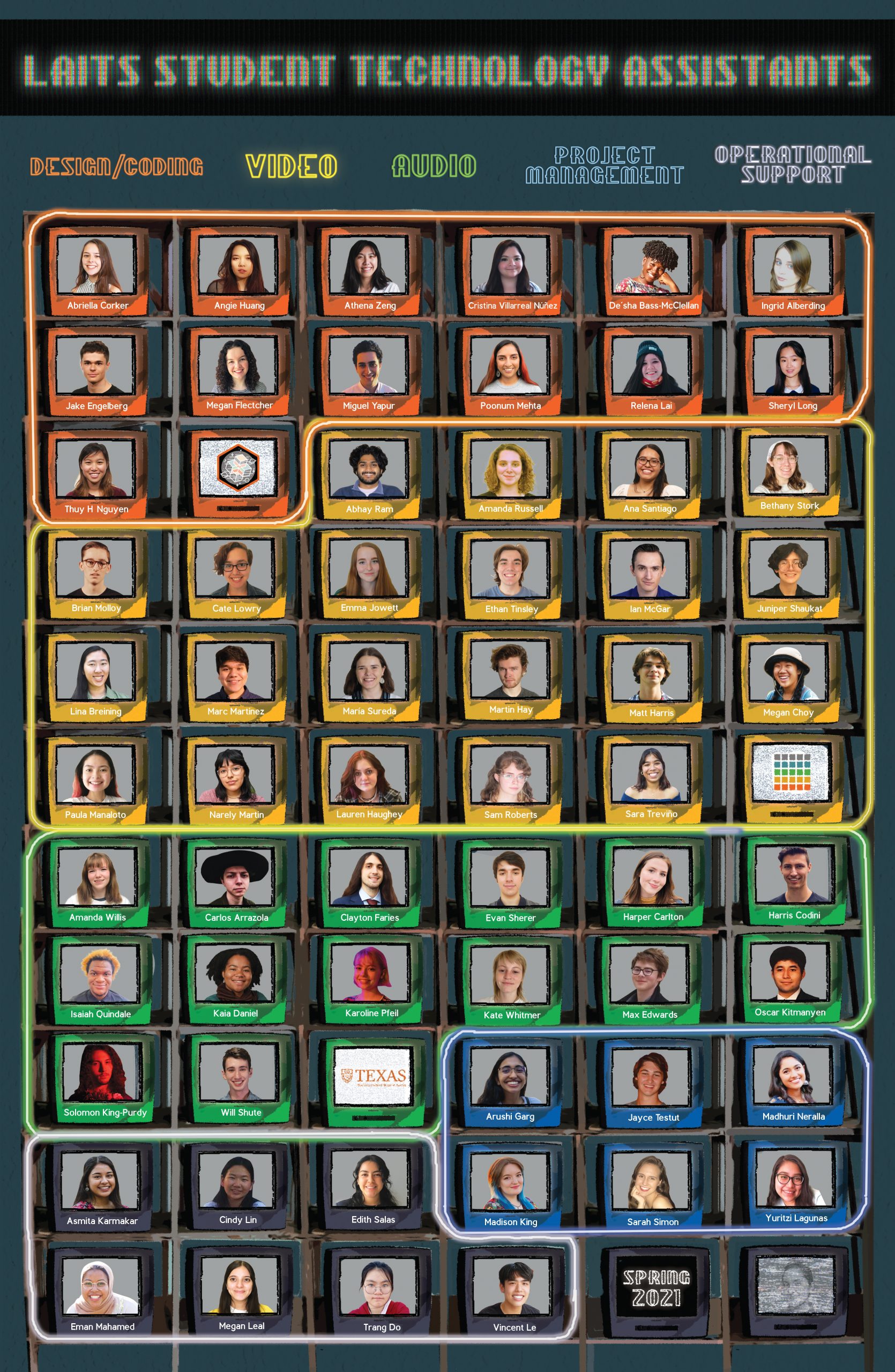
We have a lot of STAs on board this year, 71 in total!! I decided to use different color on the LAITS logo for each STA team, design/coding team has orange TVs, video team has yellow TVs, audio team has green TVs, project management team has blue TVs, and operational support team has light grey TVs.


And this is the final poster:

Filed Under: 2021 Spring - 2021 Summer

Testing the Video Manager

April 14, 2021 By Poonum Mehta

Hiiii bl∆g last week Maddy and I met with Marla and Heather to see if there was any work they’d like us to prioritize that they’re unable to manage. Heather told me that Ruben has been working on debugging a new video manager where professor’s lectures are uploaded, clipped, and captioned. She said she’d like for me to become familiar with the tool, and afterwards, I would help in documenting where people’s test-runs go wrong so that Ruben can fix things. The idea here is to have a middle man between the testers and Ruben so that debugging is more efficient.

So…began running through the testing instructions step-by-step yesterday afternoon. The “test” is to see if you can take an entire lecture, chop it into 5 pieces, and then render each video. These steps aren’t super clear, so it took me a bit to find the right buttons. I’m still not entirely sure I ran through these steps correctly, because my first render created a job with 27 separate tasks, and failed on the 4th of those 27. I’m pretty sure I’m only supposed to have 5 tasks, one for each clip that I’m creating. Furthermore, after attempting to re-render, The failed file blocked the new one from beginning to render, so that job just read “queued”.

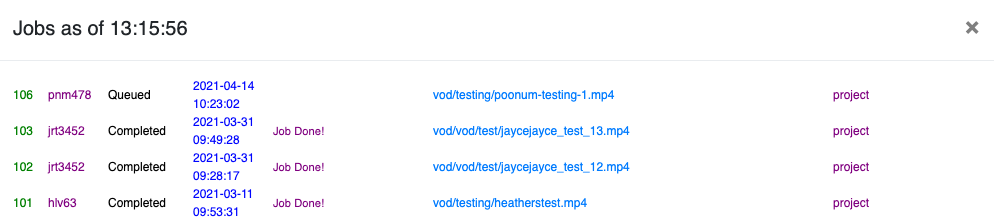
I spoke to Ruben about this, at which point he deleted both jobs and asked me to try again…this job is still stuck in “queued”. Notice how below, the job numbers jump from 103 to 106. That is because Ruben deleted my first two failed jobs:


Ruben has told me that the site is busted. Needless to say I’m impressed with myself 🙂 Hoping that things will be fixed soon. Regardless of this, I think some things should be changed on the documentation explaining how to test the video manager, so I will see if I can improve upon that in the mean time.

Filed Under: 2021 Spring - 2021 Summer

More on HealthyHorns

April 12, 2021 By Relena Lai

More on HealthyHorns

HealthyHorns is a sleep assessment designed to give feedback and resources to help improve your sleep. Upon completion of the survey, a customized document will be generated listing recommendations based on your answers.

Here are some of the recommendations a student could receive:

Filed Under: 2021 Spring - 2021 Summer

HIS 315K Course Package, UI/UX Training, Project Summaries, Cascade Help Request

April 12, 2021 By Athena Zeng

HIS 315K Course Package, UI/UX Training, Project Summaries, Cascade Help Request

HIS 315K Course Package

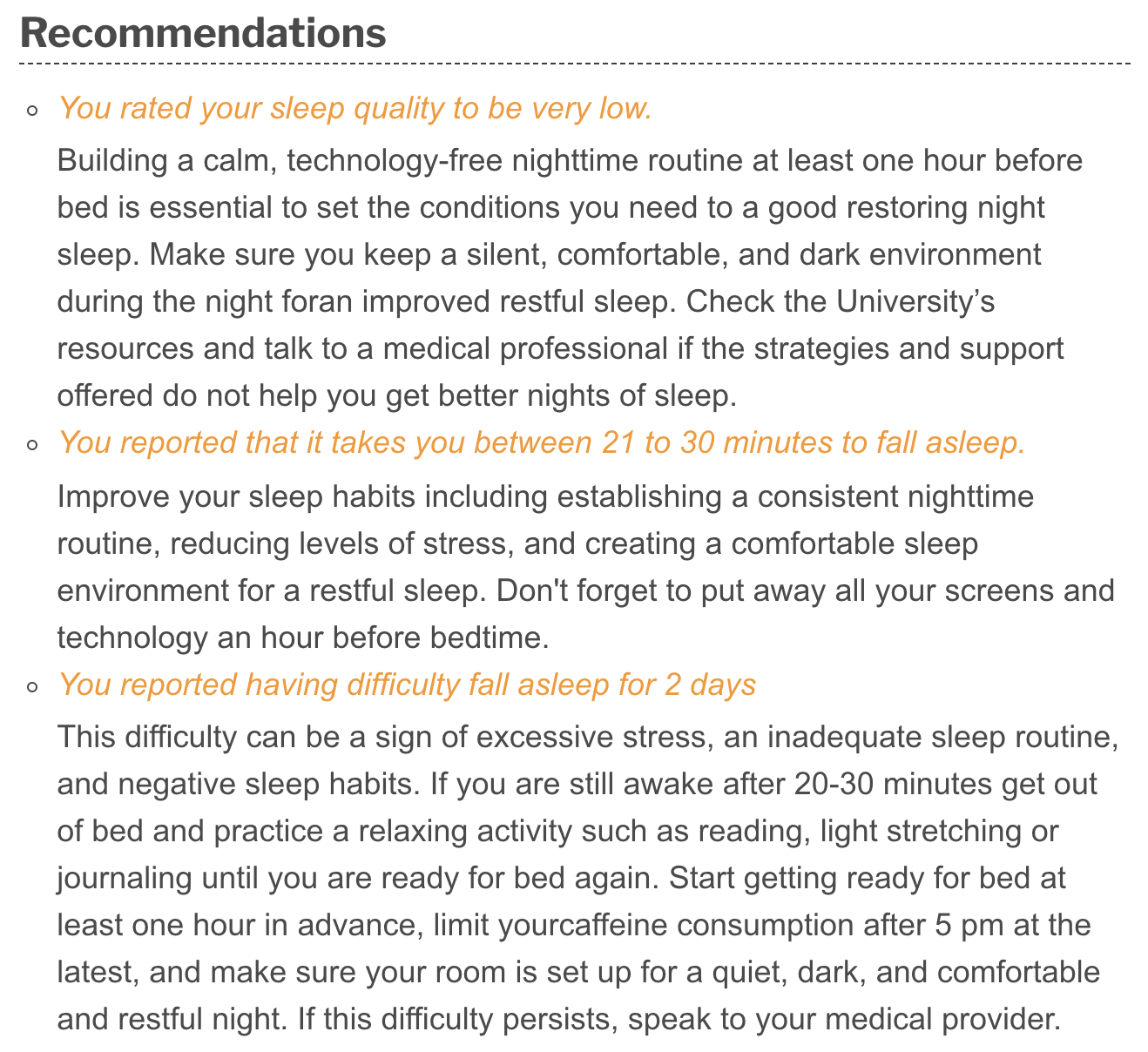
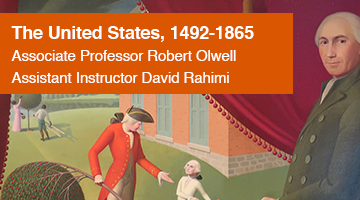
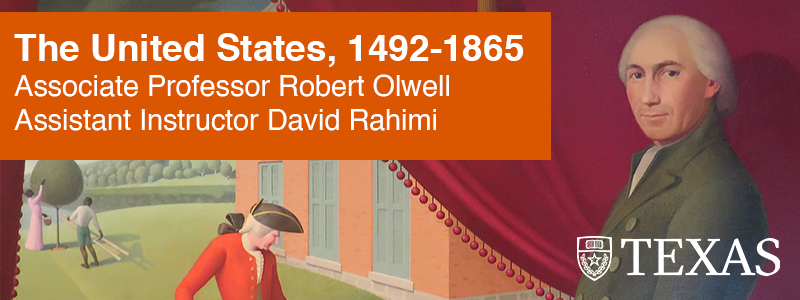
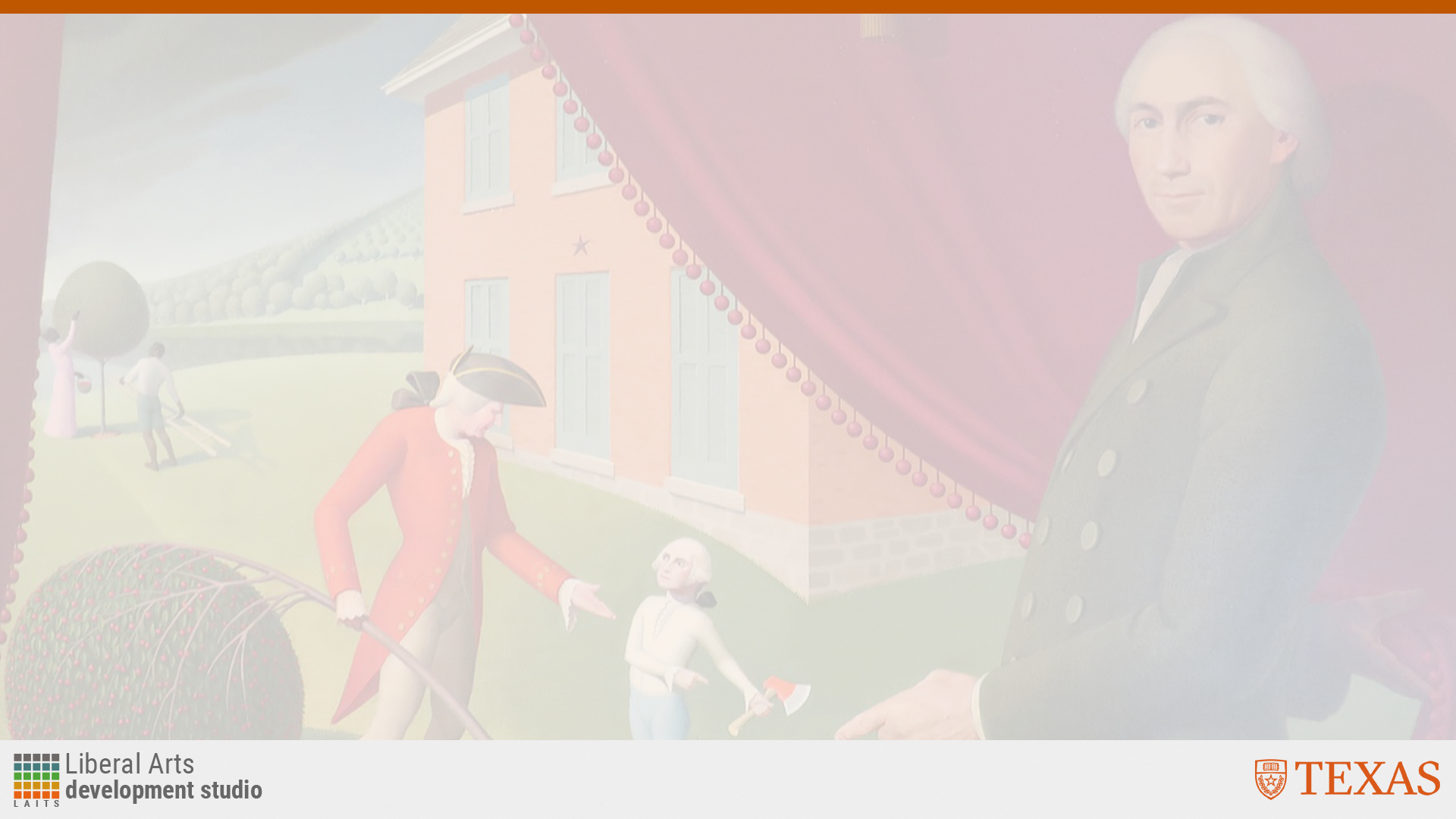
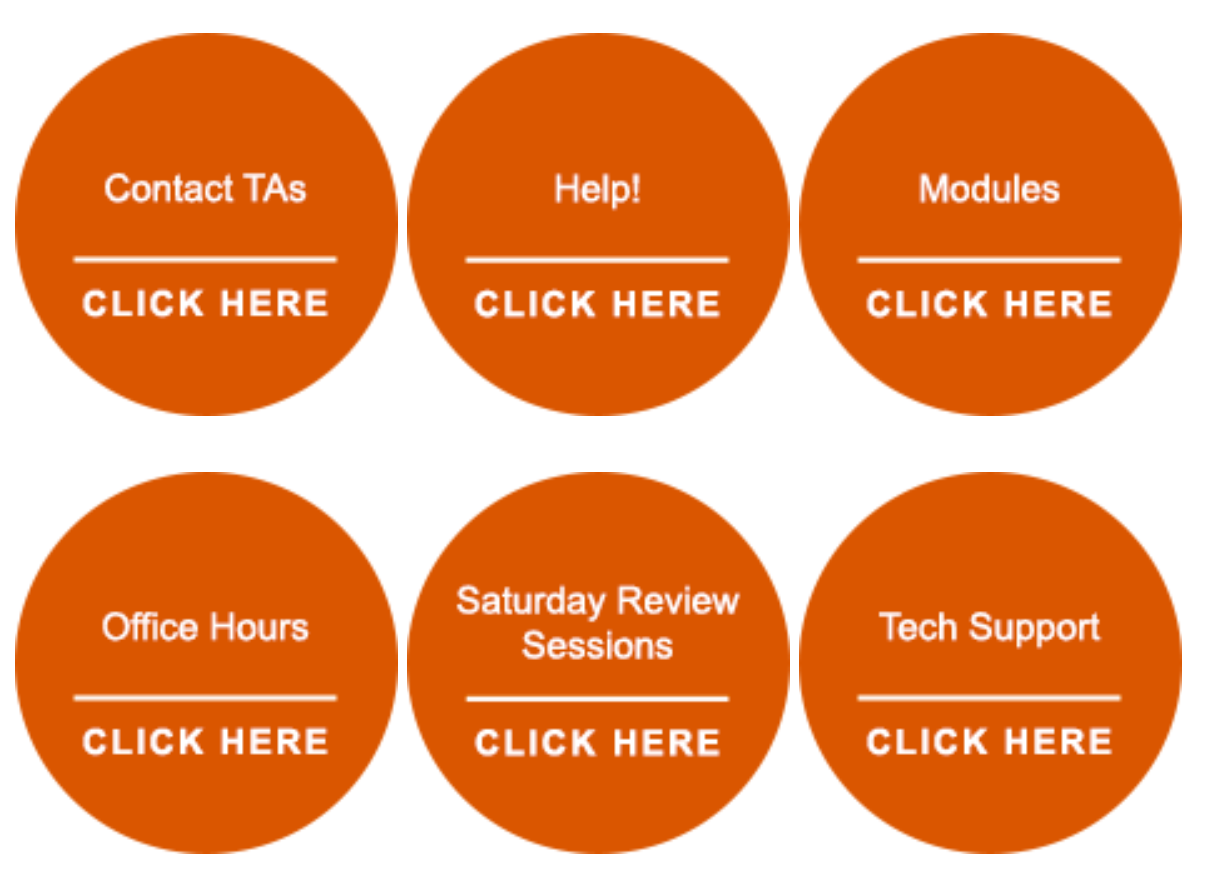
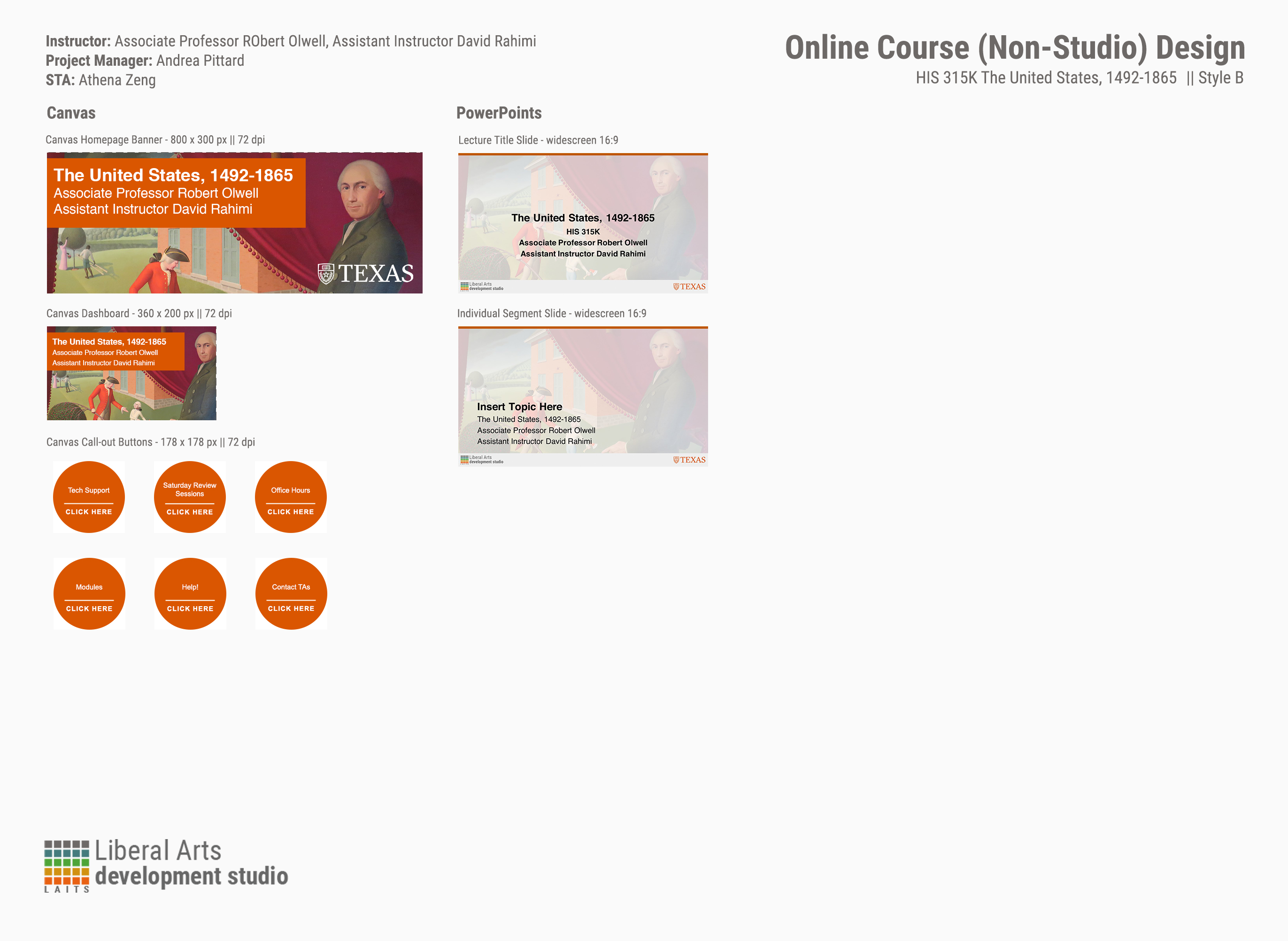
Last week, I completed a course graphics package for HIS 315K. We were asked to use the image below, with several historical figures. It is very action-packed, and there is a lot of symbolism behind the behavior and body language of the subjects. Traditionally, the color bar would be placed near the bottom of the Canvas Dashboard and Banner; however, Maddy and Suloni approved a different positioning that would allow viewers to see/understand all the subjects in the picture. That is why the color bar is higher than normal. Also, I was having some trouble with the burnt orange color bars. The color of the dashboard and banner appeared to be slightly different from the canvas callout buttons, despite the hex code being the same and all documents being set RGB settings. At Megan’s suggestion, I tried changing everything to PNGs to no avail. I also tried changing the dpi of the documents at Suloni’s suggestion. I ended up using another suggestion of Megan’s to manually adjust the color of the banner and dashboard from a screenshot, and that worked. Below are the canvas assets and the design menu.

UI/UX Training

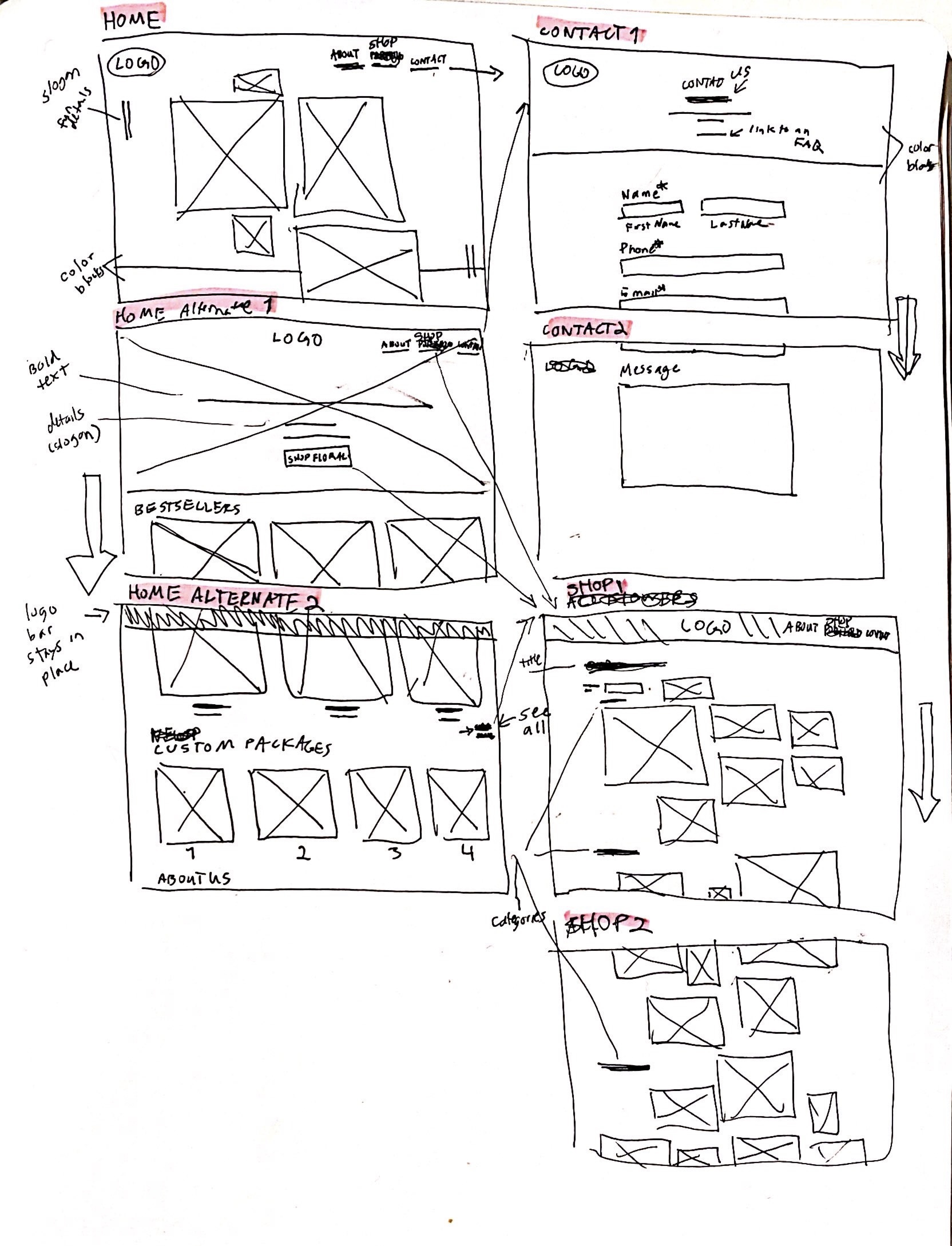
I began working on the UI/UX basic training. Here is my wireframe using pen and paper. I chose the Spicewoods Floral mock client, and I will continue mocking up the website on Figma. This website is for a luxury client who wants users to be funneled towards her communication channels. I got inspiration from random clothing retailers online who I felt also catered to luxury audiences.

Project Summaries

I also took a bit of time on Friday to write up project summaries for the Wellness project I worked on over winter break, the KB trainings I have been working on, and a personal project I have been doing with COVID policy tracking. I think the next stage is that they need to be approved. Eventually, they will become some sort of presentation that all STAs are invited to watch.

Cascade Help Request

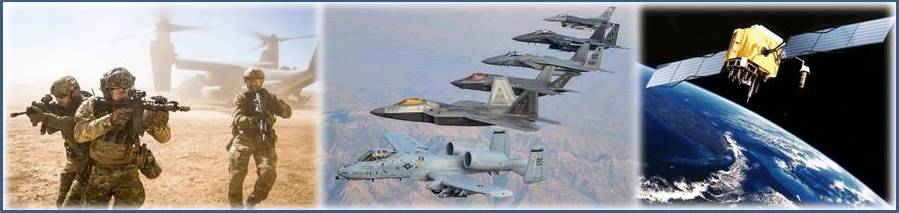
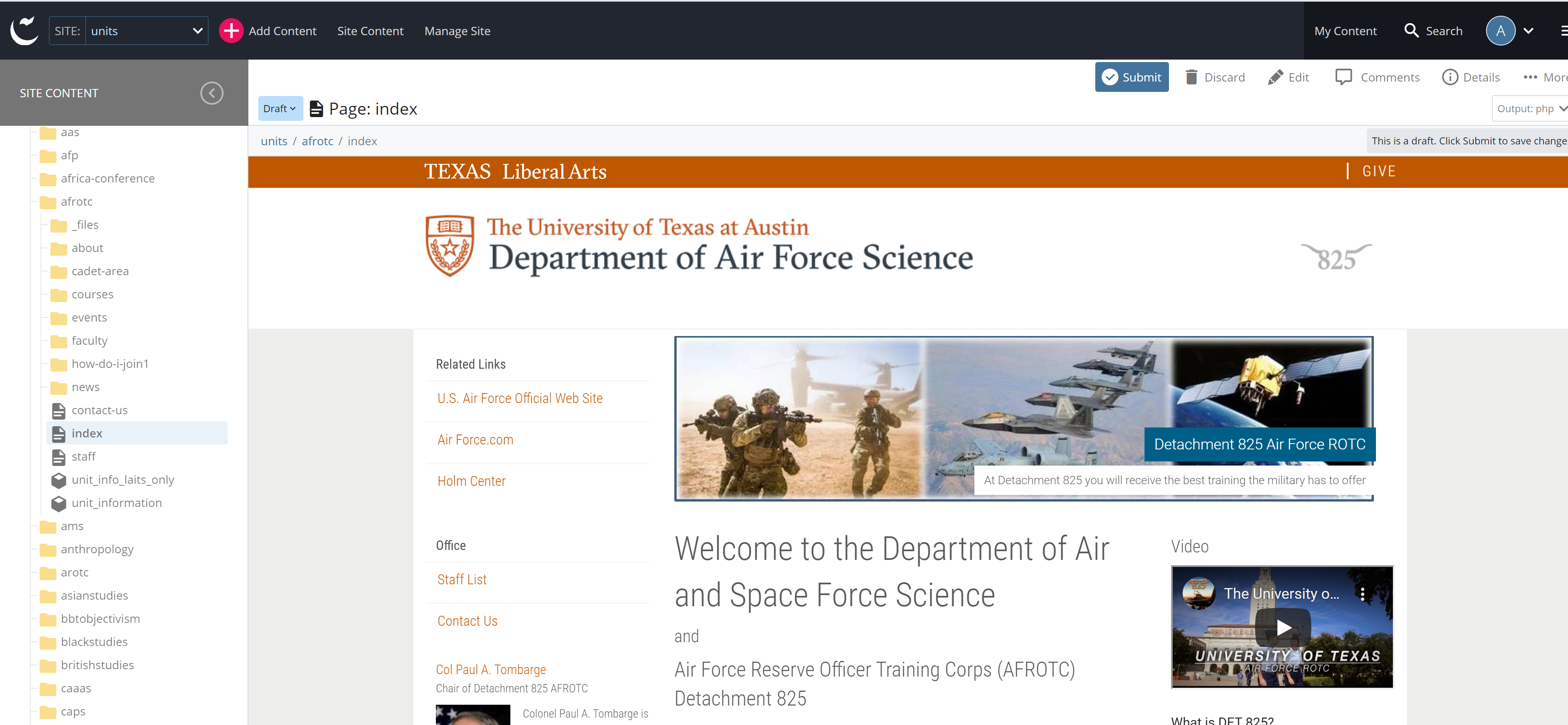
This morning, I also helped replace a banner for the Department of Air Force Science Cascade page. The new banner is pictured below. I went into the Cascade editor, uploaded the picture to the dept banners folder in units, replaced the old photo, and published the changes. This was the first time I have used Cascade since the basic training last semester, so I had to update the VPN system we use to log in remotely.


Outside of work new: I got vaccinated! I hope everything will improve soon, for both those in the US and globally. Also, I realized that the Orange Bike Project on campus, where I got my craigslist bike fixed, is open! So I scheduled an appointment for this coming Thursday, and hopefully I can get my bike fixed again.

Filed Under: 2021 Spring - 2021 Summer

Microeconomics

April 9, 2021 By Megan Fletcher

Microeconomics

So macroeconomics was the hardest AP test I took — no joke, I redrew a graph (in pen!) four times. Oh well. When I got this assignment and noticed it was style B with no pre-chosen image, my brain suddenly grew cobwebs. I had no idea what kind of image to pick: is money too literal? is a city too macro? is a neural net of connections too meta? Who knows, so I suggested all of them.


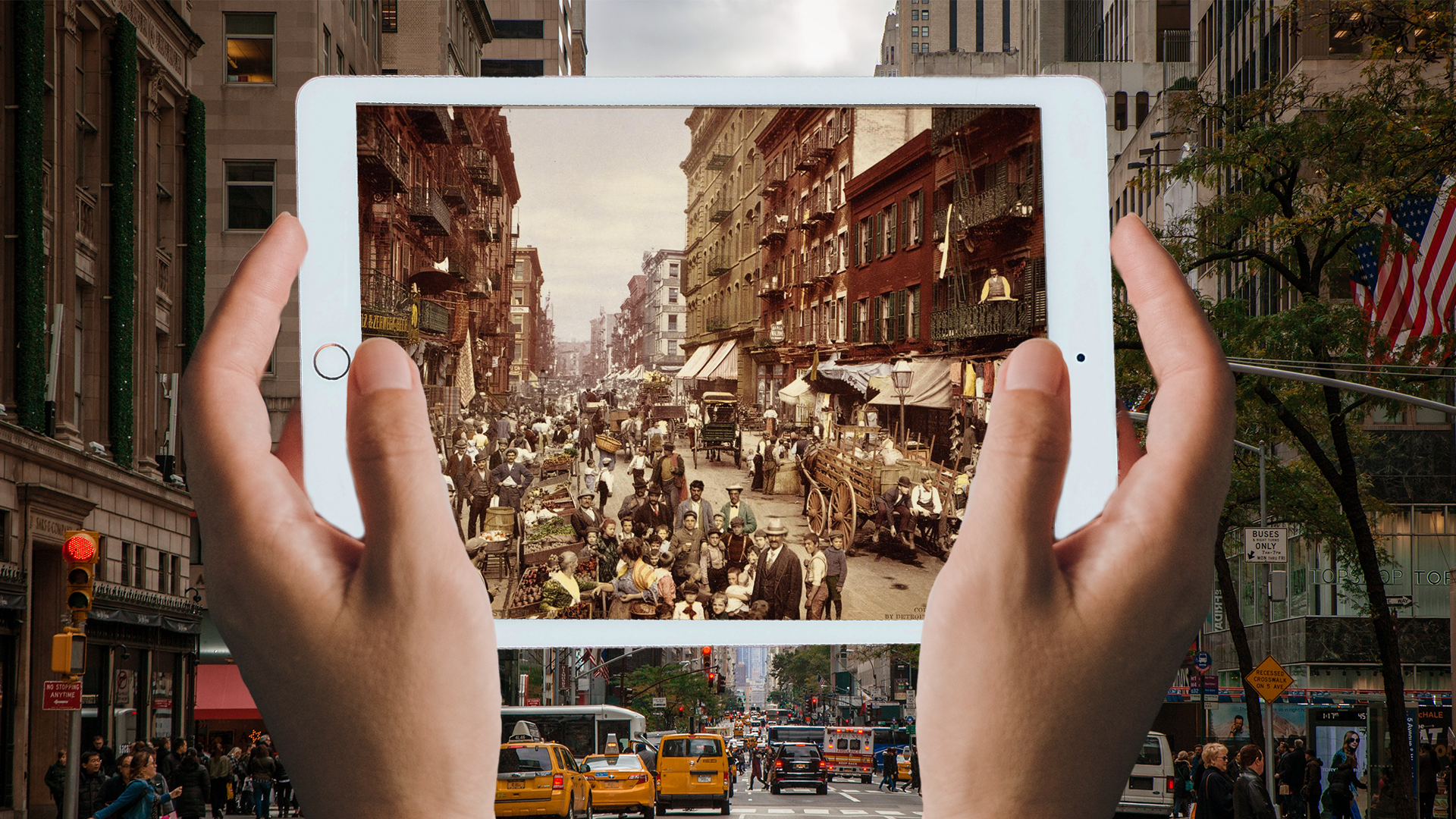
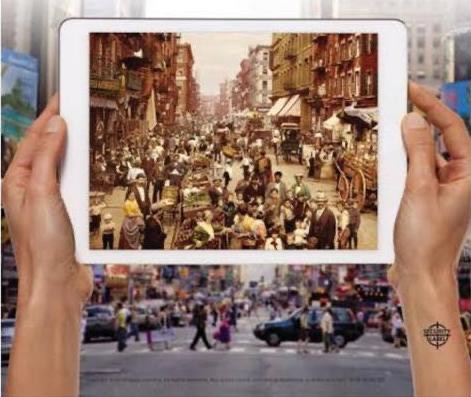
Thankfully, the professors picked a photo. But it was way small, so Poonum suggested I recreate it. (original at bottom, mine at top)

Here’s how I did it.

  1. Reverse image search the original image to find the historical image to put into the tablet (I used TinEye, which I usually use for journalistic projects for image verification)
  2. Open PSD doc in 1920×1080 and put in historical photo.
  3. Search Pexels or something similar for a copyright-free picture of an iPad. I looked for one without anything covering the edge.
  4. Cut out the tablet in Photoshop, then put it in the 1920×1080 doc.
  5. Search Pexels again, but this time for hands. It took me a few minutes to find a hand in the proper shape to “grip” the tablet.
  6. Cut out the hands in Photoshop, then paste them individually into the master doc.
  7. Layer the iPad in front of the historical photo and use Quick Select to select the black screen. Hit delete. 
  8. Move and resize the photo as needed to fill the iPad screen. Make a group folder for these two.
  9. Take the left hand and align it with the iPad so that it looks like it’s gripping it. There will probably be some overlap from fingers we want “behind” the tablet — just erase them with the eraser tool.
  10. For me, the other hand looked janky, so I deleted that layer and then duplicated the left hand one, then flipped it so that it looked like a right hand. Add the hands to the iPad+photo group folder. 
  11. Back to Pexels. Find a city image. Layer it behind everything.
  12. Adjust the size of the hands + iPad + photo as needed.
  13. Select the background image layer. Go to color balance and adjust until it matches the hands (for me, this was signifcantly warmer than the original background image).
  14. Select one of the hands. Adjust brightness + contrast until it matches the background. Do the same for the other hand and the iPad layer.
  15. Done!

Here are the course graphic drafts I’ve made:

Filed Under: 2021 Spring - 2021 Summer, We are STAs

  • « Previous Page
  • 1
  • …
  • 17
  • 18
  • 19
  • 20
  • 21
  • …
  • 39
  • Next Page »

link to LAITS home page

Video STA Home

© 2025 Liberal Arts Instructional Technology Services | Production Credits