• We are STAs
    • Asha Rountree
    • Haley Ma
    • Kate Shih
    • Kyra Lee
    • Nicholas Peasley
    • Sasha Kenney
    • Shanda Horm
    • Shriya Atreya
    • Tomas Marulanda-Mesa
  • We were STAs
  • STA Presentation
    • STA Presentation 2017
    • STA Presentation 2016
  • Testimonials
  • Resources
  • Home

STA Blog

Adrian McKee

Adrian McKee

Adrian’s 1st Week

August 26, 2021 By Adrian McKee

Adrian’s 1st Week

This week started two days early for me, due to a scheduling miscommunication. In that time I’ve mostly been working on Cascade training, which has taken a bit more than the prescribed 6-8 hours for me. I’m quite proud of my Galilean moon-themed site so far (my first idea was insects, but that was unsurprisingly taken) and as of writing all I have left is the custom buttons and pull quotes. The tables section especially took quite a long time to troubleshoot in HTML, and I’ll admit I deliberated a bit on the theme (I put a few placeholders for the first sections before deciding and going back to update them).
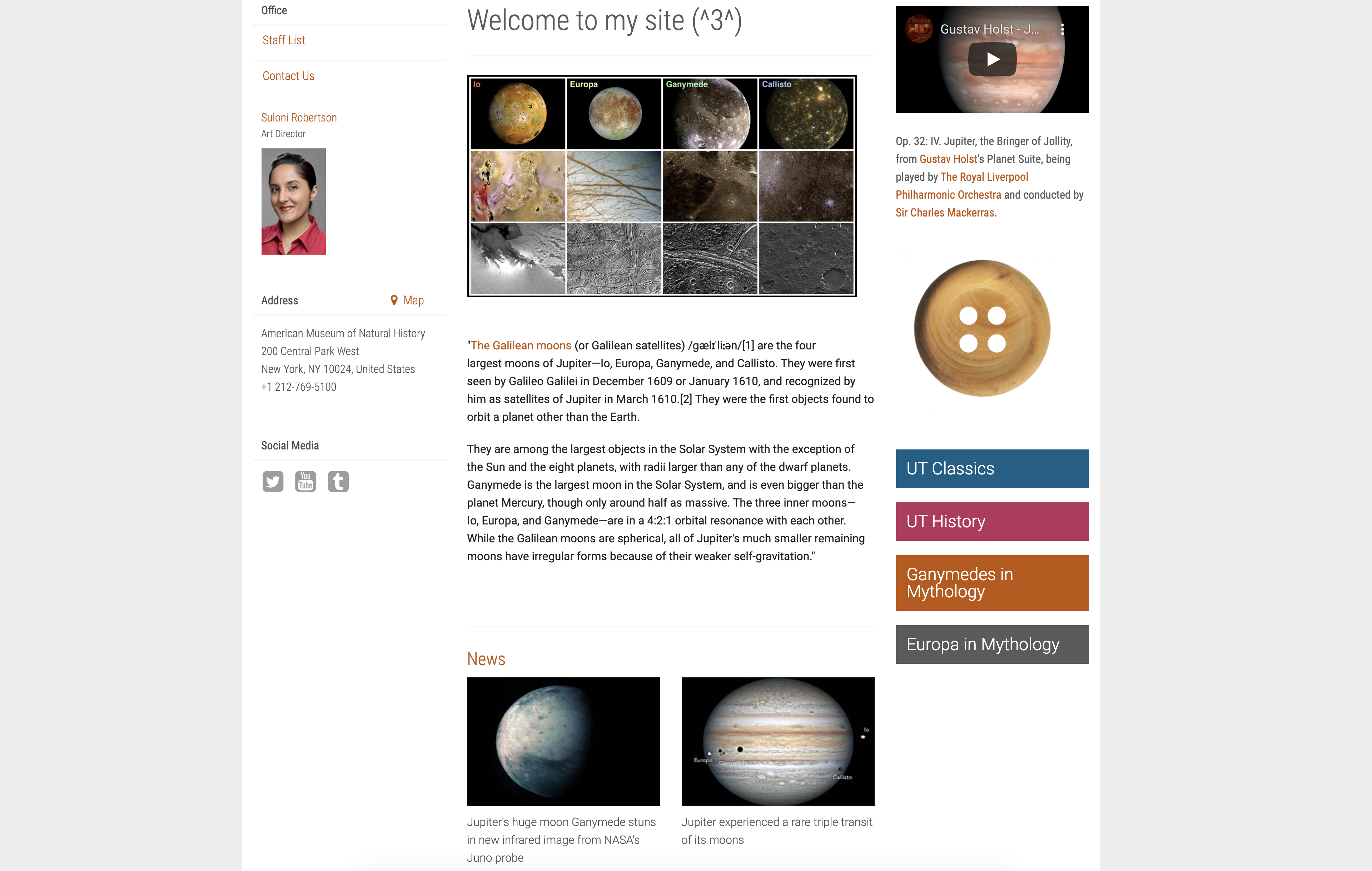
For the sidebar, I wasn’t quite clear on what to do for the button or what “news site” to link it to, so I linked a wooden button to an article on the history of buttons.
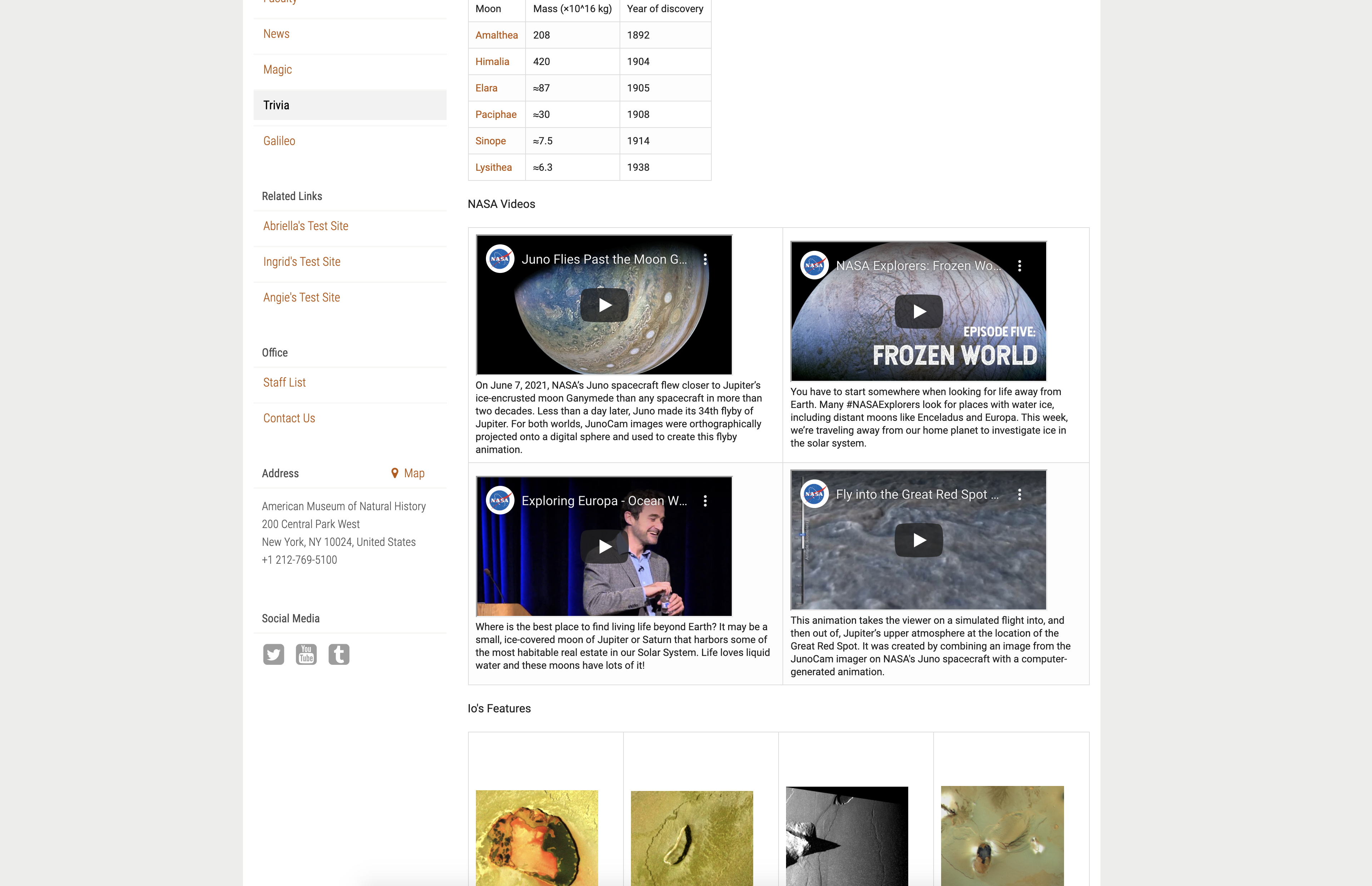
 

The video table in particular took a lot of reformatting. I rewrote the entire html in textedit to test multiple versions and see what was causing the videos to appear outside the table (it was a single missing<dv> tag).
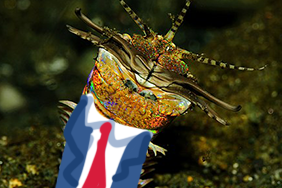
In my first draft, I was going for a marine biology theme and made news posts about a marine worm being chaired as the new dean and cutting pay for all non-worm staff, but I realized the silly theme would be hard to hold together for the whole site. I did, however, make this excellent picture in Photoshop that I hope to use for something else.
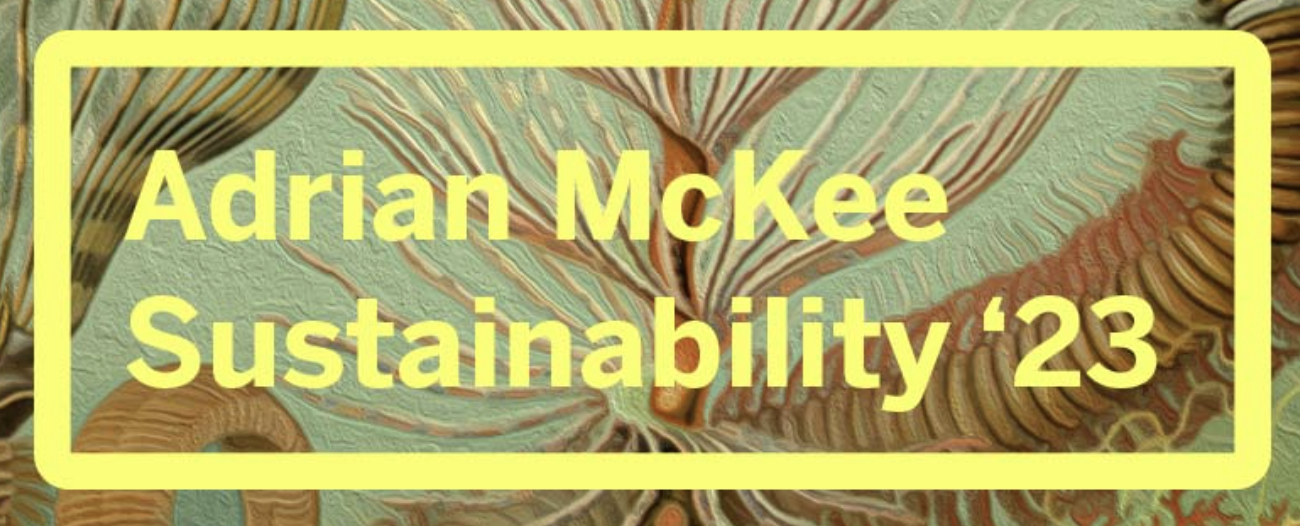
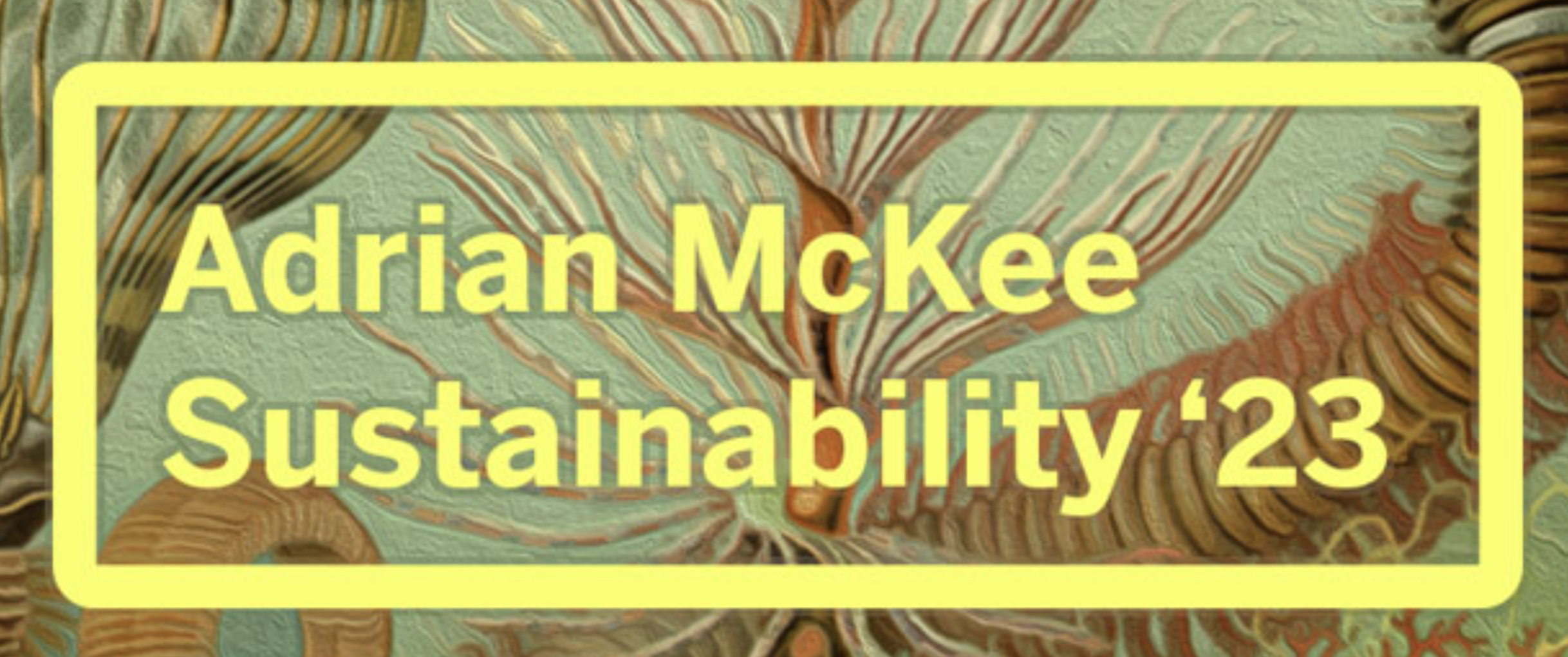
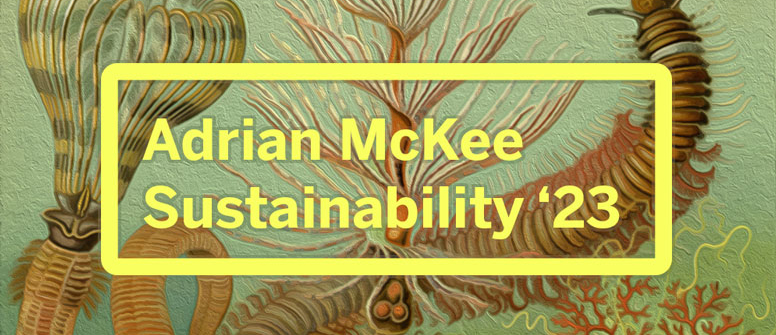
I spent a fair amount of time guessing my way around Photoshop with only Gimp as prior experience, and applied an oil painting filter to a cropped Ernest Haeckel engraving of polychaete worms for my backdrop. I made two versions of the overlay text and rectangle: one flat, as featured on my STA test site, and one with a slightly darkened outline, as featured on this blog. The latter I was trying to make a ribbon that would only appear over the lighter portions of the backdrop to enhance the contrast, using the luminosity tool, but I don’t know enough about how layer blending works to get it perfectly right. Another tricky thing was maintaining image quality and learning the “export for web” tool; I had to resize a gif (below) to upload to Cascade.

Original

Resized (with a lot of quality loss :c )

Yesterday, I had a meeting to learn about Pages, and have been assigned some training for the editor which I have yet to start. Hopefully I can start those by the time I’m presenting this! All in all, pretty good first week.


Filed Under: Fall 2021 - Spring 2022

Welcome to the STA Blog!

August 16, 2021 By Adrian McKee

Hi Adrian! 🙂 Welcome to the STA Blog! This the page where your blog posts will published.
Toward the end of your STA Orientation, you’ll design and upload a banner to go at the top of this page.

Upload a Blog Banner


Step One: Design Your Banner in Photoshop

Use these Photoshop specs when you’re making your banner:

  • Your banner should be 780 pixels wide (the height doesn’t matter)
    • Must include your name, your major, and your expected graduation year
    • Your banner should reflect who you are (your personality, interests or major)
    • Make sure to save your banner for the web (i.e. File > Export > Save for Web (Legacy))
    • If you save your banner as a JPG, make sure sure the quality is high (i.e. at least 60)

Step Two: Save Your Banner

  • There are two places you can save your completed projects: UT Box and the LAITS server. You’ll be given a personal folder in both locations. For now, you only have to save your banner to UT Box, but you may have to access the server at some point in the future.

Accessing UT Box

  • If you haven’t already registered with Duo,  follow the instructions here to set up an account.
    • Then log in to UT Box with your EID and password: http://utexas.box.com/
    • Go to the folder called Design-Coding-STAs, then the subfolder STA-folders
    • Find the folder with your name on it
    • Save your banner both as an image and an unmerged PSD

Accessing the LAITS server

  • Accessing the LAITS server from off-campus is slightly more complicated.
    • You’ll need to be registered with Duo if you aren’t already (you can register here).
    • Then you’ll need to connect to the UT VPN and the LAITS server. The videos below will walk you through how to do that:
      • Connect to the Server – PC
      • Connect to the Server – Mac
    •  Then navigate to your STA volume folder and save
      • smb://file.laits.utexas.edu/sta/Adrian McKee
    • Save your banner both as an image and an unmerged PSD

Step Three: Upload Your Banner to the STA Blog

  • Log in the the STA Blog here.  You should’ve received an email confirming your new WordPress account with your username and assigned password. If didn’t get it or you can’t log in, ask Suloni or another STA.
  • You’ll be able to change your password anytime by going to Users > Your Profile > Account Management > New Password.

Uploading media and banners in WP

  • Read these links before you upload your banner.
  • They will walk you through how to upload media to your blog.

How to Upload a Homepage Banner

Adding New Posts and Media

Filed Under: Fall 2021 - Spring 2022, We are STAs

  • « Previous Page
  • 1
  • …
  • 11
  • 12
  • 13

link to LAITS home page

Video STA Home

© 2025 Liberal Arts Instructional Technology Services | Production Credits